Appointment Scheduling Automation Template for Small Businesses
An appointment scheduling automation template helps small businesses manage bookings, availability checks, intake forms, confirmations, reminders, rescheduling, cancellations, CRM updates, and human review without manually coordinating every appointment.
This template is useful for agencies, consultants, clinics, service businesses, sales teams, coaches, local businesses, and operations teams that rely on appointments but waste time with back-and-forth emails, missed reminders, unclear time zones, duplicate bookings, and incomplete client details.
In this guide, you will learn how to build an appointment scheduling automation template that connects booking requests, calendar availability, intake details, confirmations, reminder sequences, rescheduling rules, CRM updates, and review steps. If you are new to automation, start with our AI automation for small business guide, then explore the full TakeYourAI workflow templates library.
Quick answer: Use an appointment scheduling automation template when your business needs to let clients, leads, patients, or prospects book time, complete intake details, receive confirmations, get reminders, reschedule when needed, and update CRM or client records automatically. Keep human review for high-value bookings, sensitive appointments, unclear intake answers, custom service requests, VIP clients, and appointment types that require approval.
What This Appointment Scheduling Automation Template Does
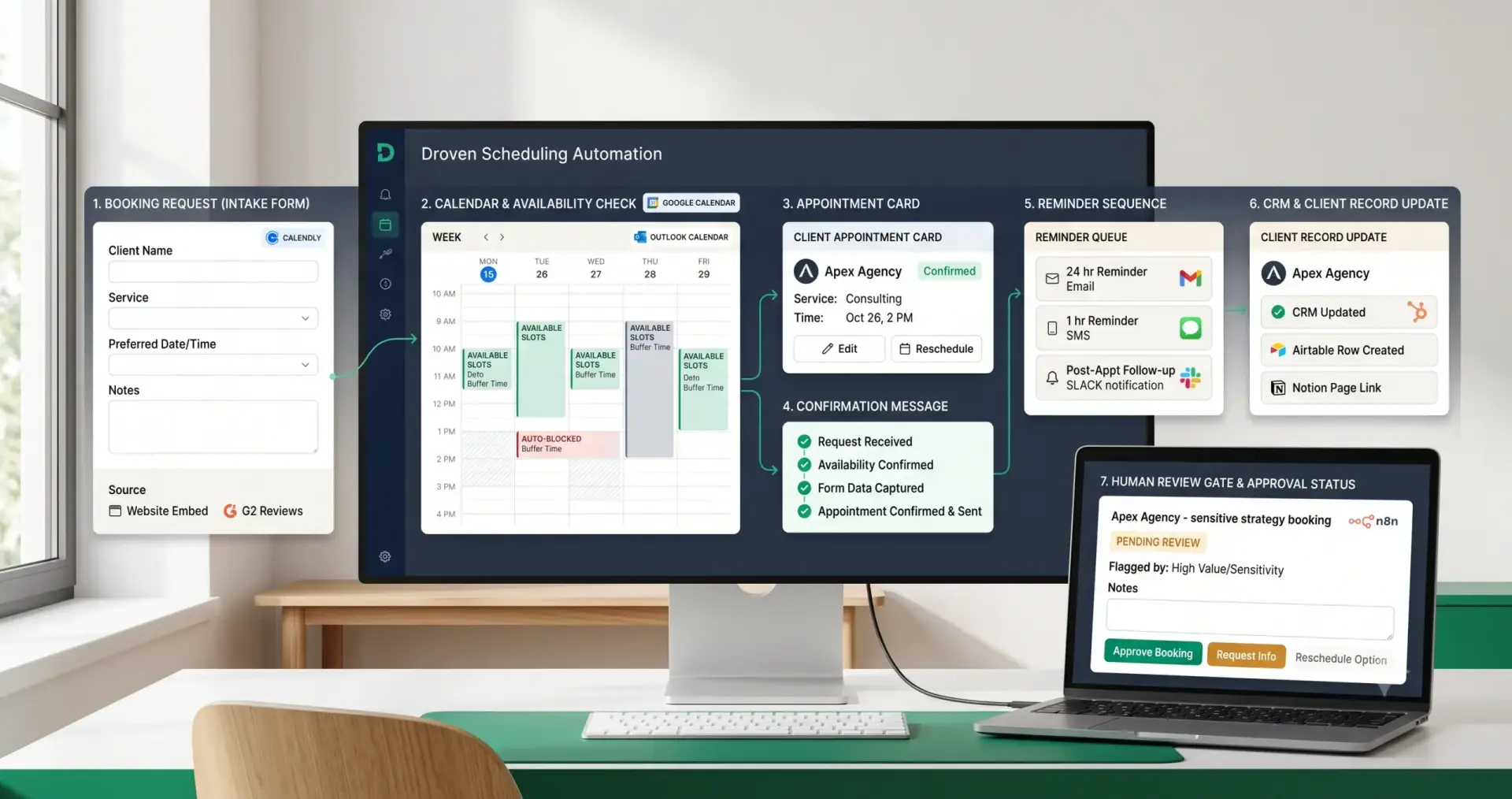
This appointment scheduling automation template gives you the workflow logic for turning appointment requests into confirmed calendar events, reminders, records, and follow-up tasks. It can receive a booking request, check availability, collect intake details, create a calendar event, send confirmation, start reminders, handle rescheduling, update the CRM, and route unusual bookings to review.
A simple version can connect a booking form to a calendar and send reminder emails. A more advanced version can use appointment type, customer segment, intake answers, lead score, service category, staff availability, location, time zone, and CRM context to decide what should happen next.
| Automation job | Example | Why it helps |
|---|---|---|
| Receive booking request | Lead books a consultation, client requests a service call, patient selects a slot, or prospect schedules a demo. | Starts the appointment workflow from one structured source. |
| Check availability | Compare selected time with Google Calendar, Outlook Calendar, Calendly, Acuity, or Bookings availability. | Reduces double-booking and manual coordination. |
| Collect intake details | Name, email, phone, appointment type, service need, notes, location, time zone, and consent fields. | Prepares the team before the appointment. |
| Create calendar event | Add appointment to the right staff calendar with title, attendee, location, notes, and meeting link. | Makes the booking visible and trackable. |
| Send confirmation | Email or message with date, time, location, meeting link, preparation steps, and reschedule link. | Improves customer experience and reduces confusion. |
| Start reminders | Send reminders 24 hours and 1 hour before the appointment. | Reduces no-shows and missed meetings. |
| Update CRM or client record | Add booking status, appointment type, owner, source, intake summary, and appointment link. | Keeps customer history organized. |
| Route human review | Review VIP bookings, sensitive appointments, unclear intake answers, or unusual service requests. | Keeps control over high-impact bookings. |
Who Should Use It?
An appointment scheduling automation template is useful for small businesses that book meetings, consultations, demos, service visits, client calls, discovery sessions, or follow-up appointments.
- Consultants who need booking pages, intake questions, reminders, and follow-up tasks.
- Agencies that schedule discovery calls, onboarding calls, client reviews, and strategy sessions.
- Sales teams that book demos, qualification calls, proposal reviews, and follow-ups.
- Clinics and appointment-based service businesses that need intake details and reminders.
- Coaches, trainers, advisors, and local businesses that manage recurring appointments.
- Operations teams that want scheduling connected to CRM, tasks, email, reporting, and customer records.
This workflow connects naturally with CRM update automation, sales follow-up automation, meeting notes automation, email management automation, and admin and back-office automation.
Workflow Overview
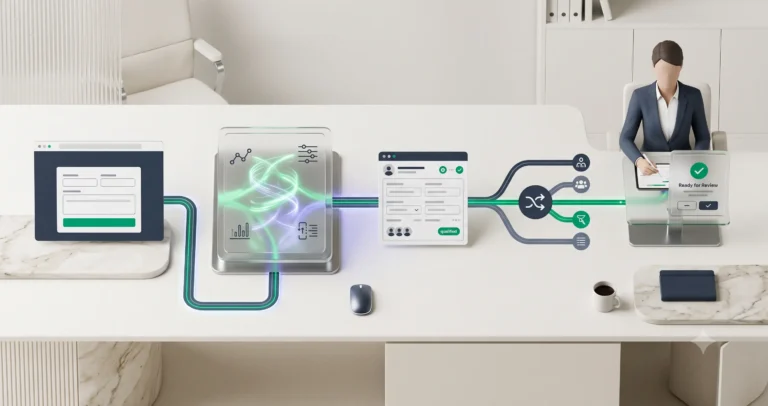
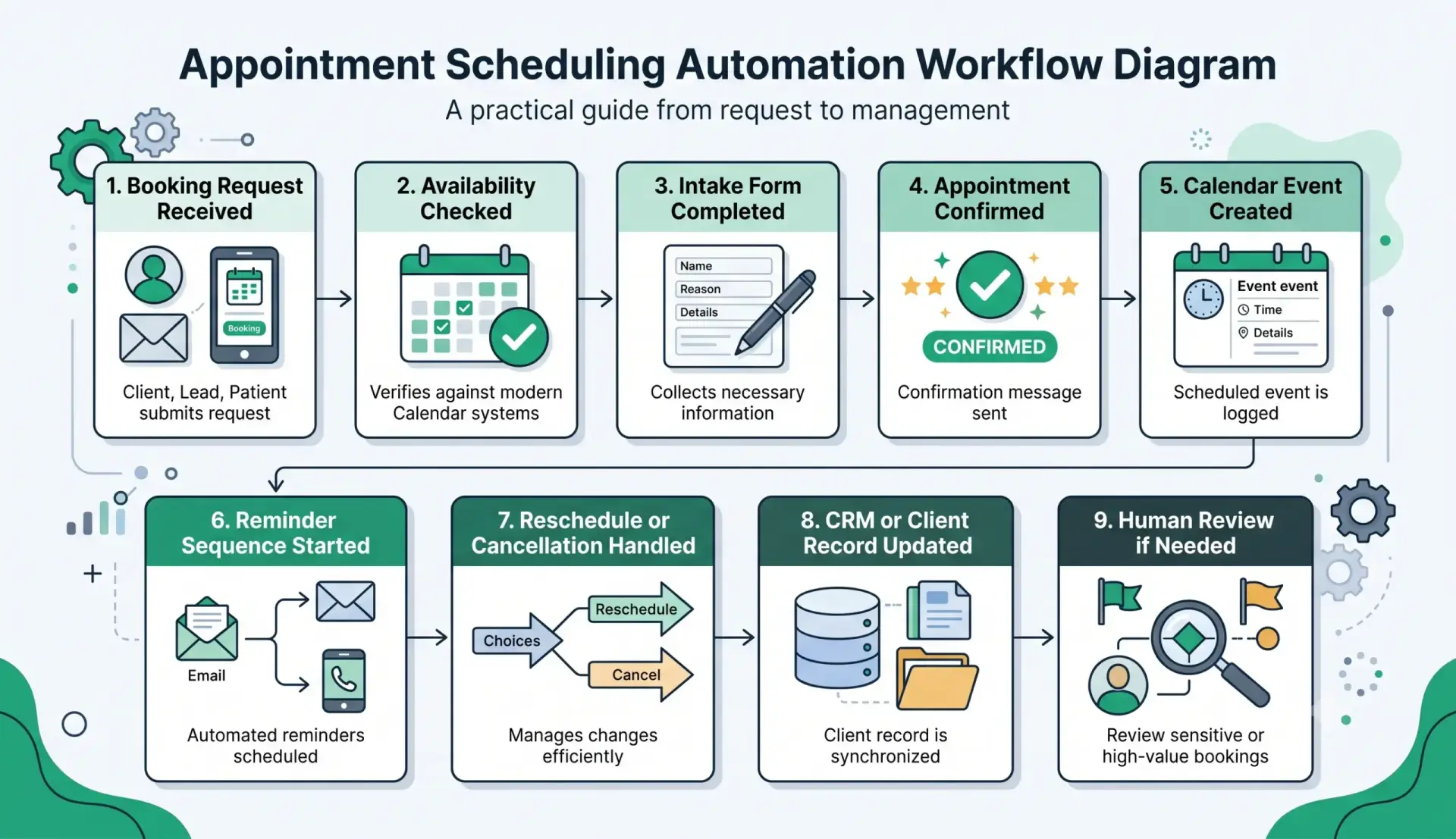
A reliable appointment scheduling automation template has nine core parts: booking request received, availability checked, intake form completed, appointment confirmed, calendar event created, reminder sequence started, reschedule or cancellation handled, CRM or client record updated, and human review if needed.
| Workflow step | What happens | Output |
|---|---|---|
| Booking request received | A lead, client, patient, customer, or prospect requests an appointment. | Booking workflow starts. |
| Availability checked | The system checks staff calendar, appointment type, duration, buffer time, and booking rules. | Valid time slots are selected. |
| Intake form completed | The requester submits required details before confirmation. | Appointment context is captured. |
| Appointment confirmed | The booking is accepted or held for review depending on rules. | Confirmed or review-needed status is created. |
| Calendar event created | The event is added to the correct calendar with attendee and meeting details. | Appointment becomes visible to staff. |
| Reminder sequence started | Email or SMS reminders are scheduled before the appointment. | Reminder timeline is active. |
| Reschedule or cancellation handled | The workflow updates calendar, record, notifications, and status when changes happen. | Booking history stays accurate. |
| CRM or client record updated | The workflow stores appointment type, source, notes, owner, and next action. | Customer record is updated. |
| Human review if needed | High-value, sensitive, unusual, or incomplete bookings are reviewed. | Approved, corrected, rejected, or clarified. |
How the Appointment Scheduling Automation Workflow Works
The workflow should start with one booking source. That source may be Calendly, Google Calendar appointment schedules, Microsoft Bookings, Acuity Scheduling, a form, a CRM booking page, or a custom appointment request. Start with one appointment type before expanding to every meeting category.
Once the booking request enters the workflow, the automation checks availability, collects intake details, confirms the appointment, creates the calendar event, sends confirmation, starts reminders, updates the customer record, and routes risky or unclear bookings to human review.
Step 1: Receive the booking request
The appointment scheduling automation template starts when someone requests a meeting or service appointment. The trigger can be a booking page submission, website form, CRM stage change, email request, call center entry, or internal scheduling task.
Step 2: Check calendar availability
The workflow should check available time slots, staff calendar rules, service duration, buffer time, working hours, blocked dates, time zone, and appointment type. Google Calendar appointment schedules can create booking pages and collect booking form fields from attendees: Google Calendar appointment schedules documentation.
Step 3: Collect intake details
Before confirming the appointment, the workflow should collect enough information to prepare the team. For example, a sales call may need company size and business need, while a service appointment may need location, issue type, photos, or preferred contact method.
Step 4: Confirm the appointment
For standard bookings, the appointment can be confirmed automatically. For sensitive, high-value, or unusual bookings, the workflow should create a review task before confirmation.
Step 5: Create the calendar event
The event should include title, date, time, time zone, attendee, appointment type, location or meeting link, intake summary, owner, and related record link.
Step 6: Send confirmation and reminders
The confirmation should include the appointment time, preparation instructions, reschedule link, cancellation rule, and contact method. Calendly Workflows can automate email and text messages around meetings, including reminders and follow-ups: Calendly workflow documentation.
Step 7: Update records and handle changes
The workflow should update the CRM, client record, appointment tracker, support record, or project workspace. If the appointment is rescheduled or canceled, the same record should be updated instead of creating conflicting entries.
Required Inputs
An appointment scheduling automation template becomes reliable when the workflow receives clean appointment details, clear availability rules, and enough customer context before confirmation.
| Input | Example | Use in workflow |
|---|---|---|
| Requester details | Name, email, phone, company, customer ID, lead source. | Identifies who is booking. |
| Appointment type | Discovery call, demo, consultation, service visit, onboarding call, follow-up. | Controls duration, routing, and intake questions. |
| Availability rules | Working hours, blocked dates, buffer time, staff calendars, booking limits. | Prevents invalid bookings. |
| Time zone | Requester time zone and business time zone. | Reduces missed appointments. |
| Intake answers | Reason for appointment, service need, budget, issue, notes, attachments, location. | Prepares the team and supports review. |
| Reminder rules | Send confirmation immediately, reminder 24 hours before, reminder 1 hour before. | Improves attendance. |
| Review rules | Review required for VIP clients, sensitive services, custom requests, or missing details. | Controls risk before confirmation. |
| Output destination | Calendar, CRM, spreadsheet, task tool, email, Slack, booking platform. | Controls where appointment data is stored. |
Practical rule: if the workflow does not know the requester, appointment type, time zone, calendar owner, intake details, or review status, it should hold the booking for review instead of confirming it blindly.
Booking and Intake Logic
The booking and intake layer decides whether an appointment can be confirmed immediately or should be routed to a human. This is where the appointment scheduling automation template protects the business from incomplete, wrong, or risky bookings.
| Booking condition | Automation action | Review trigger |
|---|---|---|
| Standard consultation | Confirm appointment, create event, send confirmation, update CRM. | Review only if required fields are missing. |
| Sales demo request | Check lead context, create calendar event, notify sales owner. | Review enterprise, high-value, or unclear-fit leads. |
| Service appointment | Collect location, issue type, availability, and required preparation details. | Review unusual service requests or missing location details. |
| Client onboarding call | Create event, attach intake form, update onboarding workspace. | Review if contract, payment, or setup status is incomplete. |
| Medical, legal, financial, or sensitive topic | Collect required context and route to staff review. | Always review before confirmation if the business requires screening. |
| VIP or high-value account | Notify owner and create priority task. | Review before confirming unusual times or custom requests. |
| Incomplete intake form | Request missing details or hold appointment. | Review if required information is missing. |
AI Appointment Scheduling Prompt Template
AI can help summarize booking requests, classify appointment type, identify missing intake details, and prepare confirmation notes. However, AI should not confirm sensitive or unusual appointments without business rules.
Copy-paste prompt structure:
You are helping prepare an appointment scheduling workflow for a small business. Use only the booking request, calendar rules, intake answers, and customer context provided. Do not invent availability, customer details, service promises, pricing, eligibility, or policies. If the booking is sensitive, high-value, unclear, incomplete, or outside normal rules, route it to human review.
Booking context:
Requester name: {{requester_name}}
Email: {{email}}
Phone: {{phone}}
Appointment type requested: {{appointment_type}}
Preferred date and time: {{preferred_time}}
Time zone: {{time_zone}}
Intake answers: {{intake_answers}}
Related CRM or client record: {{related_record}}
Calendar availability result: {{availability_result}}
Business rules:
Allowed appointment types: {{allowed_appointment_types}}
Availability rules: {{availability_rules}}
Required intake fields: {{required_fields}}
Reminder rules: {{reminder_rules}}
Review required when: {{review_required_conditions}}
Rescheduling and cancellation rules: {{rescheduling_rules}}
Return:
1. Appointment type
2. Booking status recommendation
3. Missing information
4. Suggested calendar title
5. Appointment summary
6. Suggested confirmation message
7. Reminder sequence recommendation
8. CRM or client record update
9. Whether human review is required
10. Reason for review decision
If your workflow builder supports structured output, ask for JSON. That makes it easier to store appointment type, confirmation status, calendar title, reminder timing, missing fields, review status, and CRM update fields separately.
Availability, Confirmation, and Reminder Rules
Availability and reminders are the operational core of an appointment scheduling automation template. They decide whether a booking can happen, when reminders should go out, and what the requester needs to know before the appointment.
| Rule area | What to check | Recommended rule |
|---|---|---|
| Calendar availability | Staff calendar, blocked time, working hours, buffer time, appointment duration. | Confirm only if the slot is valid. |
| Time zone | Requester time zone and business time zone. | Show time zone clearly in confirmation and reminders. |
| Appointment type | Correct service, duration, staff member, location, and intake form. | Match appointment type to the correct workflow. |
| Confirmation message | Date, time, location, meeting link, preparation steps, reschedule link. | Send immediately after confirmed booking. |
| Reminder timing | 24 hours before, 1 hour before, or custom timing by appointment type. | Use reminders that reduce no-shows without annoying customers. |
| Staff notification | Owner, calendar, internal notes, intake summary, customer context. | Notify the right person with useful context. |
| Record update | Booking status, appointment type, owner, source, time, and intake summary. | Update CRM or client record after confirmation. |
Microsoft Bookings scheduling policies include appointment length, acceptable lead and cancellation times, and automatic notifications for booking changes, which are useful concepts when designing booking rules: Microsoft Bookings scheduling policies.
Rescheduling and Cancellation Rules
Rescheduling and cancellation are where many appointment workflows break. A strong appointment scheduling automation template should update every connected record when the appointment changes.
| Change event | Automation action | Review rule |
|---|---|---|
| Client reschedules | Update calendar event, CRM status, reminder timing, and internal notification. | Review repeated reschedules or high-value bookings. |
| Client cancels | Cancel event, stop reminders, update record, create follow-up task if needed. | Review cancellations from active leads or important clients. |
| No-show | Update attendance status and create follow-up task. | Review VIP, sales, or sensitive appointments. |
| Staff unavailable | Notify requester, offer new time, update calendar, and log reason. | Review if appointment is urgent or client-facing. |
| Wrong appointment type | Hold booking, request clarification, or reroute to correct appointment path. | Review before confirming. |
| Missing intake details | Send missing-info request and pause confirmation if needed. | Review if the appointment cannot be prepared safely. |
Acuity Scheduling can send notifications when clients schedule, reschedule, or cancel appointments on a calendar, which is useful when planning internal appointment alerts: Acuity internal appointment notifications.
Human Review and Appointment Scheduling Quality Rules
Appointment automation should make scheduling easier, but it should not remove judgment from important bookings. An appointment scheduling automation template should keep review for appointments that are sensitive, high-value, unclear, incomplete, or outside normal booking rules.
Human review is especially important when the booking involves regulated services, medical or legal discussions, high-value sales calls, custom project requests, unusual availability, incomplete intake forms, repeated rescheduling, or VIP clients.
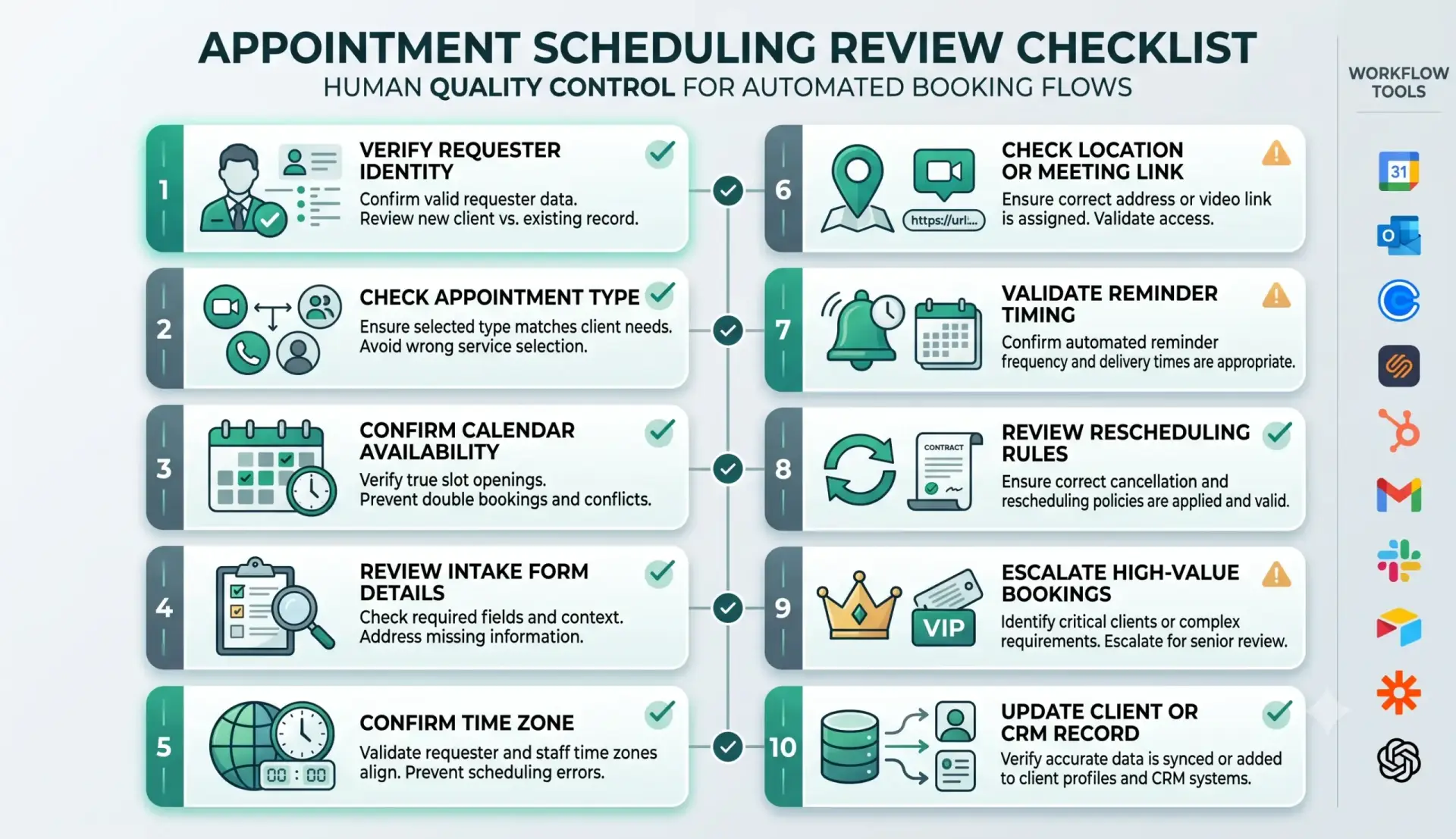
| Review area | What to check | Recommended rule |
|---|---|---|
| Requester identity | The workflow correctly identifies the customer, lead, client, or patient. | Review unknown, VIP, or suspicious requests. |
| Appointment type | The selected appointment type matches the request. | Review if the request does not fit a standard service. |
| Availability | The calendar slot is valid, not double-booked, and has enough buffer time. | Review unusual times or manual overrides. |
| Time zone | The requester and staff see the correct appointment time. | Review international or cross-time-zone bookings. |
| Intake form | Required answers are complete enough to prepare for the appointment. | Hold incomplete bookings when preparation is required. |
| Meeting link or location | The appointment has the correct video link, address, phone number, or instructions. | Review if location is unclear. |
| Reminder timing | Reminder sequence matches appointment type and customer expectation. | Review sensitive appointment types. |
| CRM update | The booking is attached to the correct lead, contact, customer, or project. | Review uncertain record matches. |
Testing Checklist
Test this appointment scheduling automation template before using it with real customers. Use normal bookings, missing intake details, reschedules, cancellations, no-shows, wrong time zones, double-booking attempts, and VIP appointments.
| Test case | What to verify |
|---|---|
| Standard booking | The workflow creates a calendar event, sends confirmation, updates record, and starts reminders. |
| Missing intake field | The workflow requests missing information or routes the booking to review. |
| Unavailable slot | The workflow does not confirm the appointment. |
| Wrong time zone | The workflow displays the correct time zone in confirmation and reminders. |
| Client reschedules | The workflow updates calendar, reminders, CRM, and internal notification. |
| Cancellation | The workflow cancels reminders, updates record, and creates follow-up if needed. |
| No-show | The workflow logs status and creates a follow-up task. |
| VIP or sensitive booking | The workflow requires human review before final confirmation. |
Tools You Can Use
This appointment scheduling automation template is platform-neutral. You can build it with different tools depending on how customers book, where your calendar lives, how reminders are sent, and where customer data should be stored.
| Tool type | Best use | Example options |
|---|---|---|
| Booking platform | Creates booking pages, appointment types, intake questions, and booking links. | Calendly, Acuity Scheduling, Microsoft Bookings, Google Calendar appointment schedules. |
| Calendar | Stores confirmed events, availability, blocked time, and meeting links. | Google Calendar, Outlook Calendar, Microsoft 365, Apple Calendar. |
| CRM | Stores lead, customer, client, appointment, and sales context. | HubSpot, Salesforce, Pipedrive, Airtable, Notion, spreadsheet-based CRM. |
| Forms | Collects intake details before confirmation. | Google Forms, Typeform, Tally, booking platform forms, website forms. |
| Workflow builder | Connects booking trigger, reminders, CRM updates, review tasks, and notifications. | n8n, Make, Zapier, or similar automation platforms. |
| Notification channel | Sends reminders, internal alerts, review requests, and booking updates. | Email, SMS, Slack, WhatsApp, CRM task, project management task. |
| AI model | Summarizes intake answers, classifies appointment type, identifies missing information, and prepares notes. | OpenAI, Claude, Gemini, or another text-capable model. |
If you are still choosing your automation platform, read Best AI Automation Tools for Small Business. For direct comparisons, review n8n vs Zapier, n8n vs Make for AI automation, and Make vs Zapier.
Common Mistakes
Appointment scheduling automation can create confusion if it confirms bookings too easily, ignores intake quality, or fails to update records after rescheduling. The safest approach is to automate standard appointments first and add review for exceptions.
| Mistake | Why it hurts | Better approach |
|---|---|---|
| Confirming bookings without intake details | The team may enter the appointment unprepared. | Require key intake fields before confirmation. |
| Ignoring time zones | Customers and staff may join at different times. | Show time zone clearly in confirmation and reminders. |
| No buffer time | Back-to-back appointments create delays and poor service. | Add buffer time between appointment types. |
| No rescheduling logic | Calendar and CRM records become inconsistent. | Update every connected record when time changes. |
| No review for sensitive bookings | High-impact appointments may be mishandled. | Require approval for sensitive, VIP, high-value, or unusual bookings. |
| No post-appointment follow-up | The appointment happens but next steps are forgotten. | Create follow-up tasks or connect with meeting notes automation. |
Simple Implementation Plan
- Choose one appointment type. Start with discovery calls, consultations, service appointments, demos, or onboarding calls.
- Define availability rules. Set working hours, duration, buffer time, booking limits, and blocked dates.
- Create intake questions. Collect only the details needed to prepare for the appointment.
- Set confirmation rules. Decide which bookings can be confirmed automatically and which need review.
- Create calendar event logic. Add title, attendee, time zone, notes, location, meeting link, and related record.
- Add reminders. Send confirmation immediately and reminders before the appointment.
- Add rescheduling rules. Update calendar, reminders, CRM, and notifications when the appointment changes.
- Add CRM updates. Store appointment type, source, owner, intake summary, status, and next step.
- Add human review rules. Review VIP, sensitive, incomplete, high-value, or unusual bookings.
- Test before expansion. Use normal bookings, missing fields, cancellations, reschedules, and time-zone cases.
Final Recommendation
Start with an appointment scheduling automation template that handles one appointment type well: booking request, availability check, intake form, confirmation, calendar event, reminders, record update, and review when needed. Do not automate every appointment category at once.
Once the workflow is stable, connect it to CRM update automation, sales follow-up automation, meeting notes automation, email management automation, and weekly AI reporting automation.
The best appointment scheduling automation template does not replace human judgment. It removes repetitive scheduling work while keeping humans responsible for exceptions, sensitive bookings, customer trust, and important decisions.
FAQ
What is an appointment scheduling automation template?
An appointment scheduling automation template is a repeatable workflow that receives booking requests, checks availability, collects intake details, creates calendar events, sends confirmations and reminders, handles rescheduling, updates records, and routes exceptions to human review.
Can appointment scheduling be automated for small businesses?
Yes. Small businesses can automate booking pages, availability checks, calendar events, confirmations, reminders, intake forms, CRM updates, and follow-up tasks while keeping review for sensitive or unusual bookings.
What should an appointment scheduling automation template include?
It should include booking request intake, appointment type, calendar availability, time zone handling, required intake fields, confirmation message, reminder sequence, rescheduling rules, CRM update, and human review conditions.
Should appointments be confirmed automatically?
Standard low-risk appointments can often be confirmed automatically after availability and required fields are checked. Sensitive, high-value, incomplete, or unusual appointments should require human review before confirmation.
Which tools can I use for appointment scheduling automation?
You can use tools such as Google Calendar appointment schedules, Calendly, Acuity Scheduling, Microsoft Bookings, Google Forms, HubSpot, Airtable, Google Sheets, n8n, Make, Zapier, and email or SMS reminder tools.
How do I reduce no-shows with appointment automation?
Use clear confirmation messages, time-zone clarity, preparation instructions, reminder sequences, reschedule links, cancellation rules, and follow-up tasks after missed appointments.