AI Customer Support Triage Workflow Template for Small Businesses
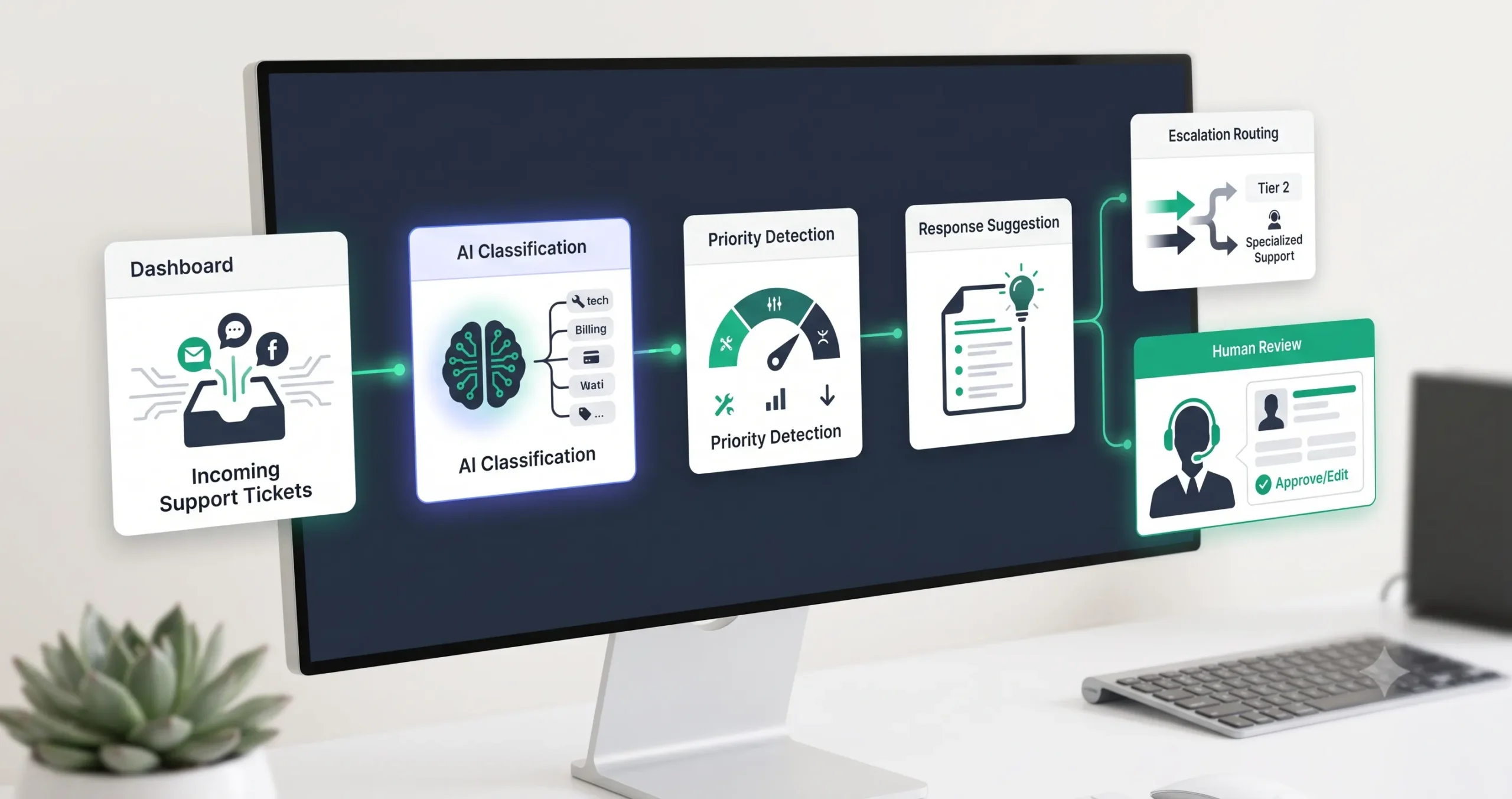
This AI customer support triage workflow template helps a small business turn messy support requests into a structured review process. Instead of reading every ticket from scratch, the workflow uses AI to classify the issue, detect urgency, identify sensitive cases, suggest a response path, route the ticket, and keep human review where customer trust is at risk.
The goal is not to let AI replace your support team. The goal is to reduce sorting work, surface urgent issues faster, and give a human reviewer a clearer summary before they respond. If you are still learning the basics of automation, start with our AI automation for small business guide before adapting this template.
What This AI Customer Support Triage Workflow Template Does
This template gives you the logic for an AI-assisted support triage system. It receives a new support request, extracts the important details, classifies the topic, detects urgency, checks whether the issue needs escalation, suggests the next response category, and routes the ticket to the right place.
You can adapt this workflow for support inboxes, help desk tools, contact forms, shared email accounts, ecommerce support, SaaS support, client service requests, or internal operations requests.
Important: This is a workflow template, not a finished automation file. You can implement the logic in n8n, Make, Zapier, Airtable, Google Sheets, HubSpot, Help Scout, Zendesk-style help desks, or another support stack depending on your setup.
Who Should Use This Template?
This workflow is useful when your support requests are frequent enough to create sorting work, but not complex enough to require a large support operations team.
| Good fit | Not a good fit yet |
|---|---|
| Small SaaS teams receiving repeated support questions | Businesses with only a few support messages per month |
| Ecommerce stores handling order, refund, and delivery requests | Teams without any clear support categories |
| Service businesses managing client questions and urgent issues | Businesses where every response requires expert legal, medical, or financial judgment |
| Agencies with shared support or client operations inboxes | Teams expecting AI to send all replies without review |
| Founders who need faster ticket visibility before hiring support staff | Teams that do not yet track support outcomes or ticket quality |
If you want to compare this with other practical automation use cases, read our guide to AI automation workflows for small businesses.
Workflow Overview
The workflow has eight core parts: ticket intake, input cleanup, AI classification, urgency detection, sensitivity check, routing, suggested response path, and human review. Start simple, then improve the categories after testing real support messages.
| Workflow step | What happens | Output |
|---|---|---|
| Ticket intake | A new message arrives through a support form, inbox, chat export, or help desk. | New support request captured. |
| Clean input | The workflow standardizes the customer name, email, subject, order ID, product, and message. | Cleaner ticket record. |
| AI classification | AI identifies the topic, customer intent, urgency, and missing information. | Ticket category and summary. |
| Sensitivity check | The workflow checks whether the ticket includes refunds, anger, legal risk, billing issues, or safety concerns. | Escalation flag. |
| Routing | The ticket is sent to the correct queue, person, or priority list. | Assigned support path. |
| Suggested response path | AI recommends a response category or next step, not necessarily a final message. | Suggested action. |
| Human review | A person checks urgent, sensitive, unclear, or high-value tickets before final response. | Approved support action. |
| Tracking | The result is logged for future workflow improvement. | Better rules and prompt refinements. |
How the AI Customer Support Triage Workflow Works
The workflow should start with support categories, not with a generic AI prompt. Before asking AI to triage tickets, define the categories your business actually uses. A SaaS company may need billing, bug report, feature request, account access, cancellation, and technical support. An ecommerce store may need shipping, refund, return, damaged product, order status, and product question.
Once the categories are clear, AI can help classify the ticket and prepare the review summary. The automation platform then applies deterministic routing rules. This combination is safer than relying on the AI model alone.
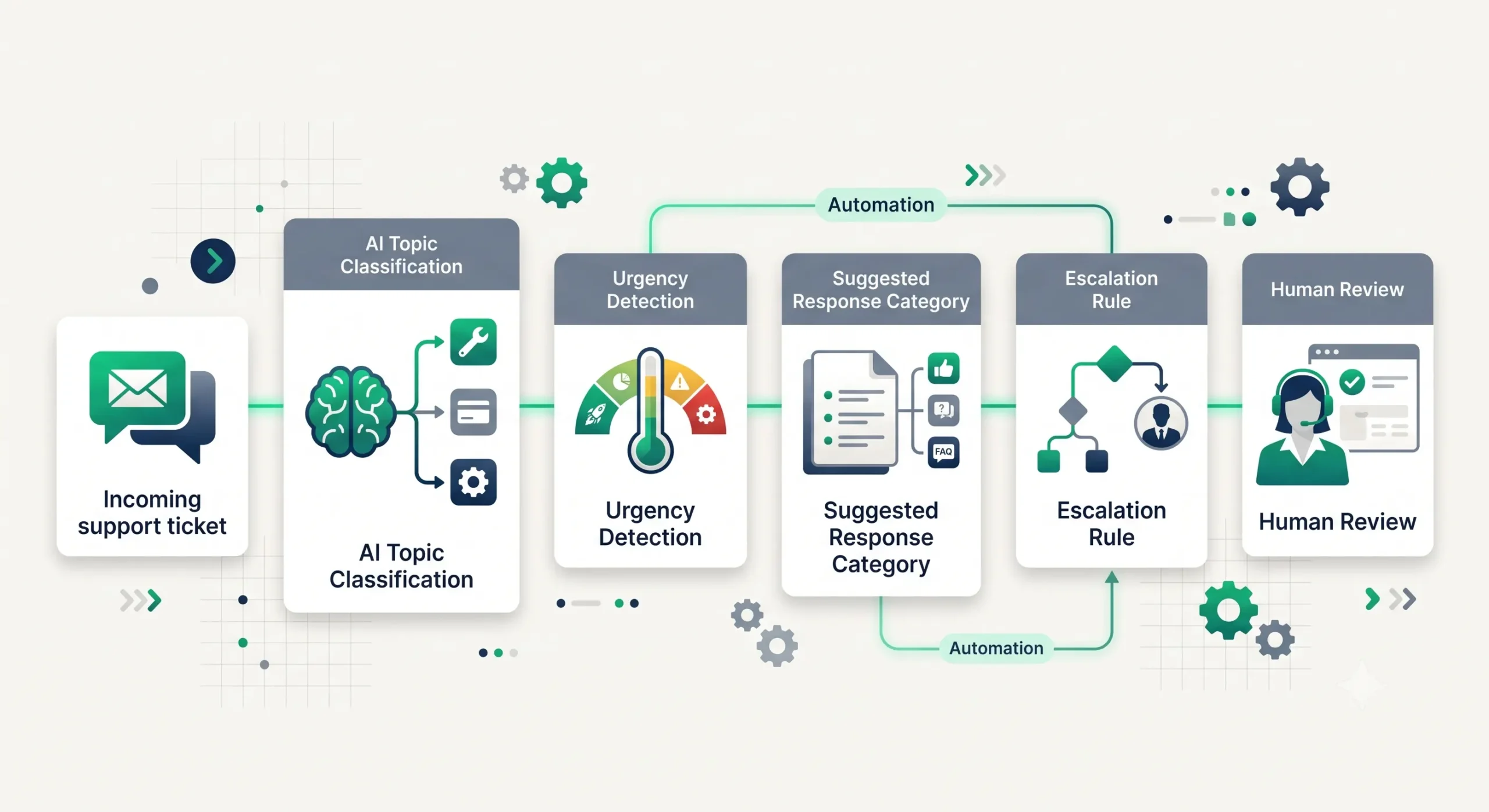
Step 1: Capture the support request
The trigger can be a new help desk ticket, a contact form submission, a shared inbox email, a chat export, or a new row in a spreadsheet. For the first version, choose the source that already receives the most support volume.
Step 2: Clean the ticket data
Send the AI model structured information where possible. Include subject, message, customer email, product, order ID, account status, plan type, and any existing priority flag. If the data is messy, the output will be harder to trust.
Step 3: Ask AI to classify the ticket
The AI step should return a concise summary, category, urgency, customer emotion, missing information, escalation flag, and recommended next action. Avoid asking the model to “write a full reply” too early.
Step 4: Apply routing rules
Use rules after the AI output. For example, billing issues can route to finance, urgent outage reports can route to support leadership, and refund requests can route to manual review.
Step 5: Prepare the human review
The final notification should give the reviewer enough context to act quickly: customer issue, urgency, category, risk, missing details, and suggested next step.
Required Inputs
Better triage starts with better support data. If the workflow only receives a vague message, AI may classify the request incorrectly. Give it enough context to make a useful recommendation without collecting unnecessary sensitive information.
| Input field | Why it matters | Example |
|---|---|---|
| Customer name and email | Connects the request to the customer record. | Jane Smith, jane@example.com |
| Subject or request type | Gives a quick signal before reading the full message. | Refund request, login issue, billing question |
| Full message | Provides the context AI needs to summarize and classify. | “I was charged twice and need help today.” |
| Product, plan, or order ID | Helps route the ticket to the correct support path. | Pro plan, order #12345, product name |
| Customer status | Helps identify VIP, active, churn-risk, or trial customers. | Paid customer, trial user, returning buyer |
| Previous ticket count | Helps detect repeated frustration or unresolved issues. | 3 tickets in the last 7 days |
| Existing priority flag | Lets the workflow respect priority already set by your system. | High priority, normal, low priority |
Practical rule: do not send unnecessary sensitive information to the AI step. For support workflows, less data is often safer when the classification can be done from the ticket text and basic account context.
AI Support Triage Prompt Template
The prompt should force a structured output. Your automation platform should be able to parse the result and use it for routing, logging, and notifications.
Copy-paste prompt structure:
You are helping triage a customer support request for a small business. Analyze the ticket data and return a concise, structured support triage summary. Do not invent missing facts. If information is missing, mark it as unknown.
Ticket data:
Customer name: {{customer_name}}
Customer email: {{customer_email}}
Subject: {{subject}}
Product or plan: {{product_or_plan}}
Order ID or account ID: {{order_or_account_id}}
Customer status: {{customer_status}}
Previous ticket count: {{previous_ticket_count}}
Message: {{message}}
Support categories:
{{support_categories}}
Escalation rules:
Escalate if the request involves refunds, billing disputes, account cancellation, angry customer language, legal threats, security issues, data privacy concerns, repeated unresolved problems, urgent outage reports, or unclear high-risk context.
Return:
1. One-sentence ticket summary
2. Category
3. Urgency: high / medium / low / unknown
4. Customer sentiment: calm / confused / frustrated / angry / unknown
5. Escalation required: yes / no / needs review
6. Escalation reason
7. Missing information
8. Suggested response path
9. Human review note
If your automation tool supports structured JSON output, ask for JSON. If you are building a simple first version, a controlled text response may be enough, but keep the fields consistent.
Ticket Classification Logic
Classification should match your real support process. Do not copy a generic category list if your team does not use those categories. Keep the first version simple.
| Ticket category | Typical signal | Suggested path |
|---|---|---|
| Billing issue | Charge, invoice, refund, subscription, payment, failed transaction. | Route to billing review or finance queue. |
| Technical issue | Bug, error, not working, broken flow, failed login, integration problem. | Route to technical support or product issue queue. |
| Order or delivery question | Shipping, tracking, delayed order, damaged item, missing product. | Route to operations or ecommerce support. |
| Refund or cancellation | Refund request, cancel plan, dissatisfaction, chargeback warning. | Route to human review before final response. |
| Account access | Password, login, verification, locked account, email change. | Route to account support with security checks. |
| Feature request | Suggestion, missing feature, product improvement, workflow request. | Tag and route to product feedback or support response. |
| Unclear request | Short, vague, incomplete, or confusing message. | Ask for more information or route to manual review. |
Routing and Priority Rules
Routing should combine AI classification with simple rules. AI can identify the likely category, but your workflow should decide what happens next based on defined business logic.
| Signal | Example rule | Suggested action |
|---|---|---|
| High urgency | Customer reports an outage, failed payment for active service, or blocked access. | Mark as high priority and notify a human quickly. |
| Angry sentiment | Message includes strong frustration, complaint language, or repeated unresolved issue. | Escalate to human review before response. |
| Refund or cancellation | Customer asks for money back, cancellation, or dispute help. | Route to billing or retention review. |
| Security or account access | Customer cannot access account or requests account changes. | Route to secure support process. |
| Missing information | Ticket lacks order ID, account email, screenshot, product name, or issue details. | Send to “needs more information” queue. |
| Low-risk repeated question | Common FAQ-style request with clear category and no sensitive context. | Suggest a response draft for review or route to standard support queue. |
If you are still choosing a workflow builder, compare the options in Best AI Automation Tools for Small Business. If you already know your shortlist, review n8n vs Zapier, n8n vs Make, and Make vs Zapier.
Human Review and Escalation Rules
Human review is the safeguard that makes this workflow practical. AI can classify and summarize, but customer support affects trust. A wrong tone, wrong refund decision, or missed urgent issue can damage the relationship.
Keep human review for tickets involving billing disputes, refunds, cancellations, angry customers, legal threats, security, privacy, repeated unresolved issues, high-value customers, unclear context, or any case where the AI output is uncertain.
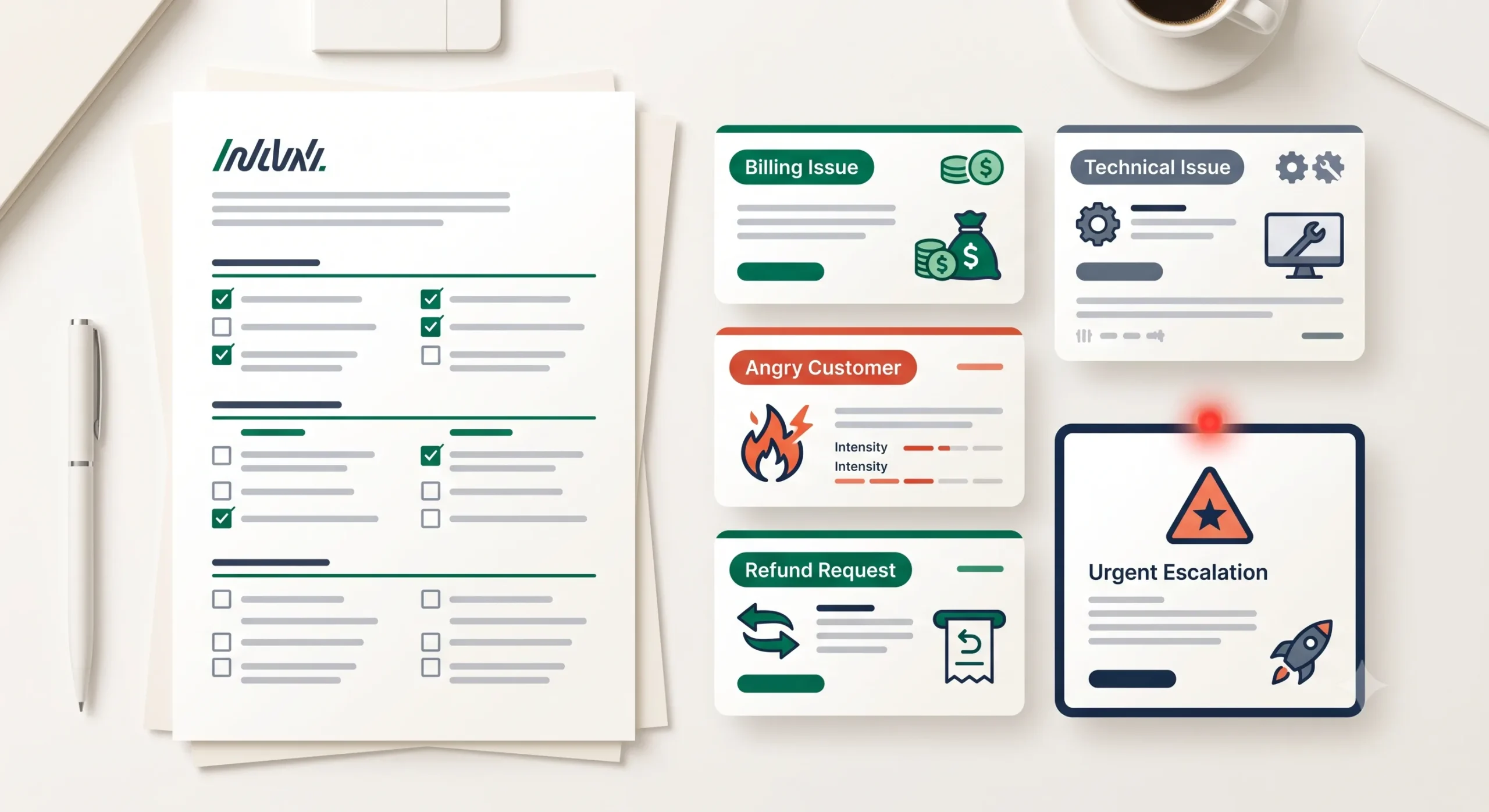
Recommended rule: AI can classify the ticket and suggest a response path, but a human should approve replies for urgent, emotional, financial, security-related, or unclear support requests.
Testing Checklist Before Using the Workflow
Test the workflow with real support examples before relying on it. Do not test only simple questions. Include vague tickets, angry messages, billing disputes, refund requests, repeated complaints, technical issues, and missing information.
| Test case | What to verify |
|---|---|
| Simple FAQ question | AI classifies the topic correctly and does not escalate unnecessarily. |
| Angry customer message | Workflow detects sentiment and routes to human review. |
| Billing dispute | Workflow flags the issue as sensitive and avoids automatic final response. |
| Missing information | AI marks missing data instead of guessing. |
| Technical bug report | Workflow captures product, issue type, and urgency without inventing details. |
| Repeated unresolved issue | Ticket is escalated if previous ticket count or message context suggests frustration. |
| Security or account access request | Workflow routes to a secure process and avoids unsafe instructions. |
Tools You Can Use to Build This Workflow
This template is platform-neutral. The best tool depends on where your support requests arrive and where your team works.
| Tool type | Best use | Example setup |
|---|---|---|
| Support source | Capturing customer requests. | Help desk, support form, shared inbox, chat export, website form. |
| Automation platform | Moving ticket data through AI, routing, and notification steps. | n8n, Make, Zapier, or similar workflow builder. |
| AI model | Summarizing tickets, classifying topic, detecting urgency, and suggesting next action. | Text model connected through your automation platform. |
| Support database | Storing classification, review status, and routing fields. | Help desk, Airtable, Google Sheets, Notion, CRM, or internal dashboard. |
| Notification tool | Alerting the right person for review. | Email, Slack, task manager, help desk assignment, CRM task. |
For more implementation resources, visit the TakeYourAI workflow templates library. For broader learning paths, use our AI automation guides.
Common Failure Modes
A support triage workflow can become harmful if it routes too aggressively, misses sensitive issues, or creates overconfident response suggestions. Watch for these problems before expanding automation.
| Failure mode | Why it happens | Safeguard |
|---|---|---|
| AI invents missing facts | The prompt does not force unknown fields when data is missing. | Tell AI to mark missing information instead of guessing. |
| Urgent tickets are missed | Urgency rules are unclear or too dependent on AI judgment. | Add explicit escalation keywords and priority rules. |
| Everything gets escalated | Escalation rules are too broad. | Separate urgent, sensitive, unclear, and normal support paths. |
| Support team ignores AI summaries | Summaries are too long, vague, or unreliable. | Keep summaries short and include reason for classification. |
| Customer receives the wrong tone | The workflow sends AI drafts without human approval. | Keep response drafts in review mode until quality is proven. |
| Private data is overexposed | The workflow sends too much customer context into the AI step. | Limit data to what is needed for classification and routing. |
When Not to Automate Support Triage Fully
Do not fully automate support triage when customer messages involve legal, medical, financial, security, privacy, or high-value account issues. In those cases, AI can prepare a summary and recommended category, but a human should make the final decision.
Also avoid full automation if your support categories are still unclear. If your team cannot agree on how to classify tickets manually, AI will not fix the process. Define the process first, then automate parts of it.
Simple Implementation Plan
- Define your support categories. Start with 5–8 categories your team actually uses.
- List escalation triggers. Include refunds, billing disputes, angry messages, security issues, repeated complaints, and unclear high-risk tickets.
- Choose the ticket source. Start with your main inbox, form, or help desk.
- Create the AI triage prompt. Use the structured prompt above and adapt it to your support process.
- Connect your automation platform. Send new tickets to the AI step, then to routing and review steps.
- Add human review. Keep sensitive, urgent, and unclear tickets in manual approval.
- Test with past tickets. Run real examples through the workflow before using it live.
- Improve categories and rules. Adjust the prompt, routing, and escalation logic based on errors.
Final Recommendation
Start with an AI customer support triage workflow template that classifies and routes tickets before it writes or sends responses. The safest first version should summarize the request, detect topic and urgency, flag escalation risks, and notify a human reviewer.
If support sorting is already slowing you down, this is a strong automation template to build after lead qualification. If you are still comparing workflow types, review the AI automation workflow examples guide before deciding which template to implement next.
FAQ
What is an AI customer support triage workflow?
An AI customer support triage workflow uses automation and AI to classify support tickets, detect urgency, flag sensitive cases, route issues, and prepare human review.
Should AI send customer support replies automatically?
Not at first. AI can draft or suggest a response path, but a human should review replies for urgent, emotional, financial, security-related, or unclear tickets.
What support categories should I start with?
Start with categories your team already uses, such as billing, technical issue, refund, account access, order question, feature request, unclear request, and urgent escalation.
Can this workflow work with n8n, Make, or Zapier?
Yes. The workflow logic can be adapted to n8n, Make, Zapier, or similar automation platforms, depending on your support tools and routing needs.
What should the AI output include?
The AI output should include a ticket summary, category, urgency, sentiment, escalation flag, escalation reason, missing information, suggested response path, and human review note.
How do I make support triage safer?
Use clear categories, escalation rules, limited data sharing, structured outputs, human review, and real test tickets before relying on the workflow in production.