Admin and Back Office Automation Template for Small Businesses
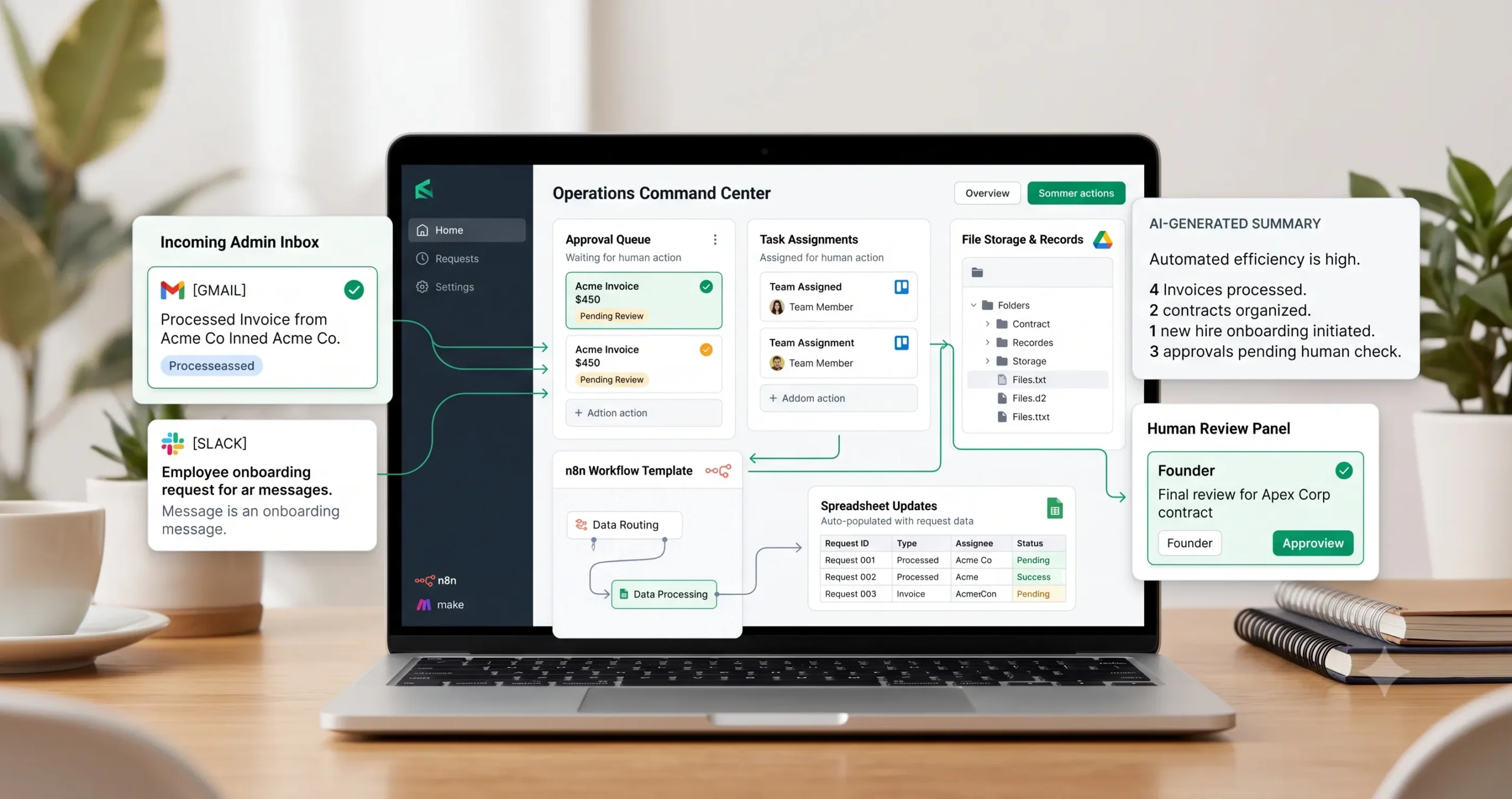
A back office automation template helps small businesses handle routine admin and operations work without manually moving every request, file, task, approval, spreadsheet update, and reminder between tools. The workflow can classify incoming admin requests, extract important details, create tasks, assign owners, update records, organize files, notify the right people, and route sensitive actions to human review.
This template is useful for founders, admin teams, agencies, service businesses, and small operations teams that deal with repeated back-office work every week. The goal is not to automate every decision blindly. The goal is to reduce repetitive admin work while keeping control over approvals, sensitive information, deadlines, files, and business records.
In this guide, you will learn how the workflow works, what inputs it needs, where AI can help, which steps should require approval, and how to implement a practical admin automation system. If you are new to automation, start with our AI automation for small business guide, then explore the full TakeYourAI workflow templates library.
Quick answer: Use this admin and back-office automation template when your business receives repeated internal requests, emails, forms, invoices, files, reminders, or admin tasks that need to be classified, assigned, tracked, approved, and logged. Automate routine routing and record updates, but keep human review for payments, contracts, sensitive files, client-impacting actions, and unclear requests.
What This Admin and Back-Office Automation Template Does
This template gives you the workflow logic for processing routine admin and operations requests. It can receive an email, form submission, spreadsheet row, document upload, Slack request, or internal task request, then classify what kind of work is needed.
A simple version can create a task, assign an owner, add a due date, update a spreadsheet, store a file, and send a notification. A more advanced version can use AI to summarize the request, detect missing details, identify approval requirements, and create a review queue for sensitive actions.
| Automation job | Example | Why it helps |
|---|---|---|
| Classify requests | Vendor request, client admin request, invoice, access request, file update, meeting reminder. | Routes work to the right process. |
| Extract details | Name, deadline, amount, file type, request owner, client, department, approval need. | Reduces manual reading and copying. |
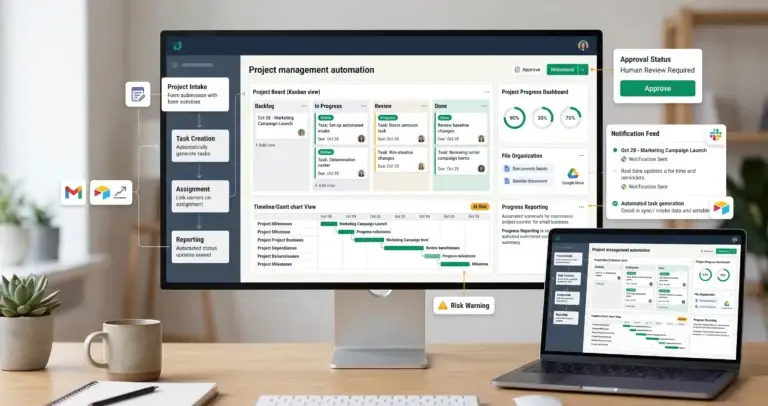
| Create tasks | Add task to ClickUp, Asana, Trello, Notion, Airtable, or a spreadsheet. | Prevents admin requests from being lost in inboxes. |
| Assign owners | Route finance items to finance, client admin requests to operations, files to project owner. | Makes responsibility clear. |
| Organize files | Rename and move attachments into the correct client, vendor, finance, or project folder. | Keeps business records searchable. |
| Route approvals | Send payment, contract, access, or sensitive data requests to a human before action. | Protects the business from risky automation. |
| Log activity | Store request type, owner, date, status, decision, and final result. | Creates visibility and accountability. |
Who Should Use It?
This back office automation template is useful for small businesses that receive repeated admin requests and still rely on manual copying, forwarding, file organization, reminders, and follow-up.
- Founders who handle too many admin tasks themselves.
- Agencies that manage client files, approvals, invoices, requests, and internal tasks.
- Service businesses that need cleaner intake, routing, and operations tracking.
- Small admin teams that manage email, spreadsheets, documents, and project tasks.
- Operations teams that want a simple internal request system without building custom software.
- Businesses already using Gmail, Google Drive, Slack, Notion, Airtable, Asana, ClickUp, Trello, n8n, Make, or Zapier.
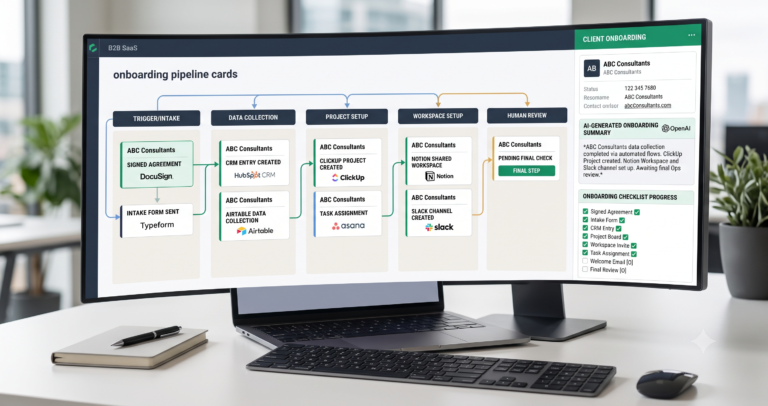
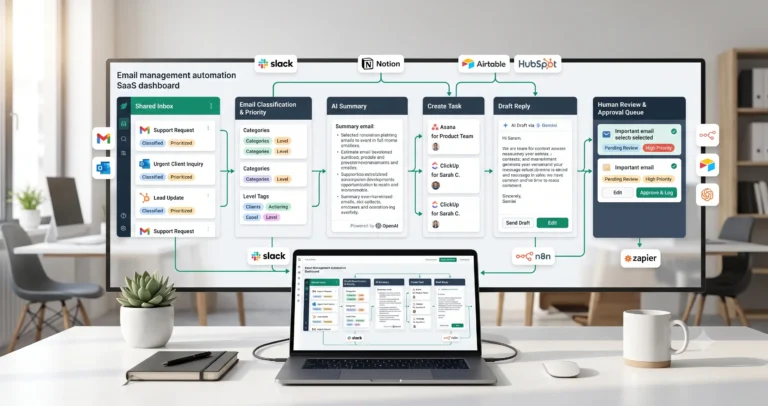
This workflow is especially useful after related systems such as document processing automation, CRM update automation, client onboarding automation, and AI agent workflows.
Workflow Overview
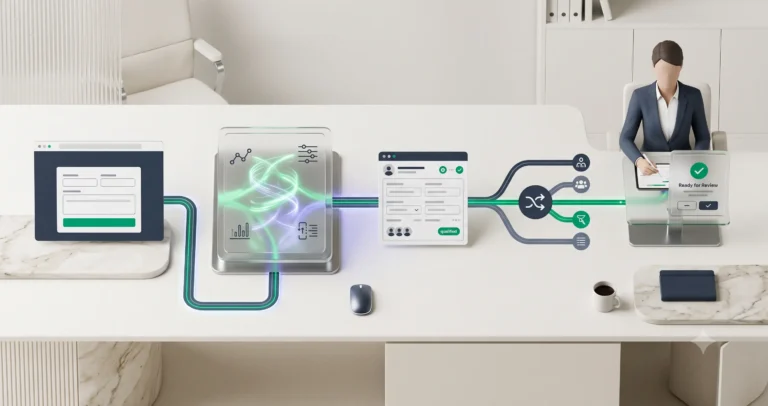
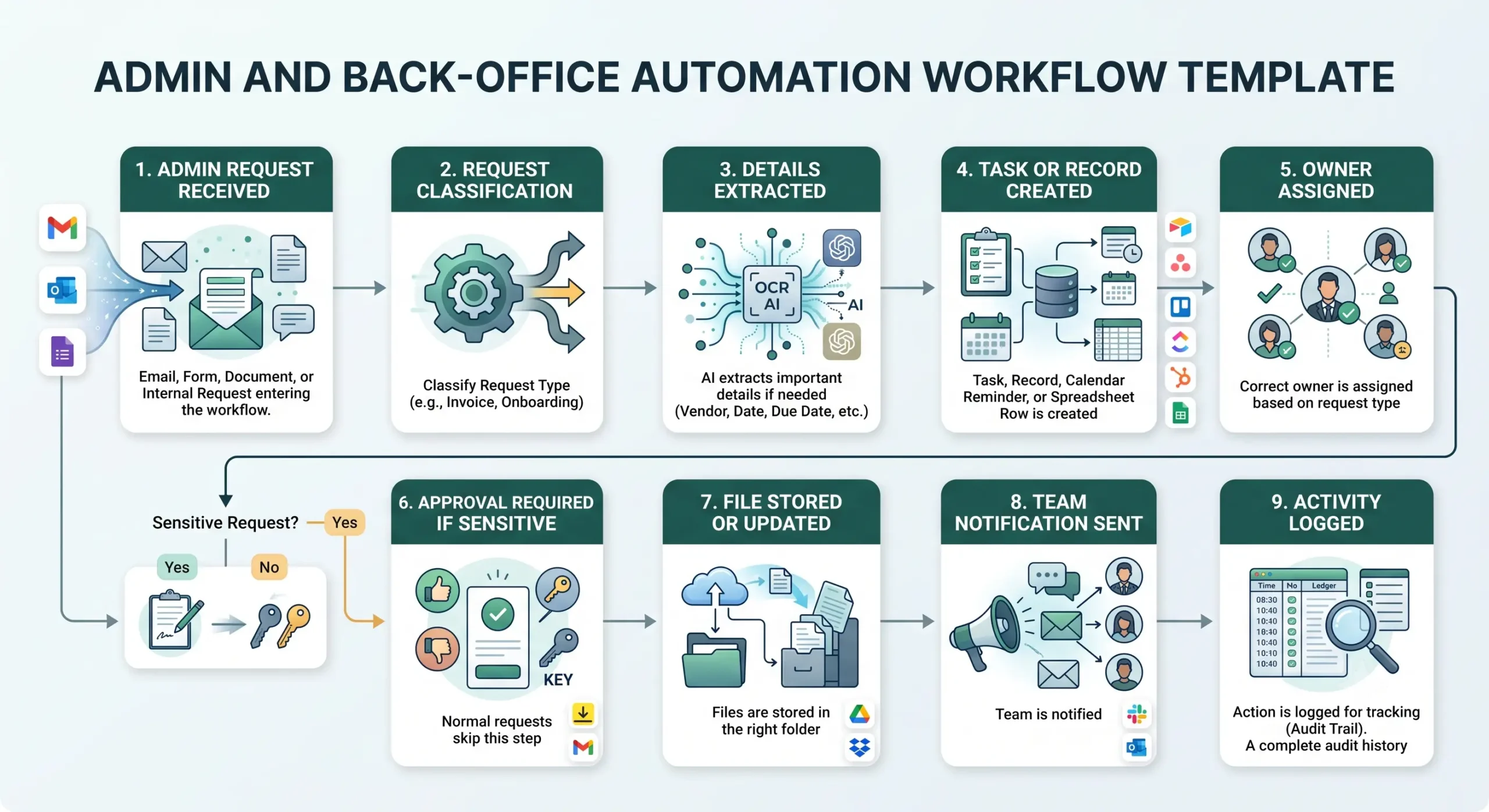
A reliable admin and back-office automation workflow has nine core parts: request received, request classification, detail extraction, task or record creation, owner assignment, approval check, file update, team notification, and activity logging.
| Workflow step | What happens | Output |
|---|---|---|
| Admin request received | A request arrives from email, form, Slack, spreadsheet, document upload, or internal message. | New admin item enters the workflow. |
| Request classification | The workflow identifies the request type and urgency. | Correct processing path is selected. |
| Details extracted | Important fields are captured from the message, file, form, or note. | Structured request data is prepared. |
| Task or record created | The workflow creates a task, spreadsheet row, CRM note, project item, or request record. | The request becomes trackable. |
| Owner assigned | The correct person or team is assigned based on request type. | Responsibility is clear. |
| Approval checked | The workflow decides whether the action is routine or sensitive. | Automatic path or review path is selected. |
| File stored or updated | Attachments or documents are renamed, moved, or linked to the task. | Files are organized correctly. |
| Team notification sent | The owner or channel receives a clear update. | The team knows what needs action. |
| Activity logged | The workflow records request type, owner, date, status, and result. | Operations history is preserved. |
How the Admin and Back-Office Automation Workflow Works
The workflow should start with one clear source of admin requests. That source can be a shared inbox, internal form, Slack channel, Google Sheet, Airtable table, or project management board. Do not begin by connecting every possible admin channel. Start with one repeatable process and make it reliable.
Once a request arrives, the workflow classifies it, extracts the required details, creates a task or record, assigns the right owner, checks whether approval is needed, stores related files, sends a notification, and logs the action.
Step 1: Receive the request
The trigger can be a new email, form response, file upload, spreadsheet row, Slack message, or scheduled admin check. Use a source that is predictable and easy to monitor.
Step 2: Classify the request
The workflow should identify what kind of admin item it is. Common categories include invoice, vendor request, client request, file update, access request, meeting reminder, contract, task request, or internal approval.
Step 3: Extract required details
The automation extracts fields such as requester name, request type, due date, client or vendor, amount, file link, priority, owner, and approval requirement. AI can help when the request is written in natural language.
Step 4: Create a task or record
The workflow should turn the request into a trackable item. That may be a project task, spreadsheet row, Airtable record, Notion page, CRM note, or operations ticket.
Step 5: Assign the right owner
Use routing rules to assign the request to the right person or team. For example, finance requests go to finance, access requests go to operations, client onboarding requests go to the account owner, and document issues go to admin review.
Step 6: Check approval requirements
Routine tasks can be created automatically. Sensitive tasks should require review. Examples include payment approval, contract changes, client-facing decisions, access permissions, and records containing personal or financial data.
Step 7: Store files and notify the team
Attachments should be renamed and moved to the correct folder. The assigned owner should receive a clear notification with the request summary, deadline, file link, and next action.
Required Inputs
Back-office automation becomes reliable when every request includes enough information to classify, assign, and track the work. Missing details should create a review task instead of forcing the automation to guess.
| Input | Example | Use in workflow |
|---|---|---|
| Request source | Shared inbox, internal form, Slack channel, spreadsheet, project board. | Starts the workflow. |
| Requester | Client, vendor, team member, founder, finance contact. | Helps route the request and track ownership. |
| Request type | Invoice, file update, access request, approval, meeting reminder, client admin. | Determines the workflow path. |
| Due date | Today, this week, before kickoff, end of month. | Creates deadline and reminders. |
| Related record | Client, vendor, project, invoice number, contract, CRM record. | Links the request to the right business context. |
| Files or attachments | Invoice PDF, contract, screenshot, spreadsheet, form upload. | Supports document storage and review. |
| Approval requirement | Payment, contract, access, sensitive data, client-facing action. | Decides whether human review is required. |
| Output destination | Task board, spreadsheet, CRM, Drive folder, Slack, email, approval queue. | Controls where the final result goes. |
Practical rule: if a request is missing the requester, owner, deadline, file, or approval requirement, route it to review instead of letting automation create incomplete work.
Request Classification and Routing Logic
Request classification is the control layer of this workflow. It decides what kind of work the request represents and what should happen next.
| Request type | Automation action | Review trigger |
|---|---|---|
| Invoice or receipt | Create finance task, store file, extract amount and vendor. | High amount, duplicate invoice, missing total, or new vendor. |
| Access request | Create access checklist and assign owner. | Any access to client systems, financial tools, admin accounts, or sensitive data. |
| File organization request | Rename file, move to folder, update record link. | Unknown client, missing folder destination, or sensitive file. |
| Client admin request | Create task, link client record, notify account owner. | Request affects deliverables, pricing, contract terms, or timeline. |
| Meeting or calendar reminder | Create calendar reminder or task deadline. | Unclear time zone, missing participants, or client-facing event. |
| Contract or agreement | Store document, create legal/admin review task, summarize key fields. | Always review before action. |
| General admin task | Create task and assign based on category. | Missing owner, unclear request, or sensitive information. |
If your admin workflow handles many documents, connect it with document processing automation. If requests need to update customer or lead records, connect it with CRM update automation.
AI Admin Request Prompt Template
AI is useful when admin requests arrive as messy emails, long messages, or unstructured notes. The AI step should classify the request and extract details, not make risky business decisions.
Copy-paste prompt structure:
You are helping classify and prepare an admin or back-office request for a small business. Use only the information provided. Do not invent missing details. If the request is unclear, sensitive, or missing required information, route it to human review.
Request context:
Source: {{source}}
Request message: {{request_message}}
Attachments or file links: {{attachments}}
Related client, vendor, or project: {{related_record}}
Existing records: {{existing_records}}
Business rules:
Request categories: {{request_categories}}
Allowed automatic actions: {{allowed_actions}}
Approval required when: {{approval_required_conditions}}
Owner routing rules: {{owner_rules}}
File storage rules: {{file_storage_rules}}
Return:
1. Request type
2. Short summary
3. Extracted details
4. Missing information
5. Suggested owner
6. Suggested task title
7. Suggested due date
8. Approval requirement
9. File or record update needed
10. Human review note
If your workflow builder supports structured output, ask the model to return JSON. That makes it easier to create tasks, route approvals, update spreadsheets, and log request status.
Approval and Risk Rules
Approval rules are what keep back-office automation safe. Routine actions can be automated after testing, but high-impact requests should remain behind a human decision.
| Action | Risk level | Recommended rule |
|---|---|---|
| Create internal task | Low | Allow automatically after testing. |
| Send internal notification | Low | Allow if the message is clearly labeled and useful. |
| Move file to folder | Low to medium | Allow for known file types and known destinations. |
| Update spreadsheet row | Medium | Allow for low-risk tracking fields, but log changes. |
| Grant access | High | Require human approval. |
| Approve payment | High | Never automate without human approval. |
| Change contract or client-facing terms | High | Require review before any action. |
| Delete records or files | High | Avoid automation or require strict approval and recovery process. |
File, Task, and Record Update Rules
Admin automation often touches files, tasks, spreadsheets, and records. Those updates should follow predictable rules so the system does not create messy data.
| Area | Recommended rule | Example |
|---|---|---|
| Task naming | Use a consistent format with request type, client or vendor, and due date. | Review invoice – Acme Studio – Due Friday. |
| File naming | Use date, client or vendor, document type, and reference number when available. | 2026-07-15_Acme_Invoice_1042.pdf |
| Folder routing | Move files only when the destination is known. | Client folder, finance folder, vendor folder, contracts folder. |
| Spreadsheet updates | Update tracking fields only; review anything that changes financial or legal status. | Status, owner, due date, request type, file link. |
| Record links | Link every task to the related client, vendor, project, or file. | CRM URL, Drive folder, Notion page, Airtable record. |
| Error logging | Record failed updates and notify a human. | Missing folder, failed API call, duplicate record, missing owner. |
If your back-office workflow is built around Google Workspace, Google Apps Script is one official way to automate and extend Google products such as Sheets, Drive, Gmail, and Calendar: Google Apps Script documentation.
Human Review and Back-Office Quality Rules
Back-office automation should make routine work faster, but it should not remove accountability. The more a request affects money, contracts, client trust, sensitive files, access permissions, or business records, the more important human review becomes.
Human review is especially important when the request is unclear, missing details, includes sensitive information, affects a client, changes a record, or requires approval from a manager or founder.
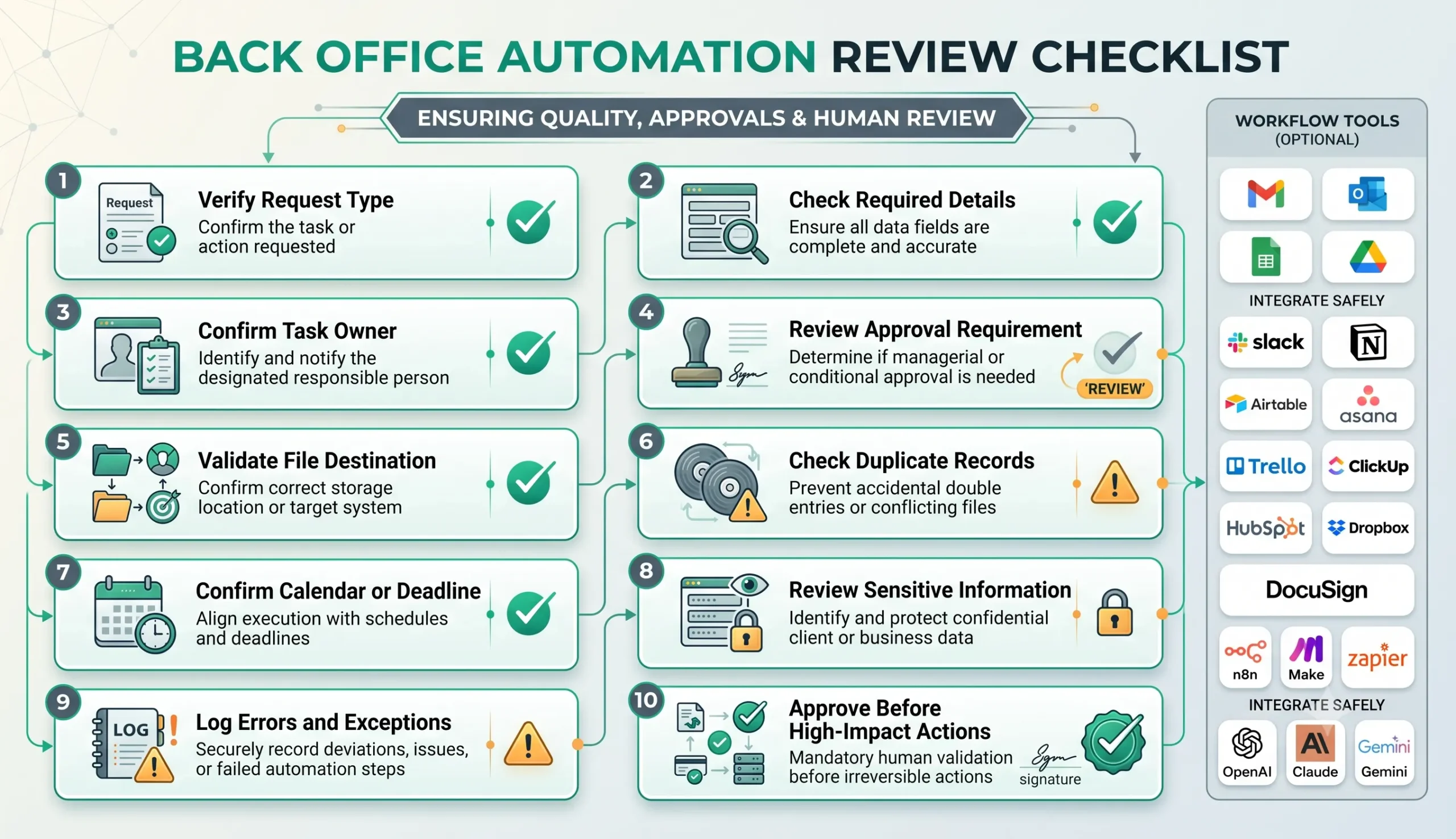
| Review area | What to check | Recommended rule |
|---|---|---|
| Request type | The request is correctly classified. | Review unclear or mixed requests. |
| Required details | Owner, due date, related record, file, and next action are present. | Route missing details to review. |
| Task owner | The right person or team is assigned. | Review custom or high-priority requests. |
| Approval requirement | The workflow correctly detects sensitive or high-impact actions. | Require approval before financial, legal, or access-related changes. |
| File destination | The file is stored in the correct folder and named correctly. | Review unknown clients, vendors, or file types. |
| Activity log | The request, owner, status, and outcome are recorded. | Log every completed or failed action. |
Testing Checklist
Test this back office automation template before using it on important admin work. Use normal requests, incomplete requests, duplicate files, sensitive items, failed tool calls, and unclear messages.
| Test case | What to verify |
|---|---|
| Simple admin request | The workflow classifies the request, creates a task, assigns the owner, and logs the action. |
| Missing details | The workflow routes the request to review instead of guessing. |
| Invoice attachment | The workflow stores the file and creates a finance review task. |
| Access request | The workflow requires approval before any access is granted. |
| Duplicate file | The workflow detects the possible duplicate or routes it to review. |
| Unknown owner | The workflow sends the item to admin review. |
| Failed file move | The workflow logs the error and notifies a human. |
| Sensitive request | The workflow does not complete high-impact actions automatically. |
Tools You Can Use
This template is platform-neutral. You can build it with different tools depending on where requests arrive, where tasks are managed, where files are stored, and how approvals happen.
| Tool type | Best use | Example options |
|---|---|---|
| Request source | Receives admin requests, forms, emails, and internal messages. | Gmail, Outlook, Google Forms, Slack, Typeform, Tally, shared inbox. |
| Task management | Creates tasks, owners, due dates, and status tracking. | Asana, Trello, ClickUp, Notion, Monday.com, Airtable. |
| File storage | Stores documents, attachments, invoices, contracts, and client files. | Google Drive, Dropbox, OneDrive. |
| Spreadsheet or database | Tracks requests, owners, approvals, deadlines, and outcomes. | Google Sheets, Airtable, Notion database, internal database. |
| Workflow builder | Connects triggers, routing, AI extraction, file handling, tasks, and notifications. | n8n, Make, Zapier, or similar automation platforms. |
| AI model | Classifies requests, extracts details, summarizes context, and identifies missing information. | OpenAI, Claude, Gemini, or another text-capable model. |
| Approval channel | Routes sensitive requests to a human. | Slack, email, task comment, approval queue, project management status. |
If you are comparing automation platforms, the official n8n documentation explains workflows as connected nodes that automate a process: n8n workflows documentation. Make also documents scenarios as the core structure for creating and managing automations: Make scenarios documentation.
For a broader tool selection process, read Best AI Automation Tools for Small Business. For direct platform comparisons, review n8n vs Zapier, n8n vs Make for AI automation, and Make vs Zapier.
Common Mistakes
Admin automation can create more mess if it is built without clear request types, owners, approvals, and file rules. The safest workflow starts narrow and expands only after testing.
| Mistake | Why it hurts | Better approach |
|---|---|---|
| Automating every admin request at once | The workflow becomes hard to debug and easy to break. | Start with one request type such as invoices, file organization, or internal requests. |
| No request classification | Different requests get treated the same way. | Create clear request categories and routing rules. |
| No owner assignment logic | Tasks are created but nobody knows who owns them. | Assign owners based on request type, client, vendor, or department. |
| No approval rules | Sensitive actions may happen automatically. | Require approval for payments, contracts, access, deletions, and client-impacting actions. |
| Messy file naming | Files become hard to find later. | Use consistent naming rules based on date, client, vendor, and document type. |
| No error logging | Failed automations go unnoticed. | Log every failure and notify a human. |
Simple Implementation Plan
- Choose one admin request type. Start with invoices, access requests, file organization, internal forms, or routine task requests.
- Choose one request source. Use one inbox, form, spreadsheet, or Slack channel first.
- Define request categories. Decide how requests should be classified and routed.
- Define required fields. List the details needed before a task or record can be created.
- Create owner rules. Decide who owns each request type.
- Add task or record creation. Create a task, row, record, or operations ticket for each valid request.
- Add file handling. Rename and store attachments only when the destination is clear.
- Add approval rules. Route sensitive or high-impact requests to a human.
- Add notifications. Notify the owner with summary, deadline, file link, and next action.
- Add logging. Store request type, owner, status, approval result, and errors.
- Test with real examples. Run normal, incomplete, duplicate, and sensitive requests before using it live.
Final Recommendation
Start with a back-office automation template that handles one repeated admin process well. For many small businesses, the best first workflow is a shared inbox or form that classifies requests, creates tasks, assigns owners, stores files, sends notifications, and logs results.
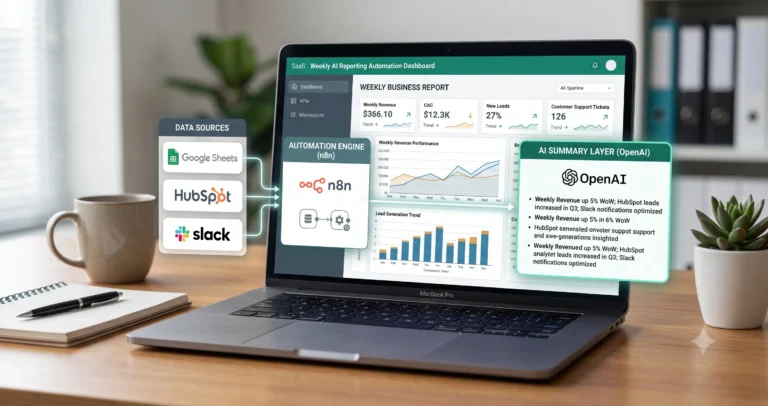
Once that workflow is reliable, connect it to related workflows such as document processing automation, CRM update automation, client onboarding automation, and weekly AI reporting automation.
The best admin automation system does not remove humans from important decisions. It removes repetitive routing and tracking work so humans can focus on approvals, exceptions, and higher-value operations.
FAQ
What is a back office automation template?
A back office automation template is a repeatable workflow that receives admin requests, classifies them, extracts details, creates tasks or records, assigns owners, routes approvals, organizes files, sends notifications, and logs activity.
What back-office tasks can small businesses automate?
Small businesses can automate request routing, task creation, file organization, invoice intake, internal reminders, spreadsheet updates, approval notifications, document storage, and activity logging.
Should admin automation use AI?
AI can help classify messy requests, summarize emails, extract details, and detect missing information. However, sensitive actions such as payments, access changes, contracts, and deletions should still require human approval.
What should I automate first?
Start with one repeated, low-risk admin workflow such as internal request routing, file organization, routine task creation, or invoice intake for review. Avoid starting with high-risk financial or legal decisions.
How do I keep back-office automation safe?
Use clear request categories, required fields, owner rules, approval gates, file naming rules, error logging, and human review for sensitive or high-impact actions.
Which tools can I use for back-office automation?
You can combine tools such as Gmail, Outlook, Google Forms, Google Sheets, Google Drive, Slack, Notion, Airtable, Asana, Trello, ClickUp, n8n, Make, Zapier, OpenAI, Claude, or Gemini depending on your workflow.