Meeting Notes Automation Template for Small Businesses
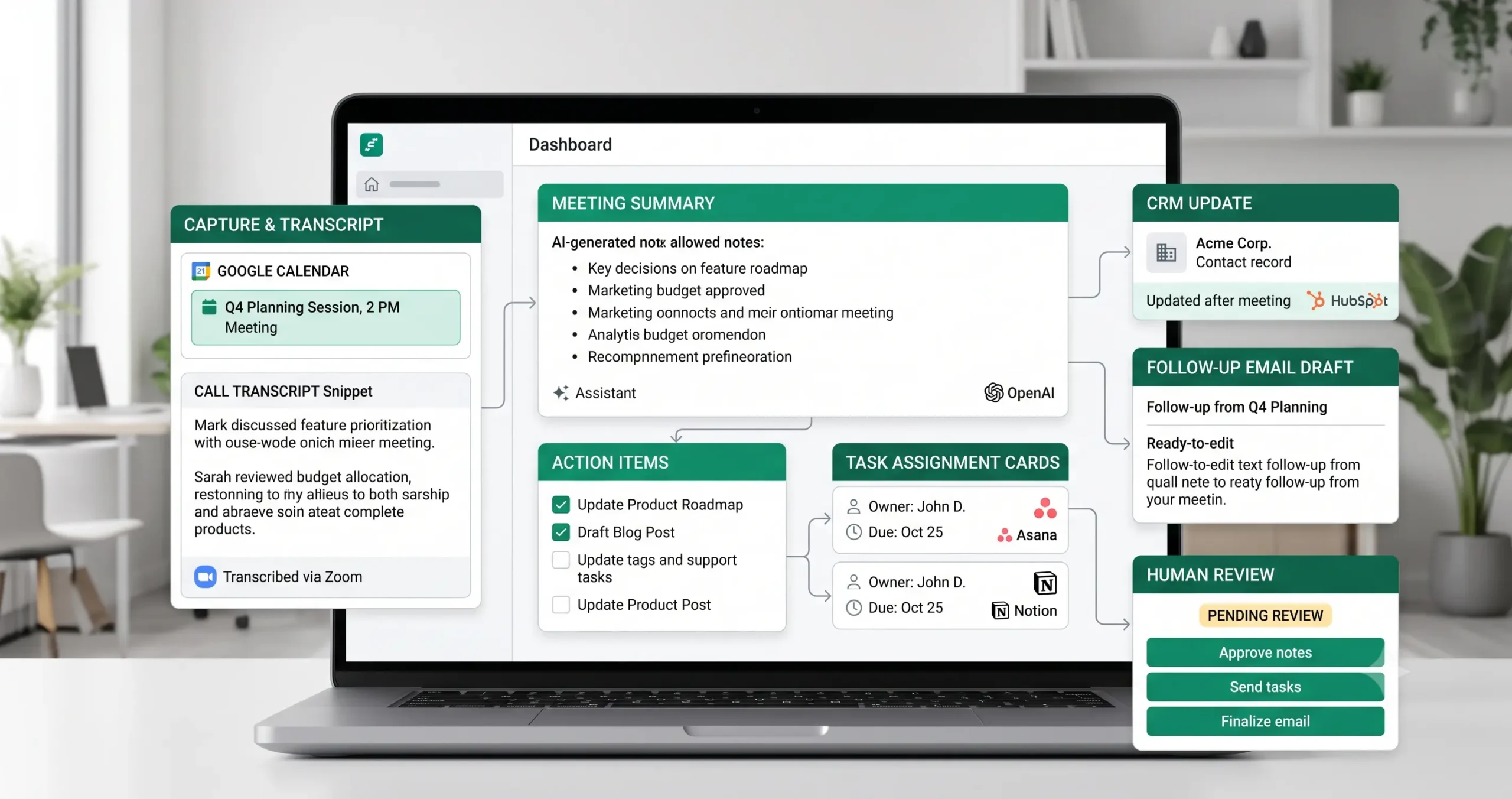
A meeting notes automation template helps small businesses turn meetings into clear summaries, action items, assigned tasks, CRM updates, follow-up drafts, and stored records without manually rewriting notes after every call. The workflow can capture a transcript or meeting notes, summarize the discussion, extract decisions, assign owners, create tasks, draft follow-up emails, and route sensitive or unclear items to human review.
This template is useful for agencies, consultants, sales teams, client service teams, operations teams, and small businesses that run many calls but lose important details after meetings. The goal is not to let AI decide what happened without review. The goal is to reduce manual note-taking while keeping meeting decisions, action items, and follow-ups accurate.
In this guide, you will learn how to build a practical meeting notes workflow, what inputs you need, where AI can help, what should be reviewed by a human, and how to connect meeting summaries with tasks, CRM records, and follow-up messages. If you are new to automation, start with our AI automation for small business guide, then explore the full TakeYourAI workflow templates library.
Quick answer: Use this meeting notes automation template when your team needs to summarize calls, extract decisions, turn action items into tasks, assign owners, update CRM or project records, draft follow-up emails, and store notes after meetings. Keep human review for sensitive meetings, unclear transcripts, client commitments, pricing discussions, contract details, and external follow-ups.
What This Meeting Notes Automation Template Does
This template gives you the workflow logic for turning a meeting into structured follow-up work. It can capture a transcript or meeting notes, summarize the discussion, identify decisions, extract action items, assign owners, set due dates, update a CRM or project tool, draft a follow-up email, and store the final notes.
A simple version can create a meeting summary and task list after each call. A more advanced version can connect meeting notes to a CRM record, client project, sales opportunity, onboarding workspace, or internal operations board.
| Automation job | Example | Why it helps |
|---|---|---|
| Summarize meeting | Create a short summary from transcript, notes, or call recording output. | Helps the team remember what happened without rereading everything. |
| Extract decisions | Identify approvals, next steps, agreed priorities, or unresolved questions. | Turns meeting discussion into clear outcomes. |
| Create action items | Turn tasks into project management items with owner and due date. | Prevents action items from being forgotten. |
| Update records | Add notes to CRM, client workspace, project page, or internal database. | Keeps business context attached to the right record. |
| Draft follow-up email | Prepare a recap email for the client, prospect, or internal team. | Saves time while keeping review possible. |
| Route for review | Send sensitive, unclear, or high-impact notes to a human before sharing. | Protects accuracy, client trust, and decision quality. |
Who Should Use It?
This meeting notes automation template is useful for small businesses that run recurring calls and need better follow-through after those meetings.
- Agencies that hold client calls, kickoff meetings, strategy sessions, and review calls.
- Consultants who need clean notes, tasks, and follow-ups after advisory calls.
- Sales teams that want to convert discovery calls into CRM notes and next steps.
- Customer success teams that need summaries and follow-ups after onboarding or support calls.
- Operations teams that run internal planning meetings and need owners for action items.
- Founders who want fewer lost decisions after calls with clients, vendors, contractors, or partners.
This workflow is especially useful when connected to sales follow-up automation, CRM update automation, client onboarding automation, and AI agent workflows.
Workflow Overview
A reliable meeting notes workflow has nine core parts: meeting scheduled, transcript captured, AI summary generated, decisions and action items extracted, owners and due dates assigned, CRM or project tool updated, follow-up email drafted, human review if needed, and notes stored.
| Workflow step | What happens | Output |
|---|---|---|
| Meeting scheduled | A calendar event, video call, or internal meeting creates the meeting context. | Meeting record is ready. |
| Transcript or notes captured | The workflow receives transcript, recording summary, manual notes, or meeting document. | Raw meeting content is available. |
| AI summary generated | AI summarizes discussion, key points, and context. | Readable meeting summary is created. |
| Decisions and action items extracted | The workflow identifies decisions, open questions, tasks, owners, and deadlines. | Structured follow-up items are prepared. |
| Owners and due dates assigned | Tasks are assigned based on meeting notes, team rules, or project ownership. | Action items become trackable. |
| CRM or project tool updated | Meeting notes are added to the correct CRM record, project, or client workspace. | Context is saved where the team will find it. |
| Follow-up email drafted | The workflow prepares a recap or next-step email. | Follow-up draft is ready for review. |
| Human review if needed | Sensitive, unclear, or client-facing outputs are reviewed. | Approved, corrected, or held for review. |
| Notes stored and logged | Final notes, tasks, and links are stored in the right workspace. | Meeting history is preserved. |
How the Meeting Notes Automation Workflow Works
The workflow should start with a meeting source. That may be Zoom, Google Meet, Microsoft Teams, Google Calendar, Outlook Calendar, a manual notes document, or a meeting notes tool. The source matters because the workflow needs a transcript, notes, or summary before it can create useful outputs.
Some meeting platforms already provide built-in transcript or summary features. For example, Zoom documents meeting summaries with AI Companion, Google Meet provides transcript features for supported users, and Microsoft Teams supports meeting transcripts. These platform features can become useful inputs for your automation workflow when they are available and properly enabled.
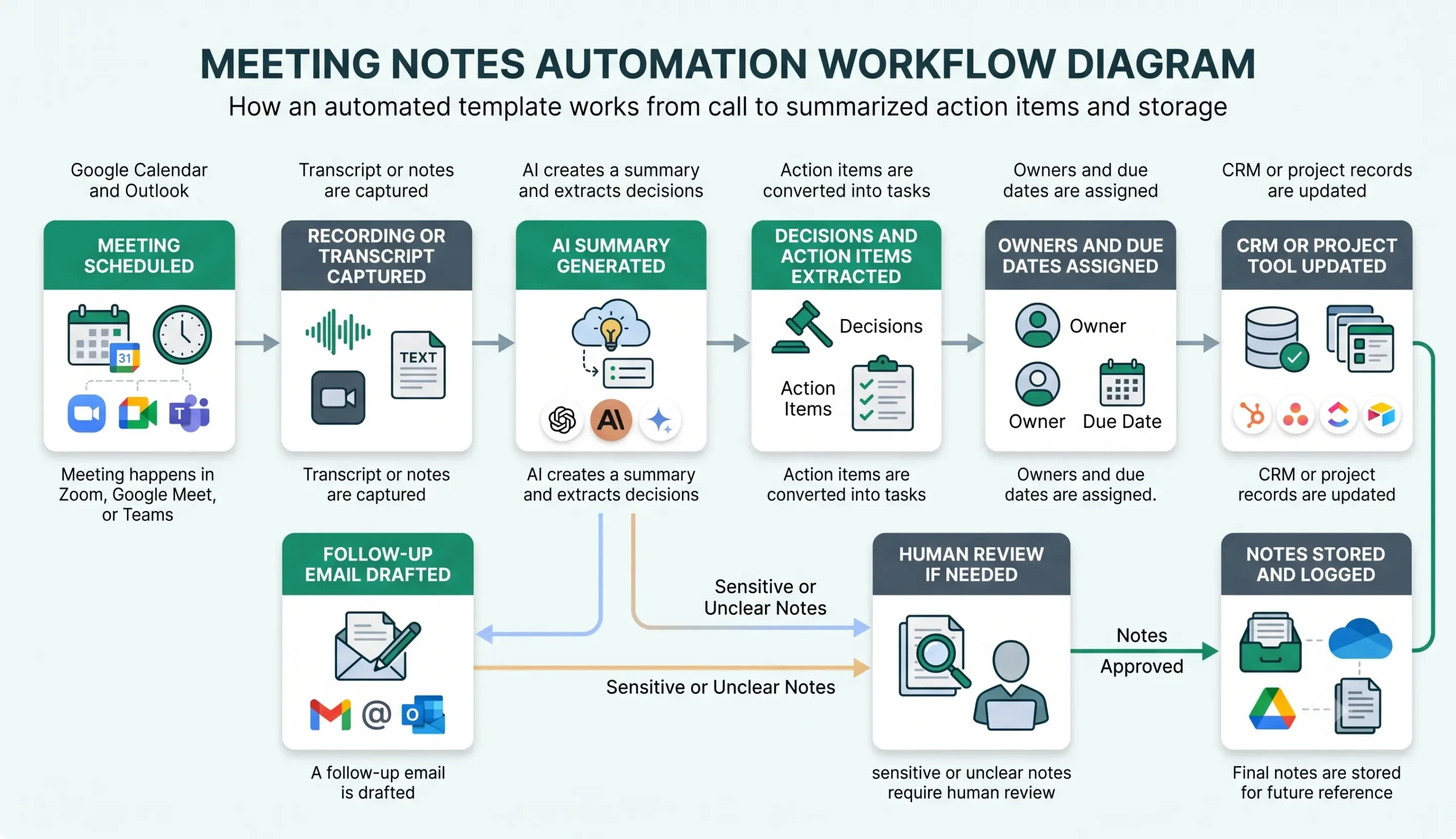
Step 1: Capture the meeting context
The workflow should capture meeting title, date, attendees, client or project, calendar link, transcript link, and related CRM or project record. Without context, meeting notes can become disconnected from the right business record.
Step 2: Collect transcript or notes
Use the transcript, AI summary, manual notes, or shared meeting document as input. Zoom’s official support page explains its AI Companion meeting summary feature: Zoom Meeting Summary with AI Companion. Google also documents how users can work with Meet transcripts: Google Meet transcripts. Microsoft provides guidance for live transcripts in Teams meetings: Microsoft Teams live transcripts.
Step 3: Generate a structured summary
AI should create a concise summary that explains what was discussed, what was decided, what remains open, and which follow-up actions are needed. The summary should not invent agreements that were not clearly present in the transcript.
Step 4: Extract decisions and action items
The workflow should separate discussion from action. A useful meeting summary identifies decisions, tasks, owners, due dates, open questions, risks, and follow-up messages.
Step 5: Create tasks and update records
Action items should become tasks in a project tool, CRM, spreadsheet, Notion page, or task board. Meeting notes should also be attached to the correct client, deal, project, or internal workspace.
Step 6: Draft follow-up email
For client or sales meetings, the workflow can draft a follow-up email summarizing decisions and next steps. The first version should usually save the message as a draft instead of sending automatically.
Step 7: Review and store final notes
A human should review client-facing summaries, sensitive notes, commitments, pricing details, or unclear transcripts before the notes are shared or used to update important records.
Required Inputs
Meeting notes automation becomes more reliable when the workflow receives clear meeting context and a usable transcript or notes source.
| Input | Example | Use in workflow |
|---|---|---|
| Meeting title | Client kickoff call, sales discovery, weekly operations review. | Helps classify the meeting type. |
| Meeting date | 2026-07-18 | Used for storage, notes, and follow-up timing. |
| Attendees | Client, founder, sales rep, project owner, operations manager. | Helps identify owners and recipients. |
| Transcript or notes | Call transcript, meeting summary, manual notes, shared document. | Provides the source for AI summarization. |
| Related record | CRM deal, client workspace, project board, support ticket, onboarding record. | Controls where notes and tasks should be saved. |
| Action-item rules | Assign tasks by speaker, role, client owner, or project owner. | Converts notes into responsible tasks. |
| Review rules | Review required for pricing, contracts, sensitive clients, unclear transcript, or external follow-up. | Decides when human approval is required. |
Practical rule: if the transcript is unclear, incomplete, or missing key parts of the meeting, do not let AI produce confident decisions. Route the summary to review.
Summary and Action-Item Extraction Logic
A meeting notes workflow should separate different types of information. A summary is not the same as a decision, and a decision is not the same as an assigned task.
| Output type | What to extract | Review trigger |
|---|---|---|
| Summary | Main topics, discussion points, context, and overall meeting purpose. | Review if transcript quality is low. |
| Decisions | Approved next steps, confirmed priorities, accepted changes, or agreed outcomes. | Review if the decision was implied but not clearly stated. |
| Action items | Task, owner, due date, related project, and expected result. | Review if owner or deadline is missing. |
| Open questions | Unresolved issues, missing information, blocked decisions, follow-up questions. | Usually safe to log, but assign owner. |
| Risks | Timeline risks, unclear scope, missing access, sensitive client concerns. | Review before sharing externally. |
| Follow-up email | Client recap, next steps, deadlines, and required information. | Review before sending externally. |
If your workflow creates tasks from meeting notes, Zapier’s example for turning shared meeting notes into action items shows the same broad idea: detect notes, extract structured action items, and create task records: Zapier meeting notes action-item automation.
AI Meeting Notes Prompt Template
Use a controlled prompt that separates summary, decisions, action items, risks, and follow-up. The AI should use only the transcript or notes provided and clearly mark uncertainty.
Copy-paste prompt structure:
You are helping summarize a business meeting for a small business. Use only the meeting transcript, notes, and context provided. Do not invent decisions, commitments, deadlines, pricing, or tasks. If something is unclear, mark it as uncertain and route it to human review.
Meeting context:
Meeting title: {{meeting_title}}
Date: {{meeting_date}}
Attendees: {{attendees}}
Meeting type: {{meeting_type}}
Related client, deal, or project: {{related_record}}
Transcript or notes: {{meeting_text}}
Business rules:
Task owner rules: {{owner_rules}}
Review required when: {{review_required_conditions}}
CRM or project update rules: {{record_update_rules}}
Follow-up email rules: {{follow_up_rules}}
Return:
1. Short meeting summary
2. Key decisions
3. Action items with owner and due date
4. Open questions
5. Risks or unclear points
6. Suggested CRM or project note
7. Suggested follow-up email draft
8. Items requiring human review
9. Storage or logging recommendation
If your workflow builder supports structured output, ask for JSON. That makes it easier to create tasks, update CRM fields, assign owners, and store notes in separate fields.
Task, CRM, and Project Update Rules
Meeting summaries are useful, but follow-through matters more. The workflow should turn action items into tasks and attach the meeting context to the right business record.
| Update type | Example | Recommended rule |
|---|---|---|
| Task creation | Create task: “Send proposal draft to client by Friday.” | Create only when task, owner, and next step are clear. |
| Due date | Friday, next week, before kickoff, end of month. | Use explicit dates when possible; review vague deadlines. |
| Owner assignment | Assign to account manager, project lead, founder, or sales owner. | Review if owner is not clear from meeting context. |
| CRM note | Add meeting summary to related deal or contact record. | Add timestamped notes instead of overwriting important fields. |
| Project update | Add decisions to client project workspace. | Link the note to the correct client or project. |
| Follow-up draft | Draft recap email with next steps and open questions. | Review before sending externally. |
If your meeting notes should update sales records, connect the workflow with CRM update automation. If the meeting creates client tasks or onboarding steps, connect it with client onboarding automation.
Follow-Up Email Rules
Meeting follow-up emails are often client-facing, so they should be handled carefully. AI can draft the message, but the workflow should not invent commitments or send sensitive updates without review.
| Rule | Why it matters | Recommended approach |
|---|---|---|
| Use verified meeting notes | Follow-ups should reflect what was actually discussed. | Base the email only on transcript, notes, or approved summary. |
| Separate facts from next steps | Clients need clarity after meetings. | Use sections for recap, decisions, action items, and open questions. |
| Do not invent commitments | AI may overstate agreement if the transcript is unclear. | Mark uncertain items for review. |
| Review pricing or contracts | Financial or legal language needs human judgment. | Require approval before sending. |
| Confirm recipients | Meeting summaries may contain sensitive information. | Check recipient list before sending externally. |
| Log the follow-up | Future work depends on knowing what was sent. | Store draft, sent status, and final link in CRM or project tool. |
If you already built sales follow-up automation, meeting notes can become one of its strongest inputs because they provide context for the next message.
Human Review and Meeting Notes Quality Rules
Meeting notes automation should make follow-through easier, but it should not remove accountability. AI summaries can miss nuance, misunderstand speakers, or turn unclear discussion into overly confident action items.
Human review is especially important for client-facing recaps, sales commitments, pricing, legal terms, deadlines, sensitive internal discussions, or any meeting where the transcript quality is weak.
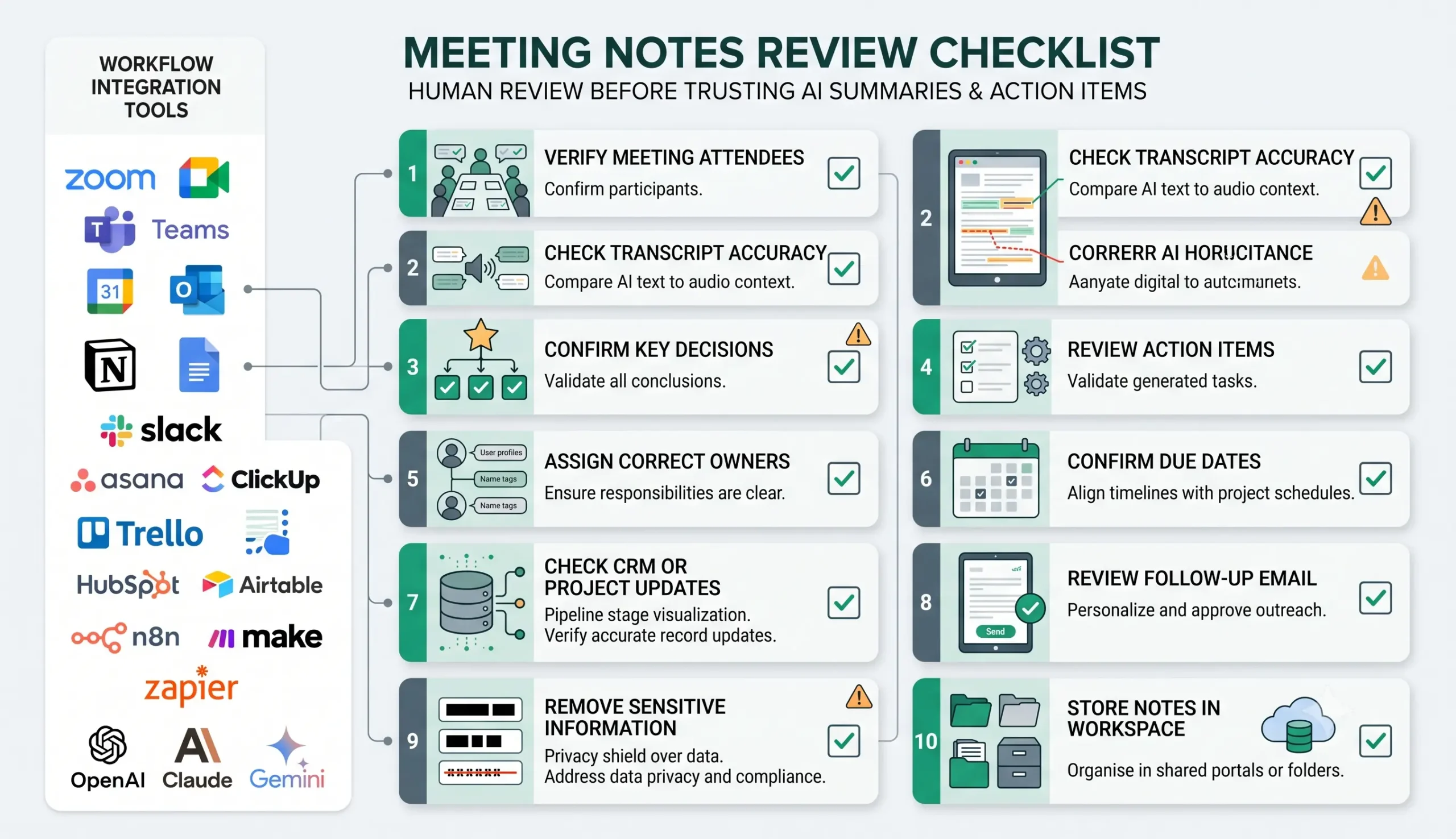
| Review area | What to check | Recommended rule |
|---|---|---|
| Attendees | The summary correctly identifies who attended and who owns next steps. | Review if attendees or speakers are unclear. |
| Transcript accuracy | The transcript or notes are complete enough to trust. | Route low-quality transcripts to review. |
| Decisions | Decisions were clearly made, not merely discussed. | Review before logging as confirmed. |
| Action items | Each task has a clear owner, outcome, and due date when possible. | Send incomplete tasks to review. |
| CRM or project updates | Notes are attached to the right record. | Review if client, deal, or project match is uncertain. |
| Follow-up email | The recap is accurate, professional, and safe to send. | Review all external follow-ups first. |
| Sensitive details | The summary does not expose private, financial, legal, or confidential information unnecessarily. | Remove or restrict sensitive content before sharing. |
Testing Checklist
Test this meeting notes automation template before using it with important client or sales calls. Use clean transcripts, messy transcripts, missing attendees, unclear owners, sensitive notes, and different meeting types.
| Test case | What to verify |
|---|---|
| Clean internal meeting | The workflow creates a useful summary and internal tasks. |
| Client meeting | The workflow drafts a recap but requires approval before sending. |
| Sales discovery call | The workflow updates CRM notes and creates next-step tasks. |
| Transcript with missing sections | The workflow marks uncertainty instead of inventing decisions. |
| Unclear owner | The workflow sends the action item to review. |
| Vague due date | The workflow asks for confirmation or uses a review task. |
| Sensitive meeting | The workflow does not share notes automatically. |
| Wrong record match | The workflow does not update the wrong CRM or project record. |
Tools You Can Use
This template is platform-neutral. You can build it with different tools depending on where meetings happen, where notes are stored, and where follow-up work should go.
| Tool type | Best use | Example options |
|---|---|---|
| Meeting platform | Hosts calls and may provide transcript or summary input. | Zoom, Google Meet, Microsoft Teams. |
| Calendar | Provides meeting title, date, attendees, and schedule context. | Google Calendar, Outlook Calendar, Calendly. |
| Notes workspace | Stores meeting notes, summaries, and client context. | Notion, Google Docs, Airtable, CRM notes, project workspace. |
| Task management | Creates action items, owners, deadlines, and reminders. | Asana, ClickUp, Trello, Notion, Airtable, Monday.com. |
| CRM | Stores meeting summaries for sales or client records. | HubSpot, Salesforce, Pipedrive, Airtable, spreadsheet-based CRM. |
| Workflow builder | Connects transcript, AI summary, task creation, CRM update, and follow-up draft. | n8n, Make, Zapier, or similar automation platforms. |
| AI model | Summarizes notes, extracts decisions, creates tasks, and drafts follow-ups. | OpenAI, Claude, Gemini, or another text-capable model. |
If you are still choosing your automation platform, read Best AI Automation Tools for Small Business. For direct comparisons, review n8n vs Zapier, n8n vs Make for AI automation, and Make vs Zapier.
Common Mistakes
Meeting notes automation can create confusion if it turns unclear conversations into confident tasks. The safest workflow separates summary, decisions, action items, and follow-up drafts, then adds review where needed.
| Mistake | Why it hurts | Better approach |
|---|---|---|
| Trusting weak transcripts | Bad transcript input creates inaccurate summaries. | Route low-quality transcripts to review. |
| Mixing discussion with decisions | The team may treat ideas as confirmed commitments. | Label decisions only when they are clearly agreed. |
| No owner assignment | Action items become vague reminders instead of real tasks. | Require owner or send to review. |
| Automatic client follow-ups | External messages may include wrong or sensitive details. | Save as draft and require approval first. |
| Updating the wrong record | Notes end up attached to the wrong client, deal, or project. | Validate record match before updating. |
| No storage rules | Meeting notes become scattered and hard to find later. | Use consistent naming, folders, and record links. |
Simple Implementation Plan
- Choose one meeting type. Start with sales calls, client calls, onboarding calls, or internal operations meetings.
- Choose one notes source. Use transcript, meeting summary, Google Doc, Notion page, or manual notes.
- Define the meeting record. Capture meeting title, date, attendees, client or project, and notes link.
- Add AI summarization. Use a prompt that separates summary, decisions, action items, and open questions.
- Create task rules. Require task, owner, and due date where possible.
- Connect CRM or project updates. Save notes to the correct record without overwriting important fields.
- Draft follow-up emails. Save external messages as drafts first.
- Add review rules. Require approval for sensitive meetings, unclear transcripts, and client-facing recaps.
- Store final notes. Use consistent naming and link notes to the correct client, deal, or project.
- Test with real meetings. Use different meeting types, transcript quality levels, and review scenarios.
Final Recommendation
Start with a meeting notes automation template that summarizes calls, extracts decisions, creates tasks, stores notes, and drafts follow-ups for review. Avoid automatically sending client recaps or updating sensitive records until the workflow has been tested.
Once the workflow is stable, connect it to sales follow-up automation, CRM update automation, client onboarding automation, and AI agent workflows. Together, these workflows can turn meetings into real operational progress instead of forgotten notes.
The best meeting notes automation system does not replace judgment. It captures the conversation, organizes the follow-up, and keeps humans responsible for important decisions.
FAQ
What is a meeting notes automation template?
A meeting notes automation template is a repeatable workflow that captures transcripts or notes, creates summaries, extracts decisions and action items, assigns owners, updates records, drafts follow-ups, and stores the final notes.
Can AI summarize meeting notes automatically?
Yes. AI can summarize meeting notes or transcripts, but important decisions, client-facing recaps, pricing details, and sensitive information should still be reviewed by a human.
What should meeting notes automation extract?
It should extract the meeting summary, key decisions, action items, owners, due dates, open questions, risks, CRM or project notes, and follow-up email draft when needed.
Should follow-up emails be sent automatically after meetings?
The safer approach is to save follow-up emails as drafts first. Automatic sending should only be used for low-risk, standardized messages after testing and approval rules are in place.
Which tools can I use for meeting notes automation?
You can combine meeting tools such as Zoom, Google Meet, or Microsoft Teams with notes tools, project management apps, CRM systems, workflow builders such as n8n, Make, or Zapier, and AI models such as OpenAI, Claude, or Gemini.
How do I keep meeting notes automation accurate?
Use clear transcripts, separate summaries from decisions, require owners for action items, validate CRM or project record matches, review client-facing messages, and route unclear or sensitive notes to human approval.