CRM Update Automation Template for Small Businesses
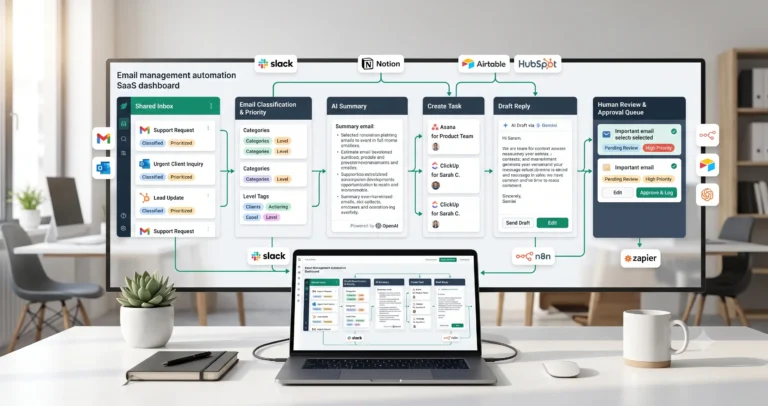
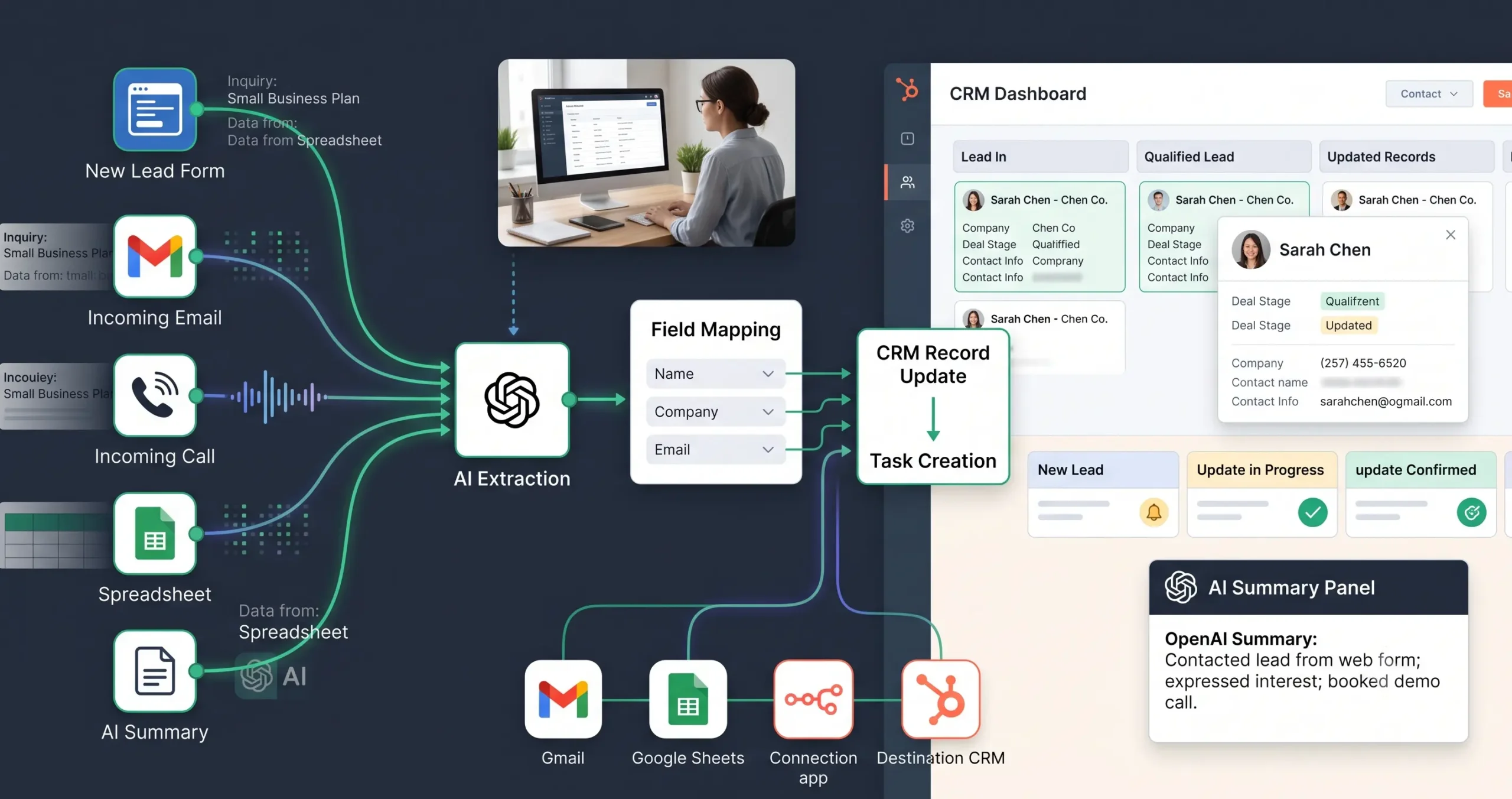
A CRM update automation template helps small businesses keep customer and lead records accurate without manually copying information from forms, emails, spreadsheets, meeting notes, and sales conversations into a CRM. The workflow collects incoming data, cleans it, uses AI to extract useful context, maps fields into the right CRM properties, and creates a follow-up task or review step when needed.
The goal is not to let automation overwrite important customer records blindly. The goal is to reduce manual CRM admin work while protecting data quality. If you are new to the topic, start with our AI automation for small business guide, then review practical AI automation workflow examples to see where CRM updates fit into a broader automation system.
Quick answer: Use this CRM update automation template when your team spends too much time moving lead details, customer notes, form responses, or follow-up tasks into a CRM. The safest version updates simple fields automatically and keeps human review for duplicates, deal-stage changes, sensitive notes, and uncertain AI outputs.
What This CRM Update Automation Template Does
This template gives you the workflow logic for updating CRM records from structured and semi-structured business data. It can take information from a lead form, email, call note, spreadsheet row, onboarding form, meeting summary, or support request and turn it into cleaner CRM fields.
A simple version of this workflow can update contact properties, add notes, create follow-up tasks, tag lead source, and notify a sales or operations person. A more advanced version can detect duplicates, enrich missing fields, classify lead intent, and route uncertain updates to human review.
| Automation job | Example | Why it helps |
|---|---|---|
| Update contact fields | Add company, phone, source, industry, or request type. | Keeps CRM records more complete. |
| Add AI summary | Summarize a form message or sales call note. | Helps the team understand the context faster. |
| Create follow-up task | Create a task when a lead asks for pricing or a demo. | Reduces missed opportunities. |
| Map lead source | Tag the source as website, referral, email, campaign, or partner. | Improves reporting and attribution. |
| Route for review | Send uncertain updates to a human before changing important fields. | Protects CRM data quality. |
Who Should Use This Template?
This template is useful for small businesses that already use a CRM or spreadsheet to track leads and customers, but still update many records manually.
- Agencies that receive client inquiry forms and discovery call notes.
- Consultants who track leads, deals, and follow-ups in a CRM.
- SaaS teams that need to keep demo requests and onboarding notes organized.
- Local service businesses that receive quote requests from several channels.
- Small sales teams that rely on clean pipeline data but do not have a sales operations team.
If your CRM often has missing fields, duplicate contacts, forgotten follow-ups, unclear notes, or inconsistent lead sources, CRM update automation is a strong workflow to build after simpler templates such as AI lead qualification.
Workflow Overview
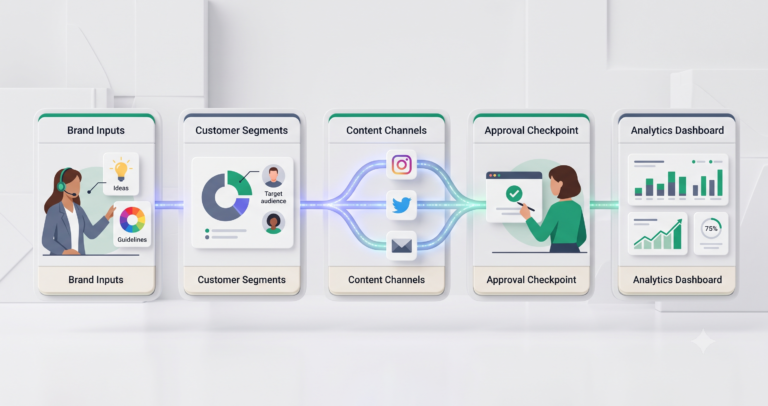
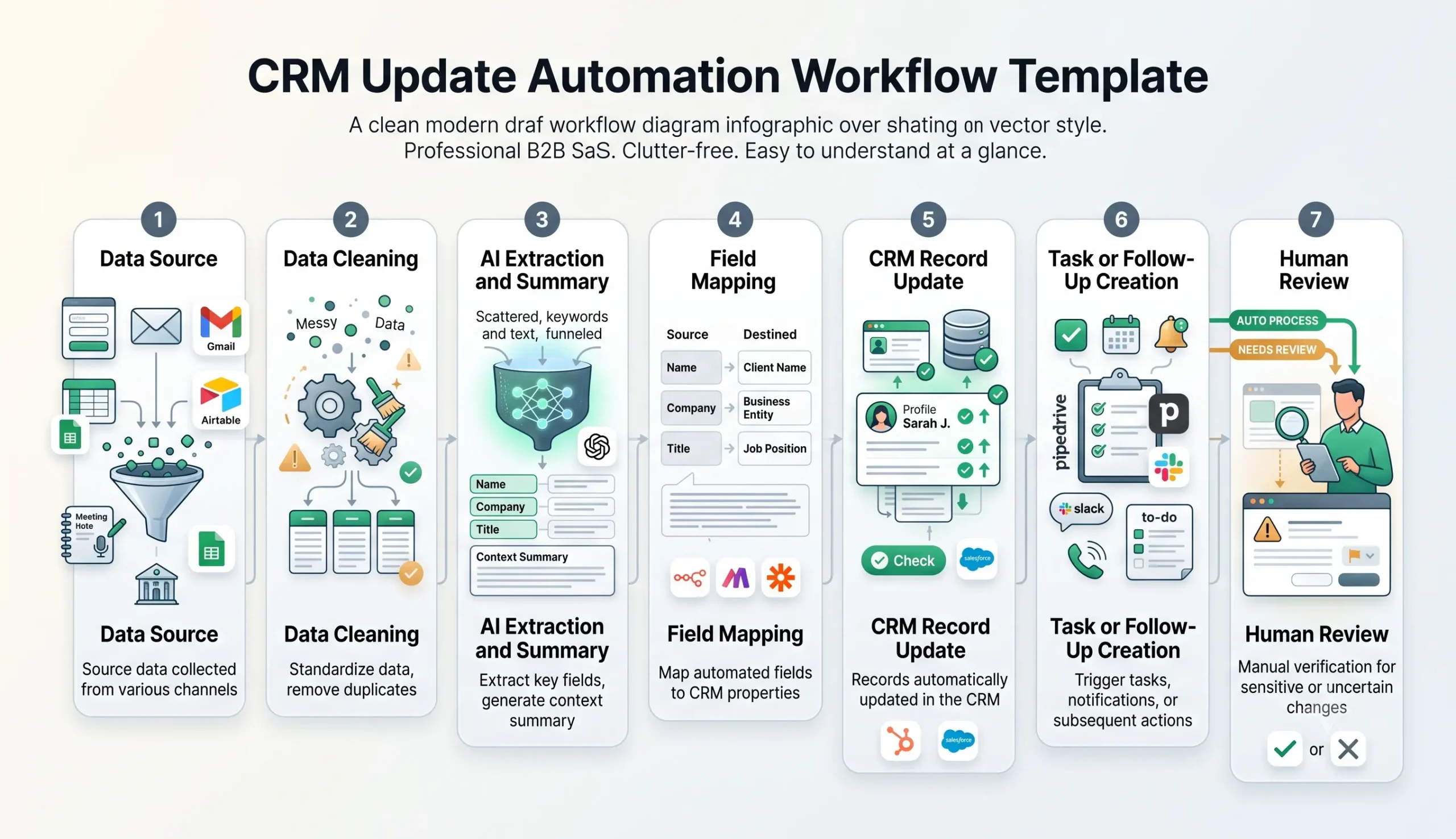
A CRM update workflow has seven core parts: data source, cleanup, AI extraction, field mapping, CRM update, task creation, and review. The first version should be simple enough to test with real examples before it touches important deal records.
| Workflow step | What happens | Output |
|---|---|---|
| Data source | A new form, email, spreadsheet row, meeting note, or support request arrives. | New customer or lead data is captured. |
| Data cleaning | The workflow formats names, emails, phone numbers, dates, and source fields. | Cleaner input for the CRM and AI step. |
| AI extraction | AI extracts intent, request type, summary, missing details, and suggested follow-up. | Structured CRM-ready context. |
| Field mapping | The workflow maps each extracted value to the correct CRM property. | Safe CRM field update plan. |
| Duplicate check | The workflow checks whether the contact, company, or deal already exists. | New record or existing record selected. |
| CRM update | The workflow updates allowed fields and adds a note or activity log. | Updated CRM record. |
| Human review | Risky, uncertain, or high-impact updates are sent to a person before final changes. | Approved or corrected CRM update. |
How the CRM Update Automation Workflow Works
The workflow should not begin by changing every CRM field automatically. Start with low-risk updates first: adding notes, lead source, request type, and follow-up reminders. Then expand into more sensitive fields only after the automation is reliable.
For example, updating a “lead source” field is usually lower risk than changing a deal stage. Adding an AI-generated note is safer than overwriting a customer’s company name. Creating a follow-up task is safer than sending a final sales email.
Step 1: Capture incoming data
The trigger can be a form submission, new email, spreadsheet row, meeting note, call transcript, support ticket, or lead qualification result. Choose one source first. Do not connect every channel before the workflow is stable.
Step 2: Clean the data
Before updating the CRM, normalize the input. Convert names into a consistent format, validate email fields, remove extra spaces, standardize phone numbers, and check whether required fields are missing.
Step 3: Extract CRM-ready context with AI
AI is useful when the source contains unstructured text. It can summarize the request, detect intent, identify missing information, classify the lead source, and suggest a follow-up action.
Step 4: Map fields carefully
Field mapping is where many CRM automations break. Each extracted value should have a clear destination: contact property, company property, deal property, note, task, or internal notification.
Step 5: Update or route for review
Low-risk updates can be applied automatically after testing. High-risk updates should be routed to human review before the CRM record changes.
Required Inputs
CRM update automation works best when the workflow receives enough information to make safe updates. If the input is too vague, the system should add a note or request review instead of guessing.
| Input | Example | Use in CRM |
|---|---|---|
| Name and email | Jane Smith, jane@example.com | Find or create the contact record. |
| Company | Acme Studio | Connect contact to company record. |
| Lead source | Website form, referral, campaign, webinar | Improve attribution and reporting. |
| Request type | Demo, quote, support, consultation, partnership | Route the contact or deal correctly. |
| Message or note | “We need help automating CRM updates from our lead forms.” | Generate AI summary and follow-up context. |
| Budget or timeline | $2,000+, this month, next quarter | Support lead qualification and priority. |
| Existing CRM ID | Contact ID, company ID, deal ID | Update the right record and reduce duplicates. |
Practical rule: when a field is missing or uncertain, do not let AI invent it. Mark it as unknown, add it to the review note, or create a task asking a human to confirm it.
Field Mapping Logic
The most important part of this template is field mapping. The workflow must know where each piece of information belongs. Otherwise, the automation can create messy records that take more time to fix than manual updates.
| Extracted information | CRM destination | Automation rule |
|---|---|---|
| Email address | Contact email field | Use for duplicate search before creating a new contact. |
| Company name | Company record | Update only if empty or manually approved. |
| Lead source | Lead source property | Use controlled values, not free text. |
| Request summary | CRM note or activity | Add as a timestamped note instead of overwriting existing fields. |
| Next action | Task or reminder | Create task for human follow-up. |
| Deal stage | Pipeline stage | Require review before changing important stages. |
| Missing information | Review note or task | Ask a person to confirm before updating. |
If you are still choosing your workflow platform, compare options in Best AI Automation Tools for Small Business. For direct platform comparisons, review n8n vs Zapier, n8n vs Make, and Make vs Zapier.
AI Extraction Prompt Template
Use a controlled prompt that returns CRM-ready information. The output should be structured, cautious, and easy for your automation platform to parse.
Copy-paste prompt structure:
You are helping prepare a CRM update for a small business. Use only the provided information. Do not invent missing facts. If a value is missing or uncertain, mark it as unknown. Return a structured summary that can be reviewed before updating the CRM.
Source data:
Name: {{name}}
Email: {{email}}
Company: {{company}}
Source: {{source}}
Message or note: {{message_or_note}}
Existing CRM record: {{existing_crm_record}}
Current CRM fields: {{current_crm_fields}}
Business rules:
Allowed automatic updates: {{allowed_automatic_updates}}
Updates requiring human review: {{review_required_fields}}
Controlled lead source values: {{lead_source_values}}
Controlled request types: {{request_type_values}}
Return:
1. Contact summary
2. Request type
3. Lead source
4. Suggested CRM note
5. Suggested field updates
6. Fields that should not be updated automatically
7. Missing information
8. Suggested follow-up task
9. Human review note
If your workflow builder supports JSON output, use JSON for the AI response. That makes it easier to map values into CRM properties and reduce formatting errors.
Human Review and Data Quality Rules
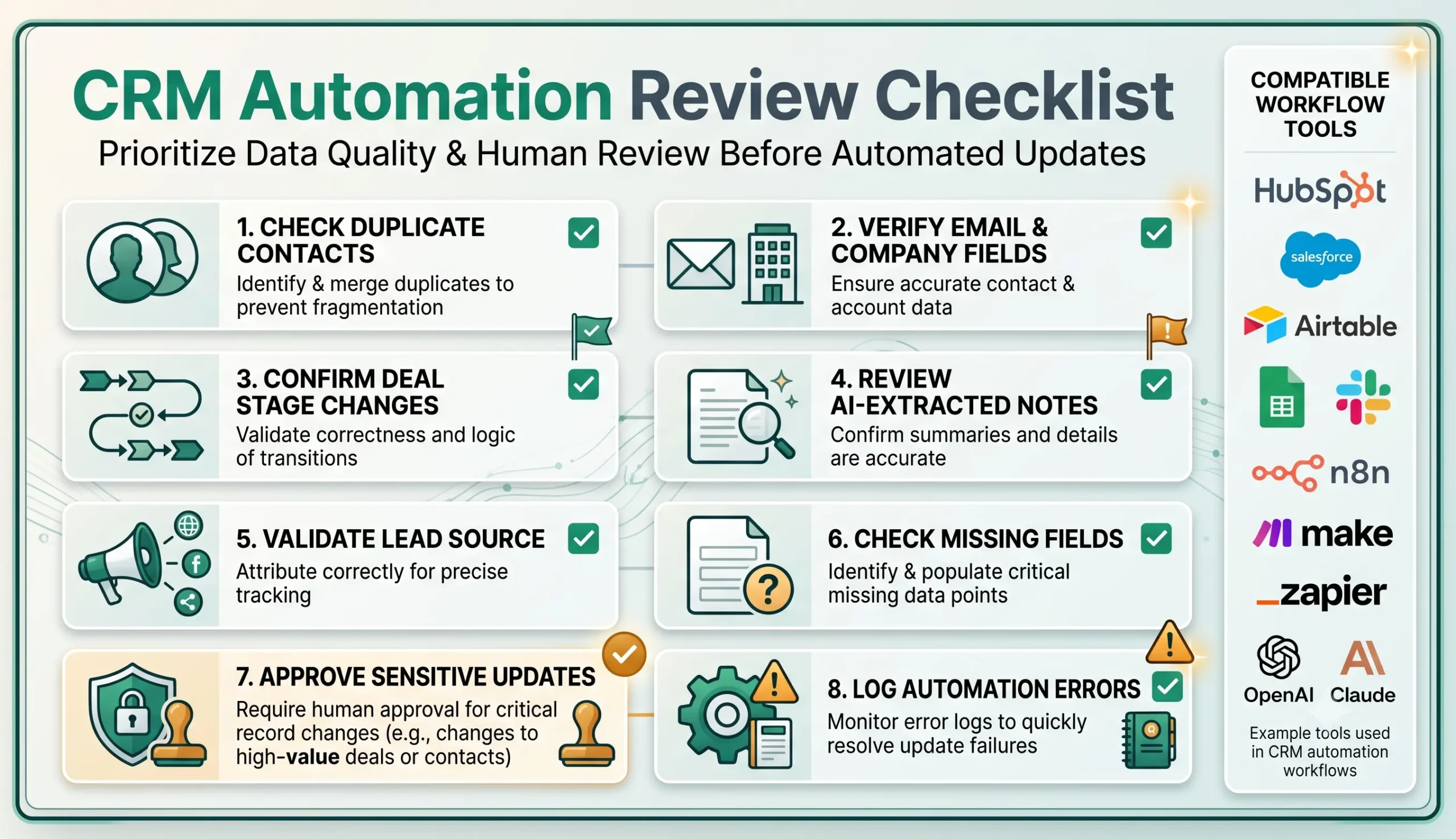
CRM automation can save time, but poor CRM automation creates long-term data problems. Protect the CRM by deciding which fields can update automatically and which fields need approval.
A safe first version can automatically add notes, lead source, request type, and follow-up tasks. It should not automatically change deal stages, delete existing values, overwrite company names, merge records, or mark leads as disqualified without review.
| Update type | Safe automation level | Recommended rule |
|---|---|---|
| Add CRM note | Usually safe | Allow after testing, but label it as AI-assisted if needed. |
| Create follow-up task | Usually safe | Allow when the task is low-risk and assigned to a human. |
| Update lead source | Medium risk | Use controlled values and avoid overwriting existing source unless approved. |
| Update company details | Medium risk | Review before overwriting existing company fields. |
| Change deal stage | High risk | Require human review. |
| Merge duplicate contacts | High risk | Require human approval. |
| Mark lead as disqualified | High risk | Require review unless rules are extremely clear. |
Testing Checklist
Test this CRM update automation template with real examples before using it in production. Use clean records, messy records, duplicate contacts, missing data, unclear notes, and high-value leads.
| Test case | What to verify |
|---|---|
| New contact | The workflow creates a new record only when no duplicate exists. |
| Existing contact | The workflow updates the correct record instead of creating a duplicate. |
| Missing email | The workflow routes to review instead of creating a weak contact record. |
| Conflicting company name | The workflow does not overwrite existing data without approval. |
| Unstructured message | AI summary captures the request without inventing missing facts. |
| Deal-stage suggestion | The workflow creates a review task instead of changing the stage automatically. |
| Duplicate lead source | The workflow uses controlled values and does not create messy new labels. |
Tools You Can Use
This template is platform-neutral. You can build it with different stacks depending on how your CRM and workflows are currently set up.
| Tool type | Best use | Example options |
|---|---|---|
| CRM | Stores contacts, companies, deals, activities, and tasks. | HubSpot, Salesforce, Pipedrive, Airtable, Notion, or a spreadsheet-based CRM. |
| Data source | Provides new lead, customer, or activity data. | Website form, Gmail, Google Sheets, meeting notes, support tickets. |
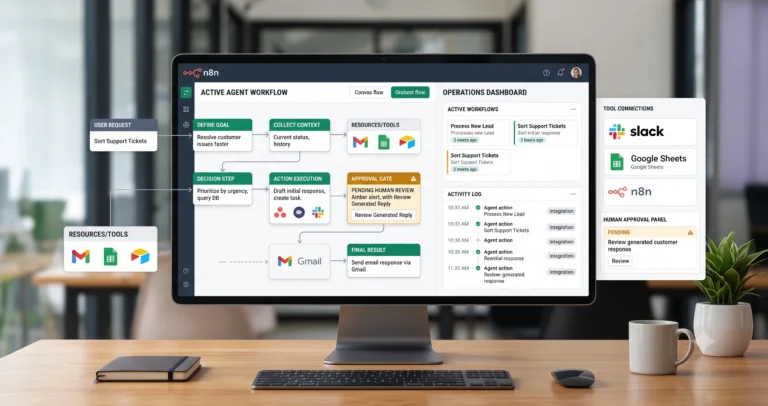
| Workflow builder | Moves data between tools and controls the automation logic. | n8n, Make, Zapier, or similar automation platforms. |
| AI model | Extracts fields, summarizes notes, and suggests follow-up actions. | OpenAI, Claude, Gemini, or another text model. |
| Notification channel | Alerts the right person when review is needed. | Email, Slack, CRM task, or project management tool. |
For more implementation resources, visit the TakeYourAI workflow templates library. If you are deciding which automation workflow to build first, compare this template with AI customer support triage and weekly AI reporting automation.
Common Mistakes
CRM update automation usually fails because the workflow updates too much too soon. Start with safer updates and expand only after testing.
| Mistake | Why it hurts | Better approach |
|---|---|---|
| No duplicate check | The CRM fills with duplicate contacts and companies. | Search by email, company, or CRM ID before creating records. |
| Overwriting existing fields | Good data can be replaced by weaker AI-extracted data. | Only update empty fields or require review before overwrite. |
| Free-text lead sources | Reporting becomes messy and inconsistent. | Use controlled source values. |
| Automatic deal-stage changes | Pipeline reporting can become inaccurate. | Route deal-stage suggestions to human approval. |
| Vague AI summaries | Sales reps ignore the automation output. | Ask for concise summaries, missing info, and recommended next action. |
| No error logging | Failed updates go unnoticed. | Log errors and notify a human when the CRM update fails. |
Simple Implementation Plan
- Choose one source. Start with one lead form, email inbox, spreadsheet, or meeting note source.
- Define allowed updates. Decide which CRM fields can update automatically and which need review.
- Create field mapping rules. Map each source field or AI output to a CRM field, note, task, or review queue.
- Add duplicate checks. Search for existing contacts or companies before creating new records.
- Add the AI extraction step. Use a controlled prompt that marks unknown information clearly.
- Update low-risk fields first. Begin with notes, request type, lead source, and follow-up tasks.
- Route risky updates to review. Deal stages, disqualification, merging, and overwrites should require approval.
- Test with real examples. Run 20–30 realistic records before using the workflow live.
Final Recommendation
Start with a CRM update automation template that adds notes, standardizes lead source, creates follow-up tasks, and routes uncertain updates to a human. Avoid letting the first version overwrite important CRM fields or change deal stages automatically.
If CRM admin work is already slowing your team down, this is a strong next workflow after AI lead qualification. If support or reporting is a bigger bottleneck, compare it with AI customer support triage or weekly AI reporting automation.
FAQ
What is a CRM update automation template?
A CRM update automation template is a repeatable workflow that collects lead or customer data, cleans it, maps it to CRM fields, updates records, creates tasks, and keeps review for risky changes.
Can AI update CRM records automatically?
AI can help extract summaries, request types, missing details, and follow-up actions, but important CRM updates should use rules and human review before overwriting sensitive fields.
Which CRM fields are safest to automate first?
Safer fields include notes, request type, lead source, follow-up task, and internal summary. Higher-risk fields such as deal stage, disqualification, and company details should require review.
Can this workflow work with HubSpot, Salesforce, or Pipedrive?
Yes. The workflow logic can be adapted to HubSpot, Salesforce, Pipedrive, Airtable, spreadsheets, or other CRM systems, depending on available integrations and field structure.
How do I prevent duplicate CRM records?
Add a duplicate check before creating new records. Search by email, company, CRM ID, or another stable identifier, then update the existing record when appropriate.
What should be reviewed by a human?
Humans should review duplicate merges, deal-stage changes, overwrites, disqualification decisions, sensitive notes, uncertain AI outputs, and any update that affects sales reporting.