Client Onboarding Automation Template for Small Businesses
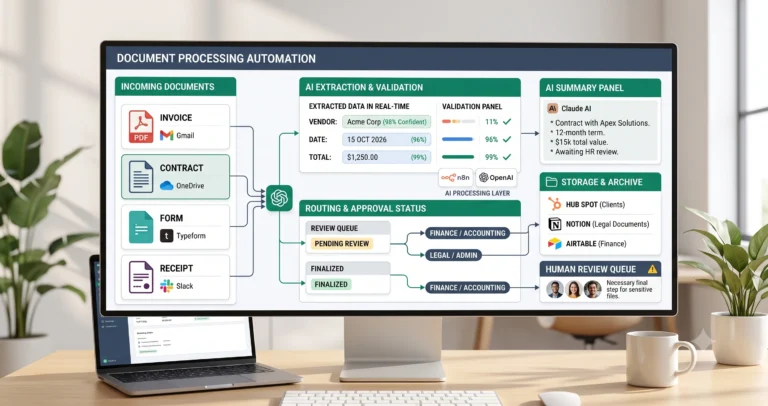
A client onboarding automation template helps small businesses turn a signed client into an organized project without rebuilding the same setup process manually every time. The workflow can collect intake details, create a project workspace, assign tasks, organize files, send a welcome message, and route missing or sensitive details to human review.
This is one of the most practical automation workflows for agencies, consultants, service businesses, and small operations teams. Good onboarding reduces confusion at the start of a client relationship. Poor onboarding creates missed details, scattered files, unclear responsibilities, and delays before the real work even begins.
In this guide, you will learn how to build a simple but reliable onboarding workflow, what inputs you need, which steps can be automated safely, and where human approval still matters. If you are new to automation, start with our AI automation for small business guide, then review our workflow templates library for related templates.
Quick answer: Use this client onboarding automation template when you want to collect intake information, create client folders, generate internal tasks, send welcome emails, and prepare a clean project setup automatically after a deal is closed or an agreement is signed. Keep human review for missing details, access permissions, sensitive client data, and final kickoff approval.
What This Client Onboarding Automation Template Does
This template gives you the workflow logic for moving a new client from “deal closed” to “project ready.” It is designed for small businesses that need a repeatable onboarding process but do not want to manually create the same folders, tasks, emails, checklists, and records for every new client.
A simple version of this workflow can send an intake form, collect client details, create a project folder, add tasks to a project tool, send a welcome email, and notify the account owner. A more advanced version can summarize the client’s goals with AI, detect missing intake fields, assign the right onboarding path, and require approval before kickoff.
| Automation job | Example | Why it helps |
|---|---|---|
| Send intake form | Automatically send a form after a deal is marked as won. | Collects the details needed before work begins. |
| Create project workspace | Create a Notion, Asana, ClickUp, Trello, or folder-based workspace. | Gives the team one place to manage onboarding. |
| Assign tasks | Create tasks for kickoff call, file review, access setup, and internal preparation. | Reduces missed onboarding steps. |
| Organize files | Create a shared folder and add the right naming structure. | Keeps client assets organized from day one. |
| Draft welcome email | Create or send a welcome message with next steps. | Improves the client’s first impression. |
| Route for review | Send missing, unclear, or sensitive onboarding details to a human. | Protects quality before project kickoff. |
Who Should Use It?
This client onboarding automation template is useful for small businesses that sell services, projects, retainers, consulting, implementation, or client work that requires a structured setup process.
- Agencies that onboard new clients after discovery calls or signed proposals.
- Consultants who need intake forms, kickoff calls, shared folders, and task setup.
- Freelancers who want a professional onboarding experience without manual admin.
- SaaS service teams that help customers with implementation or migration.
- Operations teams that need a repeatable process after a deal closes.
- Small businesses that manage projects in Notion, Asana, Trello, ClickUp, Airtable, or spreadsheets.
This template is especially useful if your team often loses time asking the same onboarding questions, recreating project boards, searching for client files, or sending welcome emails manually.
Workflow Overview
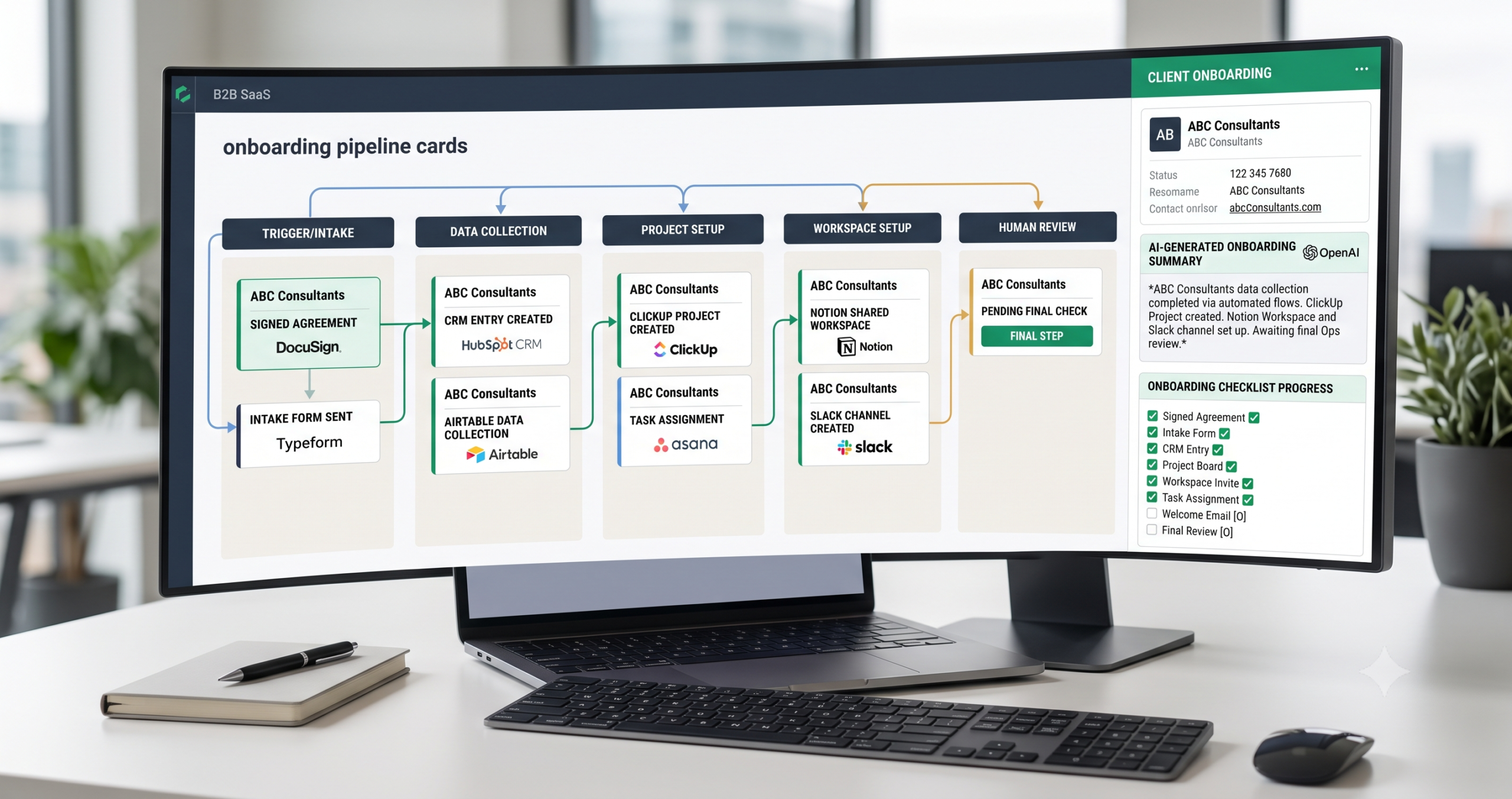
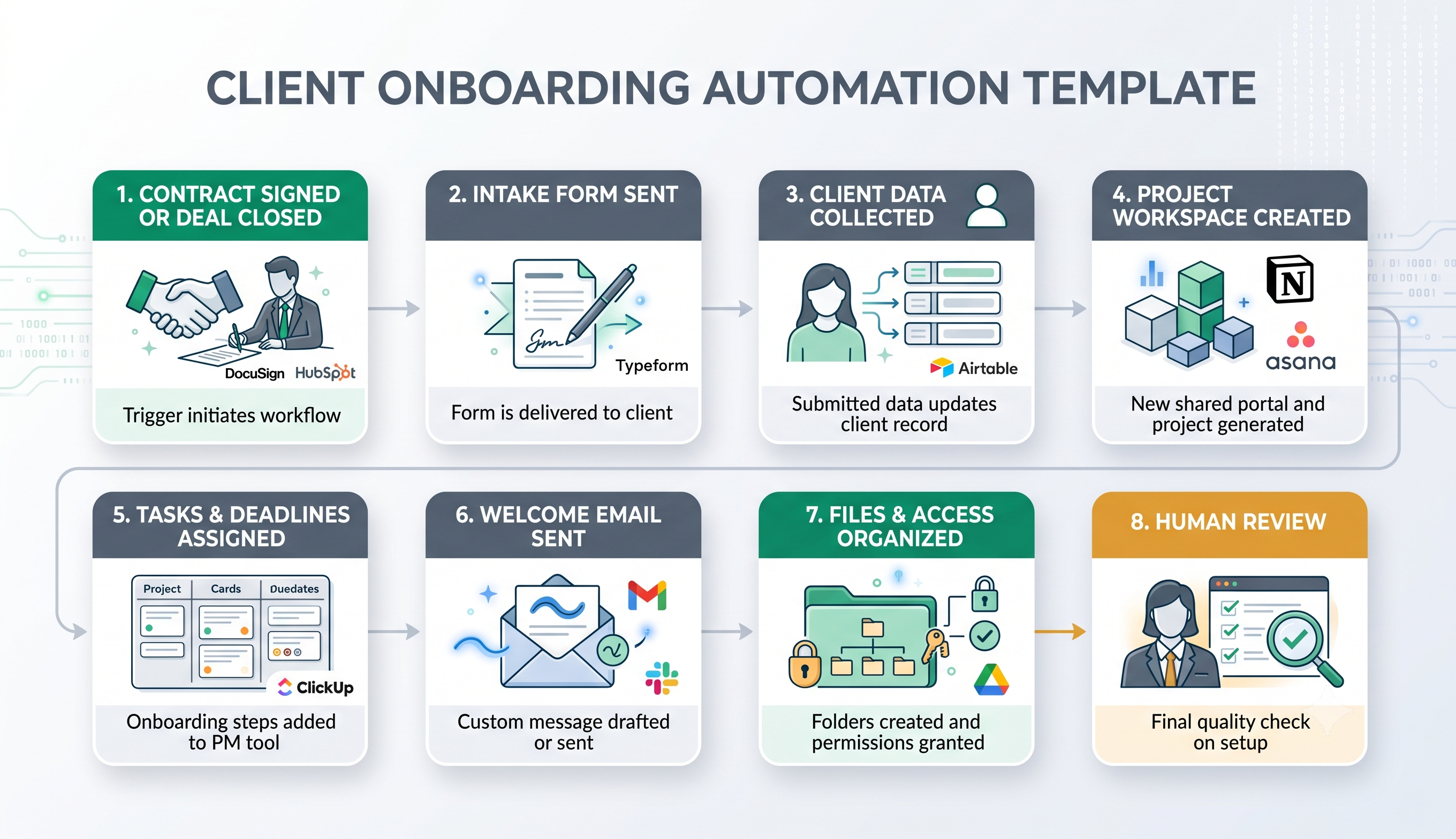
A strong onboarding workflow has a clear trigger, structured intake, workspace creation, task assignment, file organization, communication, and review. The workflow should be simple enough to test but structured enough to prevent onboarding chaos.
| Workflow step | What happens | Output |
|---|---|---|
| Deal closed or agreement signed | The workflow starts when a deal is marked as won or an agreement is completed. | New client onboarding begins. |
| Intake form sent | The client receives a form asking for required project details. | Structured onboarding information is collected. |
| Client data checked | The workflow checks missing fields, contact details, project type, and access needs. | Clean input for project setup. |
| Project workspace created | A folder, project board, CRM record, or client workspace is created. | The team has a central place for onboarding. |
| Tasks assigned | Kickoff, asset review, access setup, and internal preparation tasks are created. | Responsibilities are clear. |
| Welcome email drafted or sent | The client receives next steps, timeline, and what to expect. | The client gets a professional onboarding experience. |
| Human review | A person checks missing details, sensitive information, and final readiness. | The project is approved for kickoff. |
How the Client Onboarding Automation Workflow Works
The workflow should start only after a reliable business event. That event may be a signed agreement, a paid invoice, a CRM deal marked as closed-won, or a manual approval from the sales or operations team. Avoid triggering full onboarding from weak signals such as an unqualified form submission.
Once the trigger happens, the automation sends or prepares the intake form, waits for the client’s response, checks whether the required information is complete, then creates the internal onboarding setup.
Step 1: Start from a confirmed client event
Use a reliable trigger such as a signed contract, paid invoice, closed-won CRM deal, or manual approval. This prevents the workflow from creating full onboarding assets for leads who are not actually ready to start.
Step 2: Send the intake form
The intake form should collect the minimum information needed to begin. Do not ask for everything at once if that will slow the client down. Focus on project goals, contact details, access needs, brand assets, timeline, and important context.
Step 3: Check missing information
The workflow should check whether required fields are missing. If a critical field is empty, it can create a follow-up task, send a reminder, or notify the onboarding owner.
Step 4: Create the project workspace
Depending on your tools, the workflow can create a project board, Notion page, ClickUp space, Asana project, Trello board, Airtable record, shared folder, or CRM onboarding record.
Step 5: Assign tasks and deadlines
The workflow can create standard tasks such as kickoff call preparation, access request, brand asset review, internal briefing, timeline confirmation, and first deliverable setup.
Step 6: Draft or send the welcome email
A welcome email should explain what happens next, who the client should contact, what information is still needed, and what the client can expect before kickoff.
Step 7: Keep final human review
Before the project begins, a person should confirm that the intake is complete, the workspace is correct, the welcome message is appropriate, and access permissions are safe.
Required Inputs
Client onboarding automation depends on clean inputs. If the workflow starts with incomplete or messy information, it can create confusing tasks, incorrect folders, or weak client communication.
| Input | Example | Use in onboarding |
|---|---|---|
| Client name | Acme Studio | Create folder, workspace, CRM record, and project title. |
| Main contact | Name, email, role, phone | Send welcome email and assign communication owner. |
| Project type | Website, SEO, automation setup, consulting, design, implementation | Select the correct onboarding checklist. |
| Goals and context | Client objectives, pain points, expected outcome | Create internal brief and AI onboarding summary. |
| Access needs | Google Drive, WordPress, CRM, analytics, ad accounts, support tools | Create access request tasks. |
| Files and assets | Brand files, documents, previous reports, screenshots, credentials instructions | Organize assets before delivery begins. |
| Timeline | Start date, kickoff date, first milestone, deadline | Create tasks and reminders. |
Practical rule: do not let AI invent missing client details. If the intake form does not include a required value, mark it as missing and create a review task.
Onboarding Logic and Routing Rules
The best onboarding automations are not just a chain of app connections. They include simple routing rules that decide what should happen based on client type, project type, missing fields, and risk level.
| Condition | Automation action | Review rule |
|---|---|---|
| Agreement signed and payment confirmed | Start onboarding workflow. | No review needed if trigger is reliable. |
| Intake form incomplete | Create follow-up task or send reminder. | Human review if key fields are missing. |
| Project type is known | Create the matching checklist and workspace template. | Review only for custom projects. |
| Client requests special access | Create access review task. | Human approval required. |
| AI summary confidence is low | Send summary to onboarding owner. | Human correction required before kickoff. |
| Welcome email contains sensitive details | Save as draft instead of sending automatically. | Human approval required. |
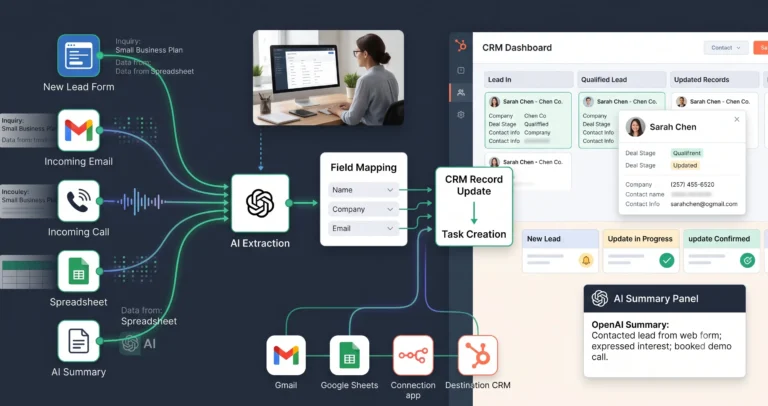
If you already built CRM update automation, this onboarding workflow can use the same client data. The CRM record can trigger onboarding, while the onboarding process can create tasks, folders, and internal notes.
AI Onboarding Summary Prompt Template
AI is useful when the client intake contains long answers, notes from a sales call, or unstructured project context. The AI step should summarize the client’s goals and risks, not invent a strategy.
Copy-paste prompt structure:
You are helping prepare a client onboarding brief for a small business service team. Use only the information provided. Do not invent missing details. If important information is missing, list it clearly under “Missing information.”
Client details:
Client name: {{client_name}}
Main contact: {{main_contact}}
Project type: {{project_type}}
Contract or package: {{contract_or_package}}
Intake form answers: {{intake_answers}}
Sales notes: {{sales_notes}}
Access requirements: {{access_requirements}}
Timeline: {{timeline}}
Return:
1. Client summary
2. Project goals
3. Important context
4. Required access or assets
5. Missing information
6. Risks or unclear points
7. Suggested onboarding tasks
8. Recommended kickoff agenda
9. Human review note
If your automation tool supports structured output, ask AI to return JSON. That makes it easier to map the summary into a CRM note, project description, task list, or internal onboarding page.
Human Review and Onboarding Quality Rules
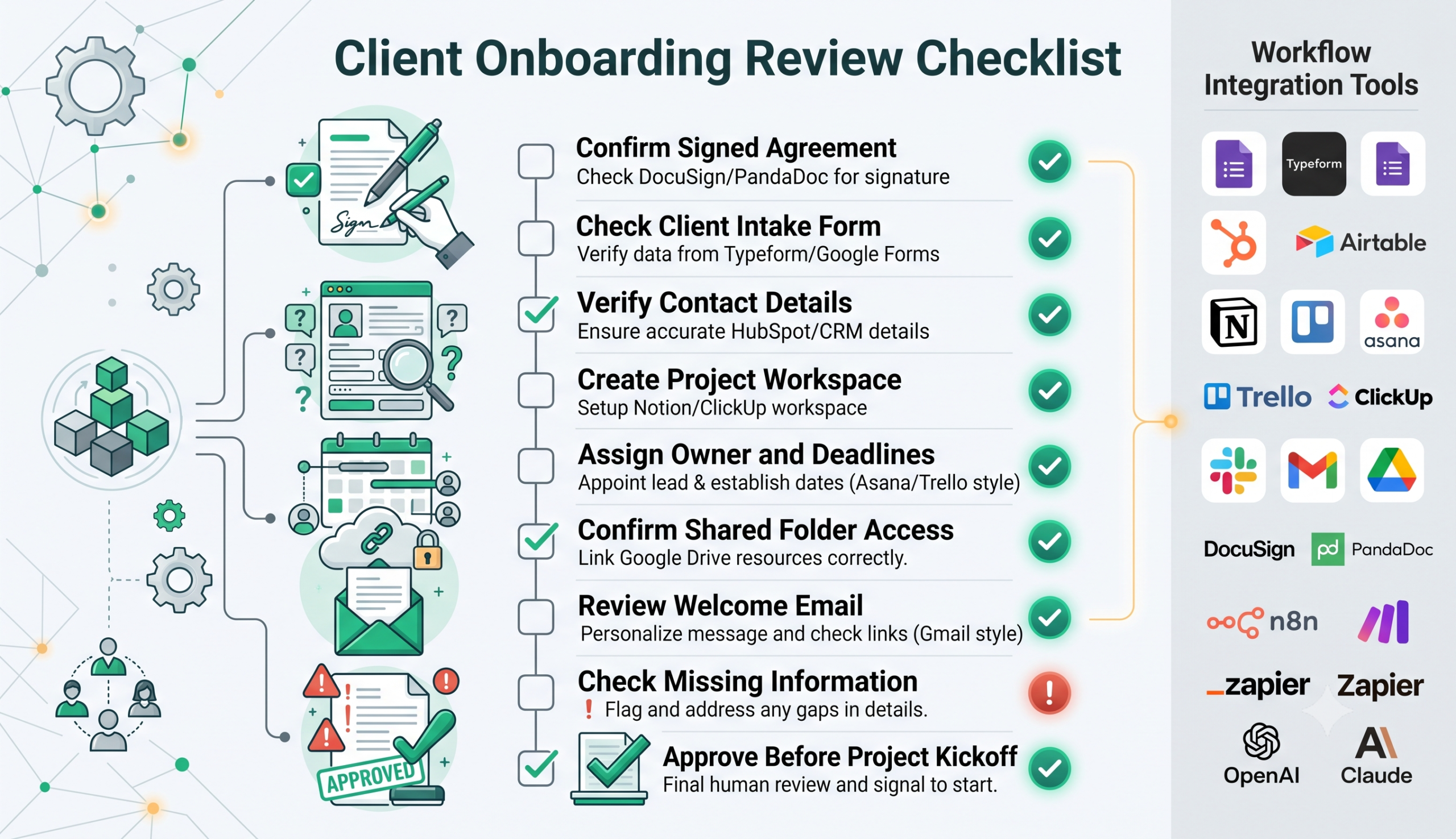
Client onboarding automation should improve quality, not remove accountability. Even when the workflow creates tasks and messages automatically, a human should still review important details before the project begins.
Human review is especially important when the client has unusual requirements, incomplete intake answers, sensitive access needs, custom contract terms, or unclear project expectations.
| Item to review | Why it matters | Recommended rule |
|---|---|---|
| Signed agreement | Prevents onboarding before the client is officially ready. | Trigger full onboarding only after confirmation. |
| Client contact details | Wrong contact data causes communication problems. | Validate email, role, and main owner. |
| Intake completeness | Missing details delay kickoff and delivery. | Create follow-up tasks for missing fields. |
| Access permissions | Sensitive access should not be handled carelessly. | Require human approval for access-related steps. |
| Welcome email | The first onboarding message affects trust. | Send automatically only if the message is standardized and safe. |
| Project workspace | Wrong templates create confusion for the team. | Review custom or high-value projects before kickoff. |
Testing Checklist
Test this client onboarding automation template before using it with real clients. Use different project types, missing intake answers, custom packages, and incomplete contact details.
| Test case | What to verify |
|---|---|
| New standard client | The workflow creates the correct workspace, tasks, folder, and welcome message. |
| Incomplete intake form | The workflow creates a follow-up task instead of pretending the setup is complete. |
| Custom project type | The workflow routes the setup to human review. |
| Missing main contact | The workflow does not send a welcome email to the wrong person. |
| Access required | The workflow creates access tasks but does not expose sensitive information incorrectly. |
| AI summary generated | The summary matches the intake data and does not invent missing details. |
| Welcome email draft | The message is accurate, professional, and aligned with the client’s package. |
Tools You Can Use
This template is platform-neutral. You can build it with different tools depending on your current setup. The important part is not the exact tool stack. The important part is having a clear trigger, clean intake data, reliable task creation, and review for sensitive steps.
| Tool type | Best use | Example options |
|---|---|---|
| CRM | Trigger onboarding after a deal is closed or a client is created. | HubSpot, Pipedrive, Salesforce, Airtable, or a spreadsheet-based CRM. |
| Forms | Collect onboarding information from the client. | Google Forms, Typeform, Tally, Jotform, Airtable forms. |
| Project management | Create tasks, owners, deadlines, and checklists. | Asana, ClickUp, Trello, Notion, Monday.com. |
| File storage | Create folders and organize client assets. | Google Drive, Dropbox, OneDrive. |
| Workflow builder | Connect the tools and control the onboarding logic. | n8n, Make, Zapier, or similar automation platforms. |
| AI model | Summarize intake answers and create internal onboarding briefs. | OpenAI, Claude, Gemini, or another text model. |
| Communication | Send welcome emails, reminders, and internal notifications. | Gmail, Outlook, Slack, project tool notifications. |
If you are still comparing automation platforms, read Best AI Automation Tools for Small Business. For direct comparisons, review n8n vs Zapier, n8n vs Make for AI automation, and Make vs Zapier.
Common Mistakes
Client onboarding automation can fail when it focuses on speed but ignores quality. The workflow should make onboarding smoother, not create a messy setup faster.
| Mistake | Why it hurts | Better approach |
|---|---|---|
| Triggering onboarding too early | The workflow creates workspaces for leads who are not ready. | Trigger only after agreement, payment, or manual approval. |
| Asking for too much intake information | Clients delay the form and onboarding slows down. | Ask for essential information first, then collect extras later. |
| No missing-field handling | The project starts with incomplete context. | Create review tasks or reminders for missing details. |
| Sending welcome emails blindly | The client may receive inaccurate or incomplete information. | Use drafts or review for custom projects. |
| Weak folder and task naming | Projects become hard to find and manage later. | Use consistent naming conventions. |
| No human approval before kickoff | The team may begin with wrong assumptions. | Add a final onboarding review step. |
Simple Implementation Plan
- Choose one trigger. Start with a signed agreement, paid invoice, closed-won deal, or manual approval.
- Create the intake form. Ask for client contact details, project goals, access needs, timeline, and required files.
- Define required fields. Decide which answers are mandatory before the project can begin.
- Create workspace templates. Prepare standard project boards, folders, or pages for common client types.
- Add task creation. Automatically create onboarding tasks with owners and due dates.
- Add AI summary if useful. Summarize the intake form and sales notes into an internal brief.
- Draft the welcome email. Start with a draft if your projects vary a lot.
- Add review rules. Route missing, sensitive, or custom onboarding cases to a human.
- Test with realistic examples. Run the workflow with several client scenarios before using it live.
Final Recommendation
Start with a simple client onboarding automation template that sends an intake form, creates a workspace, assigns standard tasks, organizes files, and prepares a welcome email draft. Once the workflow is reliable, add AI summaries, custom routing, and deeper integrations with your CRM or project management system.
This is a strong workflow to build after CRM update automation, because clean CRM data makes onboarding easier. If your bigger bottleneck is lead handling or support volume, compare this template with AI lead qualification and AI customer support triage.
FAQ
What is a client onboarding automation template?
A client onboarding automation template is a repeatable workflow that starts after a client is confirmed and helps collect intake details, create workspaces, assign tasks, organize files, send welcome messages, and route important setup details to review.
Can AI help with client onboarding?
Yes. AI can help summarize intake answers, create internal onboarding briefs, identify missing information, and draft welcome messages. However, sensitive details and custom client requirements should still be reviewed by a human.
What should be automated first in client onboarding?
Start with low-risk steps such as sending intake forms, creating folders, assigning standard tasks, adding CRM notes, and drafting welcome emails. Add more advanced automation after testing.
Should welcome emails be sent automatically?
Standard welcome emails can be sent automatically after testing, but custom projects, sensitive clients, or unusual onboarding situations should use a draft and human approval first.
Which tools can I use for client onboarding automation?
You can use forms, CRM tools, project management tools, file storage, workflow builders, and AI models. Common combinations include HubSpot or Airtable, Google Forms or Typeform, ClickUp or Notion, Google Drive, n8n, Make, Zapier, OpenAI, Claude, and Slack or email.
How do I avoid onboarding mistakes?
Use reliable triggers, required intake fields, consistent naming rules, review tasks for missing details, and final human approval before kickoff. Do not let automation guess missing client information.