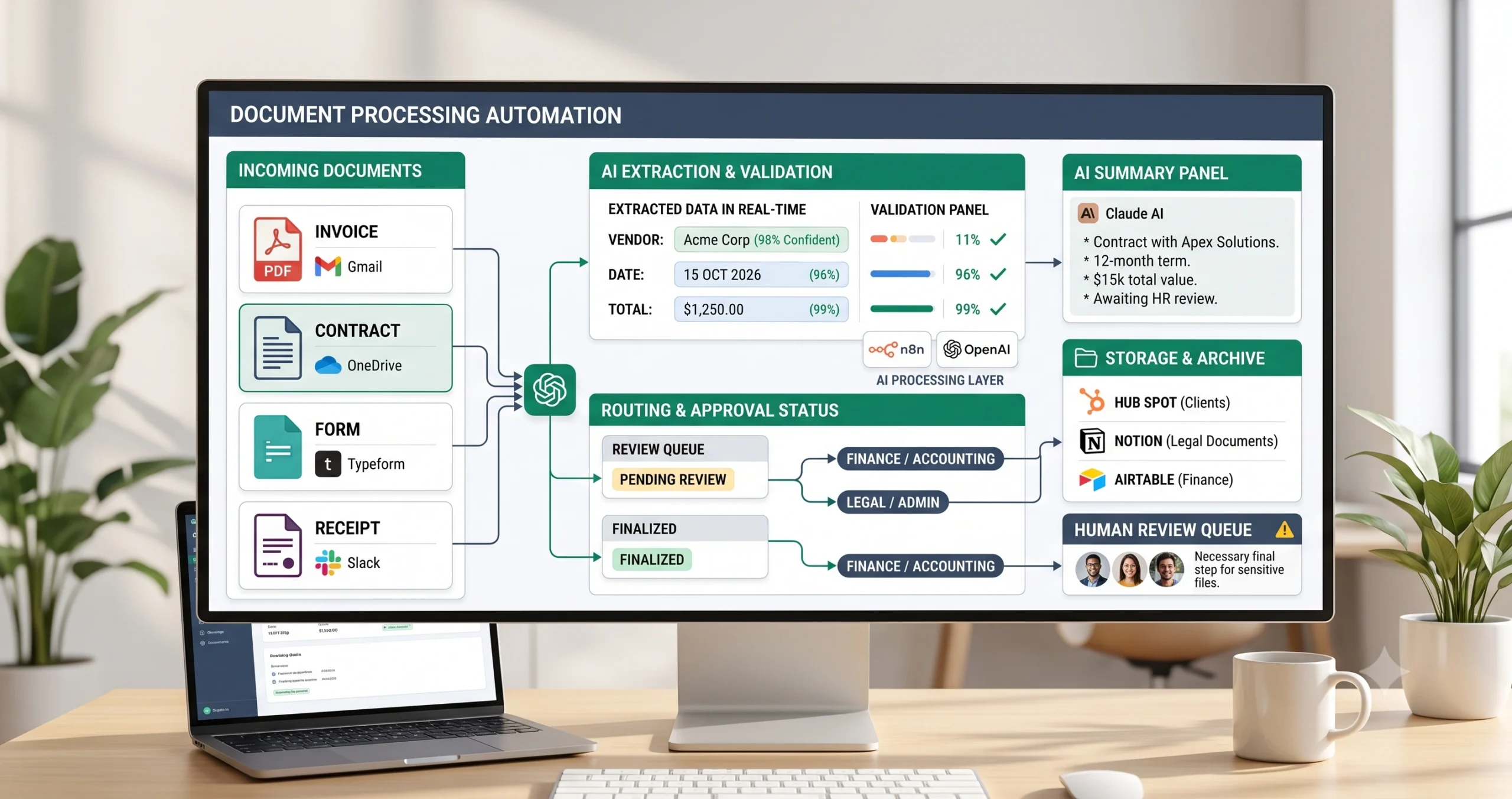
Document Processing Automation Template for Small Businesses
A document processing automation template helps small businesses handle incoming PDFs, invoices, forms, contracts, receipts, and email attachments without manually reading every file, copying fields, renaming documents, and moving them into folders. The workflow can classify documents, extract key data, validate important fields, update business systems, organize storage, and route uncertain files to human review.
This is one of the most useful automation workflows for admin, finance, operations, legal support, client service, and back-office teams. The goal is not to let AI make risky document decisions alone. The goal is to reduce repetitive document handling while protecting accuracy, auditability, and data quality.
In this guide, you will learn how the workflow works, what inputs it needs, where AI fits, which steps should be reviewed by a human, and how to implement a practical document automation system. If you are new to automation, start with our AI automation for small business guide, then explore the full TakeYourAI workflow templates library.
Quick answer: Use this document processing automation template when your team receives files such as invoices, contracts, forms, receipts, or email attachments and needs to classify them, extract useful fields, rename and store them, update records, and keep human review for missing, sensitive, or uncertain information.
What This Document Processing Automation Template Does
This template gives you the workflow logic for turning incoming documents into structured business records. It can receive a file, identify the document type, extract useful information, check the extracted fields, rename the file, move it to the correct folder, and send key details to a spreadsheet, CRM, finance tool, project tool, or review queue.
A simple version can process one document type, such as invoices or intake forms. A more advanced version can handle multiple document types, classify files automatically, extract different fields based on document category, and create separate review paths for sensitive or uncertain documents.
| Automation job | Example | Why it helps |
|---|---|---|
| Classify document type | Invoice, receipt, contract, form, proposal, ID document, or email attachment. | Routes each file into the correct processing path. |
| Extract key fields | Names, dates, invoice totals, contract parties, due dates, reference numbers. | Reduces manual data entry. |
| Validate fields | Check missing values, suspicious totals, duplicate files, or invalid dates. | Improves accuracy before data is used. |
| Organize storage | Rename files and move them into the correct folder. | Keeps documents searchable and organized. |
| Update systems | Send details to a spreadsheet, CRM, finance tracker, or project workspace. | Connects document processing to real operations. |
| Route for review | Send unclear, sensitive, or high-value documents to a human. | Protects the business from bad extraction or risky automation. |
Who Should Use It?
This document processing automation template is useful for small businesses that receive recurring documents and still rely on manual copying, renaming, checking, or filing.
- Agencies that receive client files, contracts, invoices, and onboarding documents.
- Finance or admin teams that process invoices, receipts, and payment records.
- Consultants who collect forms, agreements, and client documentation.
- Service businesses that receive quote forms, PDFs, applications, or signed documents.
- Operations teams that need to organize documents into folders, trackers, and internal records.
- Small businesses that use Google Drive, Dropbox, Airtable, Notion, HubSpot, spreadsheets, or workflow builders.
This workflow is especially useful after building related systems such as CRM update automation or client onboarding automation, because documents often need to update records, tasks, folders, or client workspaces.
Workflow Overview
A reliable document automation workflow has eight parts: receiving the file, classifying it, extracting text, extracting structured data, validating the fields, storing the file, updating another system, and routing uncertain cases to review.
| Workflow step | What happens | Output |
|---|---|---|
| Document received | A file arrives from email, form upload, shared folder, CRM, or client portal. | New file enters the workflow. |
| File classification | The workflow identifies whether the file is an invoice, contract, receipt, form, or another document type. | Document is routed to the right processing path. |
| Text extraction | The system extracts text from the document or uses OCR if the file is scanned. | Readable document text is prepared. |
| AI data extraction | AI extracts key fields and summarizes the document. | Structured document data is created. |
| Field validation | The workflow checks missing, inconsistent, suspicious, or duplicate values. | Low-quality records are flagged. |
| Storage and naming | The file is renamed and moved into the correct folder. | Document is organized for future retrieval. |
| System update | Extracted fields are sent to a spreadsheet, CRM, finance tracker, or project record. | Business system is updated. |
| Human review | Uncertain, sensitive, or high-impact documents are routed to a person. | Final approval or correction happens before use. |
How the Document Processing Automation Workflow Works
The workflow should start with a clear document source. That source may be an email attachment, a Google Drive folder, a form upload, a CRM file field, or a client portal. Start with one source and one document type first. Processing every document type at once makes testing harder and increases the risk of bad extraction.
After the file enters the workflow, the automation classifies it, extracts the text, asks AI to extract structured fields, validates the result, and decides whether the document can be processed automatically or needs review.
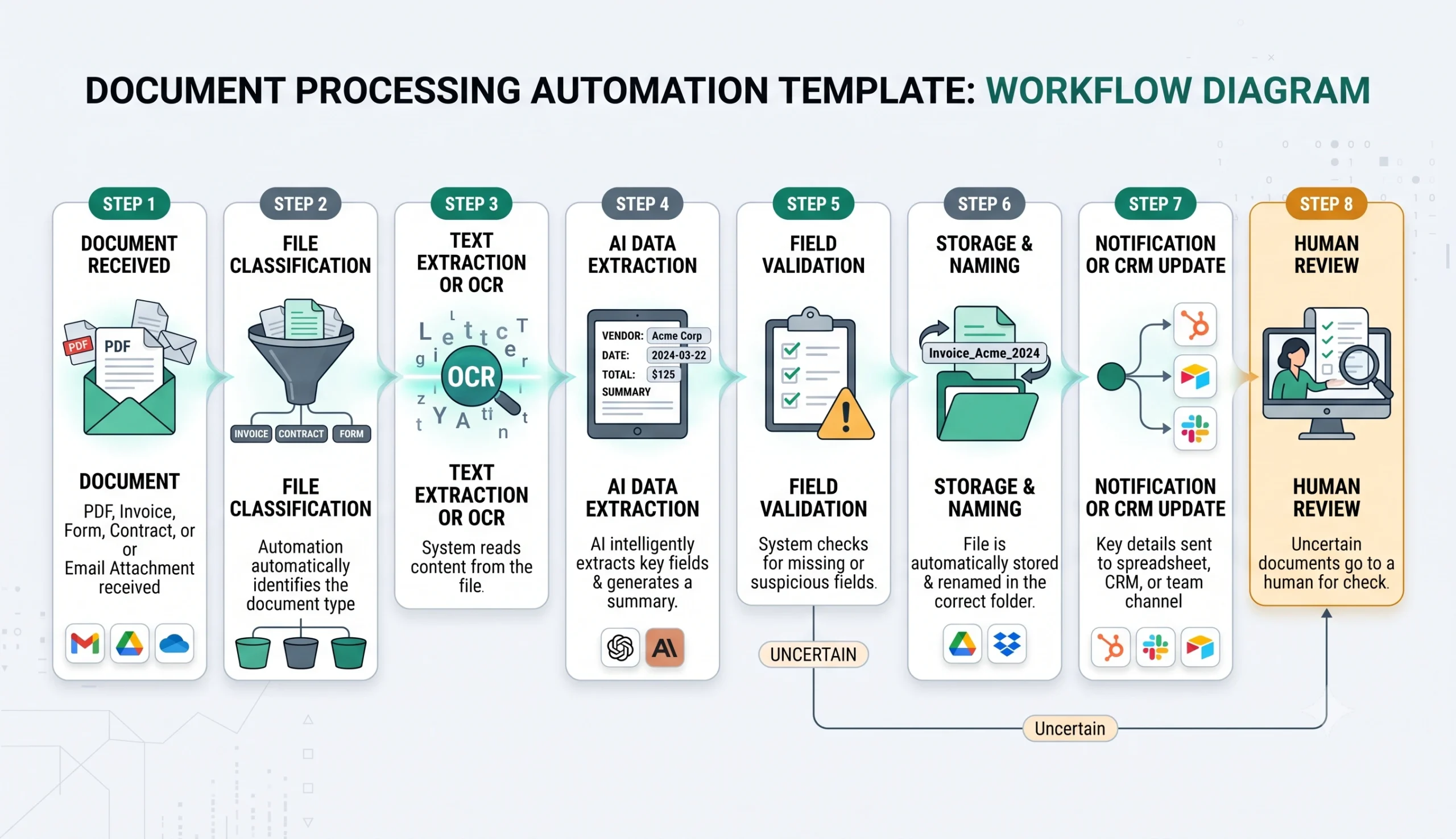
Step 1: Receive the document
The trigger can be a new email attachment, uploaded form file, folder upload, signed agreement, CRM attachment, or document submitted by a client. Choose a source that is consistent and easy to monitor.
Step 2: Classify the file
The workflow should identify the document type before extraction. An invoice, contract, receipt, tax form, onboarding form, and proposal all require different fields and review rules.
Step 3: Extract readable text
If the document already contains machine-readable text, the workflow can extract it directly. If the file is scanned or image-based, OCR may be needed before AI can analyze it reliably.
Step 4: Extract structured fields with AI
AI can extract fields such as vendor name, invoice number, due date, total amount, contract parties, effective date, renewal terms, customer details, or missing information. The output should be structured and easy to validate.
Step 5: Validate the result
The workflow should check whether required fields exist, whether amounts look suspicious, whether the file is a duplicate, and whether the extraction confidence is good enough for automatic processing.
Step 6: Store, update, or route for review
Clean documents can be renamed, stored, and used to update business systems. Unclear or sensitive documents should be sent to a person before the extracted data is trusted.
Required Inputs
Document processing automation depends on clean file sources, predictable document types, and clear extraction rules. The more consistent the inputs are, the more reliable the automation becomes.
| Input | Example | Use in workflow |
|---|---|---|
| File source | Email inbox, Drive folder, form upload, CRM attachment. | Starts the automation when a new document arrives. |
| Document type | Invoice, receipt, contract, form, proposal, application. | Determines which extraction and validation rules to use. |
| Document text | Extracted PDF text or OCR output. | Provides content for AI extraction. |
| Required fields | Vendor, date, invoice total, client name, contract term. | Lets the workflow check whether extraction is complete. |
| Storage rules | Folder path, file naming format, client folder, finance folder. | Controls where the document is stored. |
| Review rules | High amount, missing signature, low confidence, sensitive record. | Decides when human approval is required. |
| Destination system | Spreadsheet, CRM, finance tracker, project tool, Slack. | Receives extracted data or review notifications. |
Practical rule: do not let AI invent missing document fields. If a value is not visible in the document, mark it as missing and route it to review.
Document Classification and Extraction Logic
A good document workflow uses different rules for different document types. The fields you need from an invoice are not the same as the fields you need from a contract or intake form.
| Document type | Fields to extract | Review trigger |
|---|---|---|
| Invoice | Vendor, invoice number, issue date, due date, line items, total amount. | Missing total, duplicate invoice, unusual amount, or unclear vendor. |
| Receipt | Merchant, date, amount, payment method, category. | Unreadable image, missing amount, or suspicious duplicate. |
| Contract | Parties, effective date, renewal terms, payment terms, obligations, signature status. | Missing signature, unusual clause, sensitive terms, or unclear dates. |
| Client form | Name, company, contact details, project type, goals, required access, deadline. | Missing required fields or sensitive access request. |
| Proposal | Client, scope, price, timeline, deliverables, approval status. | Mismatch with CRM record or unclear pricing. |
| Email attachment | Sender, file type, purpose, related client or project, required action. | Unknown sender, unknown purpose, or unsupported file type. |
If your document workflow also needs to update client or sales records, connect it with CRM update automation. If it supports project setup, connect it with client onboarding automation.
AI Extraction Prompt Template
Use a controlled prompt that asks AI to extract only what is present in the document. The output should be structured, cautious, and easy for your workflow builder to parse.
Copy-paste prompt structure:
You are helping process a business document for a small business. Use only the document text provided. Do not invent missing information. If a field is not visible or uncertain, mark it as unknown. Return structured data that can be reviewed before being used in business systems.
Document context:
File name: {{file_name}}
Source: {{source}}
Expected document type: {{expected_document_type}}
Extracted text: {{document_text}}
Related client or record: {{related_record}}
Business rules:
Required fields: {{required_fields}}
Allowed automatic actions: {{allowed_automatic_actions}}
Review required when: {{review_required_conditions}}
Storage rules: {{storage_rules}}
Return:
1. Detected document type
2. Key extracted fields
3. Short document summary
4. Missing fields
5. Possible duplicate indicators
6. Validation warnings
7. Suggested file name
8. Suggested folder destination
9. Recommended action
10. Human review note
If your workflow builder supports JSON output, ask for JSON. That makes it easier to map extracted values into spreadsheets, CRM properties, file names, or review queues.
Validation Rules
Field validation is where this workflow becomes safer. AI extraction can be useful, but extracted fields should be checked before they update a system or influence a business process.
| Validation check | What to verify | Recommended action |
|---|---|---|
| Required fields | Important fields are present, such as vendor, date, total, client name, or signature. | Route missing fields to review. |
| Date format | Dates are readable and make sense. | Normalize dates or send unclear dates to review. |
| Amount checks | Invoice or receipt totals are present and not suspicious. | Review high-value or unusual amounts. |
| Duplicate detection | File name, invoice number, vendor, amount, or document hash matches an existing record. | Stop automatic processing and review. |
| Document type match | The detected type matches the expected category. | Route mismatch to review. |
| Sensitive information | The document contains personal data, financial data, legal terms, or access details. | Require human approval before wider use. |
| Extraction confidence | The output is clear and complete enough to use. | Send low-confidence documents to review. |
Human Review and Document Quality Rules
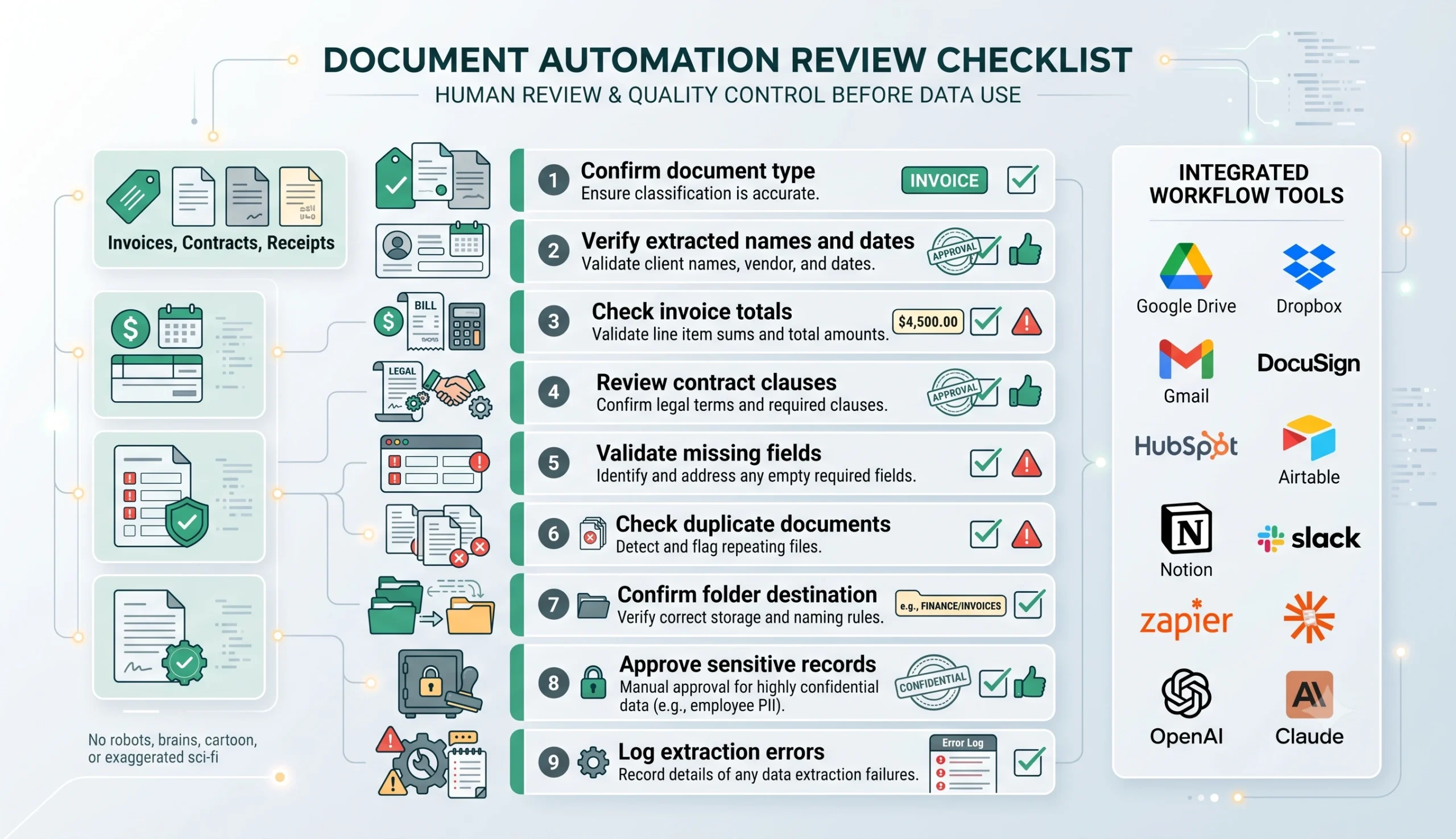
Document automation should improve speed, but it should not remove accountability. A small business can automate low-risk filing and extraction while keeping review for files that affect money, contracts, legal obligations, client trust, or sensitive records.
Human review is especially important when the document is unreadable, scanned poorly, missing required fields, unusually large in value, legally sensitive, or connected to a customer-facing decision.
| Document situation | Automation level | Recommended rule |
|---|---|---|
| Standard receipt with clear total | Usually safe | Extract, rename, store, and log automatically after testing. |
| Simple invoice from known vendor | Medium risk | Process automatically if amount and invoice number pass validation. |
| High-value invoice | High risk | Require review before approval or payment workflow. |
| Contract or legal document | High risk | Summarize and organize, but require human review before action. |
| Unreadable scanned document | High risk | Route to review or request a clearer file. |
| Document with personal or financial data | High risk | Limit access and require approval before sharing or updating systems. |
Testing Checklist
Test this document processing automation template before using it on important business files. Use clean documents, messy scans, duplicates, missing fields, unusual totals, and multiple document types.
| Test case | What to verify |
|---|---|
| Clean PDF | The workflow extracts text and fields correctly. |
| Scanned document | OCR produces readable text or routes low-quality scans to review. |
| Invoice with missing total | The workflow flags the missing value instead of guessing. |
| Duplicate invoice | The workflow detects the duplicate before creating another record. |
| Wrong document type | The workflow does not use invoice rules for a contract or form. |
| High-value document | The workflow sends it to review before approval or use. |
| Storage rule | The file is renamed and moved to the correct folder. |
| System update | Extracted fields are sent to the correct spreadsheet, CRM, or tracker. |
Tools You Can Use
This template is platform-neutral. You can build it with different tools depending on where your files arrive, where they should be stored, and which business system needs the extracted data.
| Tool type | Best use | Example options |
|---|---|---|
| File source | Receives uploaded documents or attachments. | Gmail, Outlook, Google Drive, Dropbox, OneDrive, forms, client portals. |
| OCR or text extraction | Reads scanned PDFs, images, or document text. | OCR tools, PDF parsers, document extraction services, built-in platform features. |
| Workflow builder | Connects document sources, AI extraction, validation, storage, and notifications. | n8n, Make, Zapier, or similar automation platforms. |
| AI model | Extracts fields, summarizes files, and identifies missing information. | OpenAI, Claude, Gemini, or another text-capable model. |
| Storage system | Stores files in organized folders with consistent naming. | Google Drive, Dropbox, OneDrive, Notion, or internal storage. |
| Business database | Stores extracted document data. | Google Sheets, Airtable, Notion, CRM, finance tracker, or database. |
| Review channel | Notifies a person when review is needed. | Slack, email, project management task, CRM task, or approval queue. |
If you are still choosing your automation platform, read Best AI Automation Tools for Small Business. For direct platform comparisons, review n8n vs Zapier, n8n vs Make for AI automation, and Make vs Zapier.
Common Mistakes
Document processing automation can fail when the workflow trusts extracted data too quickly. The safest setup starts narrow, validates fields, and sends risky cases to review.
| Mistake | Why it hurts | Better approach |
|---|---|---|
| Processing every document type at once | The workflow becomes hard to test and easy to break. | Start with one document type, such as invoices or intake forms. |
| No classification step | Wrong extraction rules may be applied to the wrong file. | Classify the document before extracting fields. |
| Trusting AI without validation | Missing or wrong fields can update business systems. | Add required-field checks, duplicate checks, and review rules. |
| Weak naming rules | Files become hard to find later. | Use consistent file names based on date, client, document type, and reference number. |
| No duplicate detection | The same invoice or document may be processed more than once. | Check invoice numbers, file hashes, vendor names, dates, and totals. |
| Skipping review for sensitive files | Legal, financial, or personal data may be mishandled. | Require review for contracts, high-value invoices, and sensitive records. |
Simple Implementation Plan
- Choose one document type. Start with invoices, receipts, intake forms, contracts, or another recurring document category.
- Choose one file source. Use one inbox, folder, form, or upload channel first.
- Define the required fields. List the exact fields that must be extracted for that document type.
- Add classification. Confirm the document type before using extraction rules.
- Extract text or run OCR. Make sure the workflow can read the document content.
- Add AI extraction. Use a controlled prompt that marks missing fields as unknown.
- Add validation rules. Check missing fields, duplicates, suspicious values, and unsupported document types.
- Organize storage. Rename the file and move it to the correct folder.
- Update the destination system. Send clean extracted data to a spreadsheet, CRM, tracker, or database.
- Route risky files to review. Keep human approval for sensitive, unclear, or high-impact documents.
- Test with real examples. Run the workflow with at least 20 realistic files before using it live.
Final Recommendation
Start with a narrow document processing automation template that handles one file type, extracts a few important fields, validates the output, organizes storage, and creates review tasks when needed. Do not begin with a workflow that tries to process every document in the business automatically.
Once the first workflow is reliable, expand it into related systems. For example, invoices can feed finance tracking, contracts can feed client onboarding, intake forms can feed CRM updates, and recurring reports can connect to weekly AI reporting automation.
If your team spends too much time reading, renaming, copying, and filing documents, this template is one of the fastest ways to turn document admin into a repeatable business workflow.
FAQ
What is a document processing automation template?
A document processing automation template is a repeatable workflow that receives files, classifies document type, extracts text and key fields, validates the result, organizes storage, updates business systems, and routes uncertain documents to human review.
Can AI process invoices, contracts, and PDFs automatically?
AI can help extract and summarize information from invoices, contracts, PDFs, forms, and receipts. However, important fields should be validated and sensitive or uncertain documents should be reviewed by a human before final use.
Do I need OCR for document processing automation?
You may need OCR when documents are scanned, image-based, or not machine-readable. If the document already contains selectable text, direct text extraction may be enough.
Which documents should require human review?
Contracts, high-value invoices, unreadable scans, documents with personal or financial data, missing fields, duplicate records, and low-confidence AI outputs should usually require human review.
What should I automate first?
Start with one recurring document type that is common and low to medium risk, such as standard invoices, receipts, or intake forms. Avoid starting with complex legal documents or sensitive records.
How do I prevent duplicate document processing?
Add duplicate checks using file name, document number, vendor, date, amount, client name, or file hash. If a possible duplicate is found, route the document to review instead of processing it automatically.