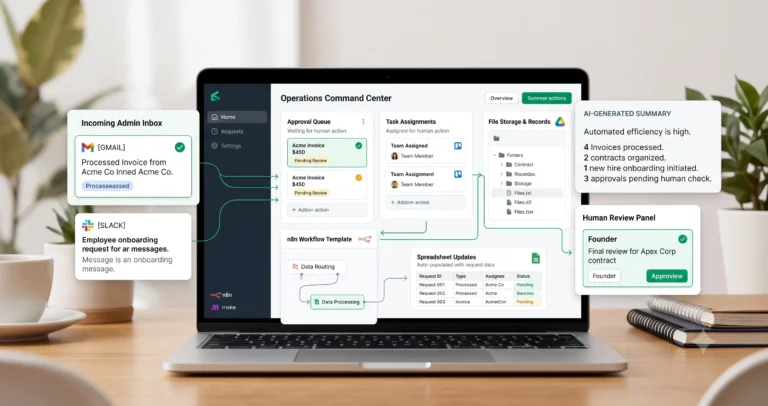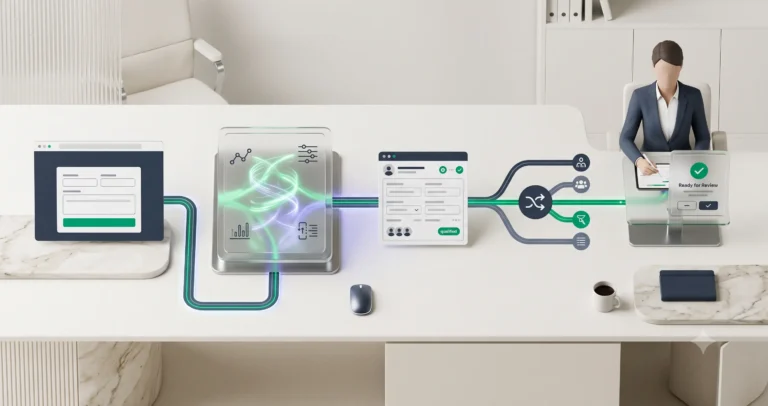
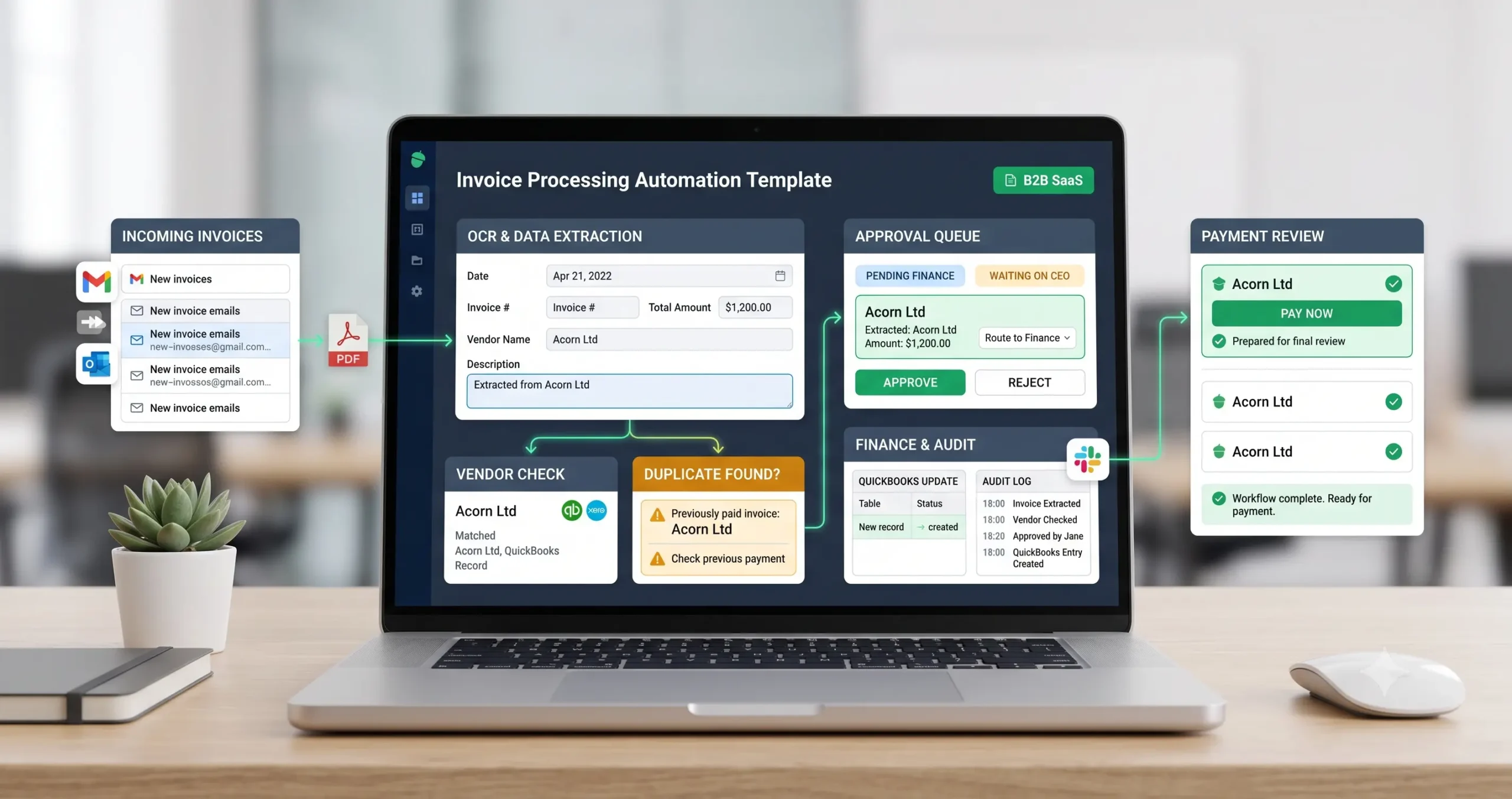
Invoice Processing Automation Template for Small Businesses
An invoice processing automation template helps small businesses receive invoices, extract key fields, check vendors, detect duplicates, route approvals, update records, and prepare invoices for human payment review. Instead of manually opening every invoice email, copying amounts into spreadsheets, checking due dates, and chasing approvals, the workflow turns invoice intake into a controlled finance process.
This template is useful for founders, agencies, consultants, finance teams, operations teams, and small businesses that receive invoices by email, PDF upload, shared folders, forms, or vendor portals. The goal is not to approve or pay invoices automatically. The goal is to reduce manual invoice handling while keeping human review for payment decisions, vendor changes, duplicate invoices, high amounts, and unclear invoice data.
In this guide, you will learn how to build a practical invoice processing workflow, what data to extract, what should be validated, where AI or OCR can help, and which steps should require approval. If you are new to automation, start with our AI automation for small business guide, then explore the full TakeYourAI workflow templates library.
Quick answer: Use this invoice processing automation template when your business receives repeated invoices by email, PDF, upload, or shared folder. Automate invoice capture, data extraction, vendor matching, duplicate checks, due-date tracking, approval requests, record updates, and reminders. Keep human review before payment, vendor changes, accounting approval, high-value invoices, unclear invoices, and duplicate-risk items.
What This Invoice Processing Automation Template Does
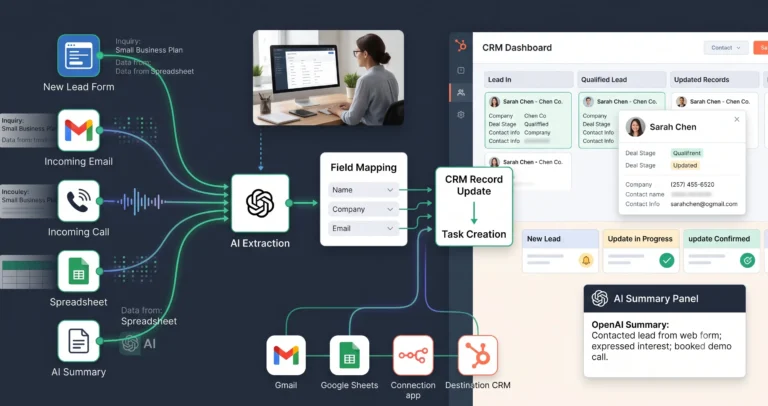
This template gives you the workflow logic for processing invoices before they reach payment review. It can capture an invoice from email or upload, extract invoice data, match the vendor, check for duplicates, validate amount and due date, create an approval request, update a spreadsheet or accounting record, and notify the right person for review.
A simple version can save invoice attachments, extract core fields, and create a finance review task. A more advanced version can check vendor records, compare invoice numbers, detect duplicate invoices, match purchase orders, route approvals by amount, and keep a full audit log.
| Automation job | Example | Why it helps |
|---|---|---|
| Capture invoice | Invoice received by email, PDF upload, Google Drive folder, Dropbox folder, or vendor portal export. | Centralizes invoice intake. |
| Extract invoice data | Vendor name, invoice number, invoice date, due date, total amount, tax, currency, and line items. | Reduces manual data entry. |
| Match vendor | Compare invoice vendor with approved vendor list or accounting record. | Prevents unknown vendor payments. |
| Detect duplicates | Check invoice number, vendor name, amount, due date, and attachment similarity. | Reduces duplicate payment risk. |
| Validate amount and due date | Check total amount, tax, payment terms, currency, and invoice age. | Improves finance accuracy. |
| Route approval | Create approval task for founder, finance lead, project owner, or department owner. | Makes approval responsibility clear. |
| Update records | Add row to spreadsheet, create bill draft, attach PDF, or update accounting workflow. | Keeps financial records organized. |
| Human payment review | Require approval before payment is scheduled or released. | Protects the business from risky automation. |
Who Should Use It?
This invoice processing automation template is useful for small businesses that receive invoices regularly but still process them through manual email checks, spreadsheets, file downloads, and informal approvals.
- Founders who still review invoices manually before paying vendors.
- Agencies that receive invoices from contractors, software tools, vendors, and service providers.
- Consultants who need a simple way to track incoming bills and payment deadlines.
- Operations teams that manage invoices, receipts, contracts, approvals, and vendor files.
- Finance teams that want cleaner invoice intake before accounting entry.
- Small businesses using Gmail, Outlook, Google Drive, Dropbox, Google Sheets, Airtable, QuickBooks, Xero, n8n, Make, or Zapier.
This workflow connects naturally with document processing automation, email management automation, admin and back-office automation, and weekly AI reporting automation.
Workflow Overview
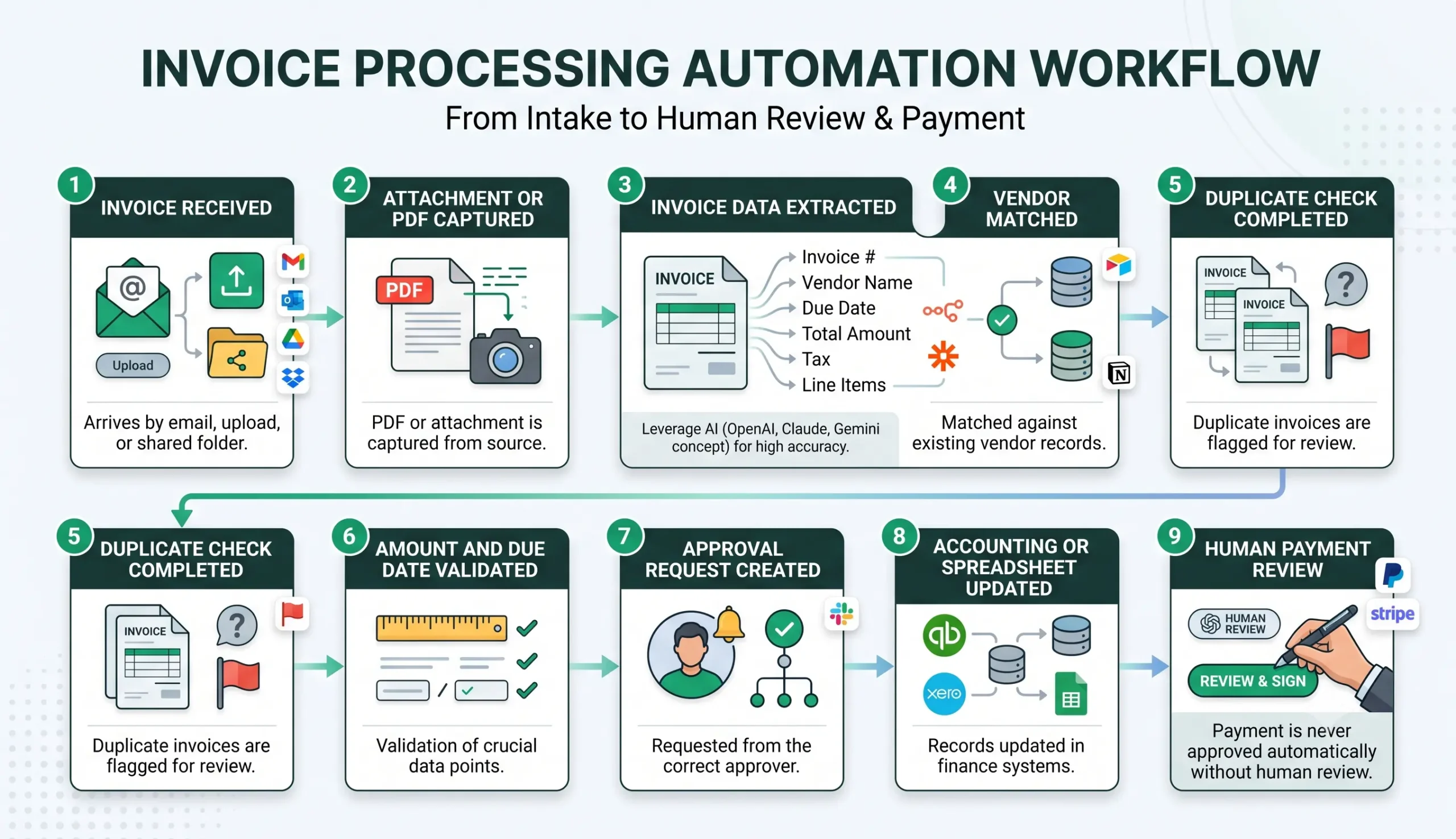
A reliable invoice processing workflow has nine core parts: invoice received, attachment or PDF captured, invoice data extracted, vendor matched, duplicate check completed, amount and due date validated, approval request created, accounting or spreadsheet updated, and human payment review.
| Workflow step | What happens | Output |
|---|---|---|
| Invoice received | An invoice arrives by email, upload, shared folder, or vendor portal export. | Invoice enters the workflow. |
| Attachment or PDF captured | The invoice file is saved and linked to a request record. | Original invoice is stored. |
| Invoice data extracted | OCR, AI, parser, or document extraction identifies invoice fields. | Structured invoice data is prepared. |
| Vendor matched | The workflow checks the vendor against approved records. | Known, new, or suspicious vendor status is assigned. |
| Duplicate check completed | The workflow checks invoice number, vendor, amount, and date against existing records. | Duplicate risk is flagged. |
| Amount and due date validated | Total amount, tax, currency, due date, and payment terms are reviewed. | Finance validation status is created. |
| Approval request created | The correct approver receives a task or notification. | Invoice approval becomes trackable. |
| Accounting or spreadsheet updated | Invoice data is added to a tracker, draft bill, or accounting workflow. | Records are updated. |
| Human payment review | A human checks approval, vendor, amount, and payment terms before payment. | Invoice is approved, rejected, delayed, or corrected. |
How the Invoice Processing Automation Workflow Works
The workflow should start with one invoice source. That source may be a finance inbox, a dedicated invoice email address, a Google Drive folder, a Dropbox folder, a form upload, or a manually uploaded invoice. Do not begin by connecting every finance channel. Start with one repeatable intake path and make it reliable.
Once the invoice arrives, the workflow captures the file, extracts key fields, matches the vendor, checks for duplicates, validates the amount and due date, creates an approval request, updates a record, and sends the invoice to human payment review.
Step 1: Capture the invoice
The trigger can be a new email with an attachment, a file uploaded to a finance folder, a form submission, or a row added to an invoice tracker. Save the original invoice file before extracting data so the team can review the source document later.
Step 2: Extract invoice fields
Extract the vendor name, invoice number, invoice date, due date, total amount, tax amount, currency, payment terms, purchase order number, and line items. Google Document AI includes an Invoice Parser designed to extract fields such as invoice number, supplier name, invoice amount, tax amount, invoice date, due date, and line item amounts: Google Document AI processor list.
Step 3: Match the vendor
Compare the invoice vendor against approved vendor records. If the vendor is unknown, newly added, misspelled, or uses different payment details, the workflow should require review.
Step 4: Check for duplicates
Duplicate invoices are one of the biggest risks in invoice processing. Check invoice number, vendor name, amount, invoice date, due date, and file history before creating an approval request.
Step 5: Validate amount and due date
The workflow should check whether the amount is within expected limits, whether tax appears reasonable, whether the due date is valid, and whether payment terms match your records.
Step 6: Create approval request
Route the invoice to the correct approver based on vendor, amount, department, project, client, or expense category. QuickBooks documents bill approval and payment release workflows that control who can create, edit, approve, and pay bills in supported plans: QuickBooks bill approval and payment release workflows.
Step 7: Update the finance record
Add invoice data to your tracker, accounting draft, Airtable record, Google Sheet, or finance task. Do not mark an invoice as approved just because data extraction succeeded.
Step 8: Require payment review
Payment should remain a human-controlled step. Automation can prepare the review, but a human should approve or reject the invoice before payment is scheduled or released.
Required Inputs
Invoice automation becomes reliable when the workflow receives both the original invoice file and enough structured context to validate it.
| Input | Example | Use in workflow |
|---|---|---|
| Invoice source | Finance inbox, email attachment, upload form, Drive folder, Dropbox folder. | Starts the workflow. |
| Original invoice file | PDF, image, scanned document, vendor invoice attachment. | Provides source evidence for review. |
| Vendor list | Approved vendors, supplier names, tax IDs, payment details, default category. | Supports vendor matching and risk checks. |
| Invoice fields | Invoice number, date, due date, total, tax, currency, line items. | Creates structured invoice record. |
| Approval rules | Amount threshold, department owner, project owner, founder approval, finance approval. | Routes the invoice to the right approver. |
| Duplicate history | Existing invoice numbers, vendor records, past payments, previous attachments. | Detects possible duplicate invoices. |
| Output destination | Google Sheet, Airtable, QuickBooks, Xero, Notion, finance board, approval queue. | Controls where invoice data is saved. |
Practical rule: if the workflow cannot identify the vendor, invoice number, total amount, due date, currency, or approval owner, it should route the invoice to review instead of creating a clean approval record.
Invoice Data Extraction Logic
Invoice extraction should convert the invoice file into structured fields. The workflow should also track confidence and missing information, because extracted invoice data can be wrong when scans are blurry, layouts are unusual, or the invoice contains multiple totals.
| Field | What to extract | Review trigger |
|---|---|---|
| Vendor name | Supplier or company issuing the invoice. | Unknown vendor, spelling mismatch, or changed payment details. |
| Invoice number | Unique invoice reference from the vendor. | Missing number or duplicate number for same vendor. |
| Invoice date | Date the invoice was issued. | Old invoice, future date, or unclear date format. |
| Due date | Payment deadline. | Missing due date, overdue invoice, or unusually short deadline. |
| Total amount | Final amount due. | Amount above approval threshold or mismatch with line items. |
| Tax and fees | Tax amount, VAT, fees, discounts, or adjustments. | Tax seems inconsistent or total does not reconcile. |
| Line items | Description, quantity, unit price, and line total. | Missing details for project, client, or department allocation. |
| Payment terms | Net 15, Net 30, due on receipt, bank transfer, card, or other terms. | Changed terms or new payment method. |
If your invoice intake already starts from email, connect it with email management automation. If your invoice files need broader extraction logic, connect it with document processing automation.
AI Invoice Processing Prompt Template
AI can help extract and classify invoice data, but the prompt should be strict. It should not approve invoices, invent missing values, change payment details, or decide that an invoice is safe to pay.
Copy-paste prompt structure:
You are helping prepare an invoice for review in a small business finance workflow. Use only the invoice text, file metadata, vendor records, and business rules provided. Do not invent missing values. Do not approve payment. Do not change vendor payment details. If the invoice is unclear, duplicated, high-value, or missing required information, route it to human review.
Invoice context:
Source: {{invoice_source}}
File name: {{file_name}}
Extracted invoice text: {{invoice_text}}
OCR or parser fields: {{extracted_fields}}
Related vendor records: {{vendor_records}}
Existing invoice history: {{invoice_history}}
Purchase order or contract context: {{po_or_contract_context}}
Business rules:
Required fields: {{required_invoice_fields}}
Approved vendors: {{approved_vendor_rules}}
Duplicate detection rules: {{duplicate_rules}}
Approval thresholds: {{approval_thresholds}}
Payment review rules: {{payment_review_rules}}
Return:
1. Vendor name
2. Invoice number
3. Invoice date
4. Due date
5. Currency
6. Total amount
7. Tax amount
8. Line item summary
9. Vendor match status
10. Duplicate risk
11. Missing information
12. Suggested approver
13. Recommended status: needs review, ready for approval, duplicate risk, rejected, or missing data
14. Human review reason
If your workflow builder supports structured output, ask for JSON. That makes it easier to save invoice number, vendor, amount, due date, approval status, duplicate risk, and review reason into separate fields.
Vendor, Duplicate, Amount, and Due-Date Validation Rules
Validation is the most important part of this invoice workflow. Extraction alone is not enough. The workflow should check whether the invoice is trustworthy before it reaches approval.
| Validation area | What to check | Recommended rule |
|---|---|---|
| Vendor identity | Vendor name, email domain, supplier record, tax ID, payment details. | Review unknown vendors or changed payment details. |
| Invoice number | Invoice number is present and unique for the vendor. | Flag missing or repeated invoice numbers. |
| Duplicate risk | Same vendor, amount, invoice number, date, or attachment similarity. | Route possible duplicates to review. |
| Total amount | Total matches expected amount, line items, tax, and approval threshold. | Review mismatches and high-value invoices. |
| Due date | Due date is clear, valid, and not suspiciously urgent. | Review overdue or unusually urgent invoices. |
| Currency | Currency matches vendor or contract expectation. | Review unexpected currency changes. |
| Purchase order | PO number, contract, or project reference matches records when available. | Review missing or mismatched PO references. |
Xero’s bill workflow documentation shows common bill states such as draft, awaiting approval, awaiting payment, and paid, and also notes duplicate-warning behavior when bill references and supplier details match existing bills: Xero add and approve bills documentation.
Approval and Payment Review Rules
Approval rules decide who should review an invoice before it moves toward payment. A safe invoice processing automation template should prepare the approval request but should not release payment automatically.
| Invoice situation | Risk level | Recommended approval rule |
|---|---|---|
| Known vendor, low amount, complete fields | Low | Create approval task and update tracker. |
| Known vendor, high amount | Medium to high | Route to finance lead or founder approval. |
| Unknown vendor | High | Require vendor verification before approval. |
| Changed payment details | High | Require manual verification outside the invoice email. |
| Duplicate invoice risk | High | Hold invoice until duplicate check is resolved. |
| Missing invoice number or due date | Medium | Request clarification or route to review. |
| Payment release | High | Always require human payment review. |
Practical rule: let automation prepare the invoice review packet. Do not let automation approve or release payments without a human-controlled step.
Human Review and Invoice Quality Rules
Invoice processing automation should reduce manual finance work, but it should not remove accountability. Invoices affect cash flow, vendor trust, tax records, accounting accuracy, and payment risk.
Human review is especially important when the invoice has a high amount, unknown vendor, changed payment details, duplicate risk, unclear OCR extraction, missing due date, mismatched purchase order, or unusual payment terms.
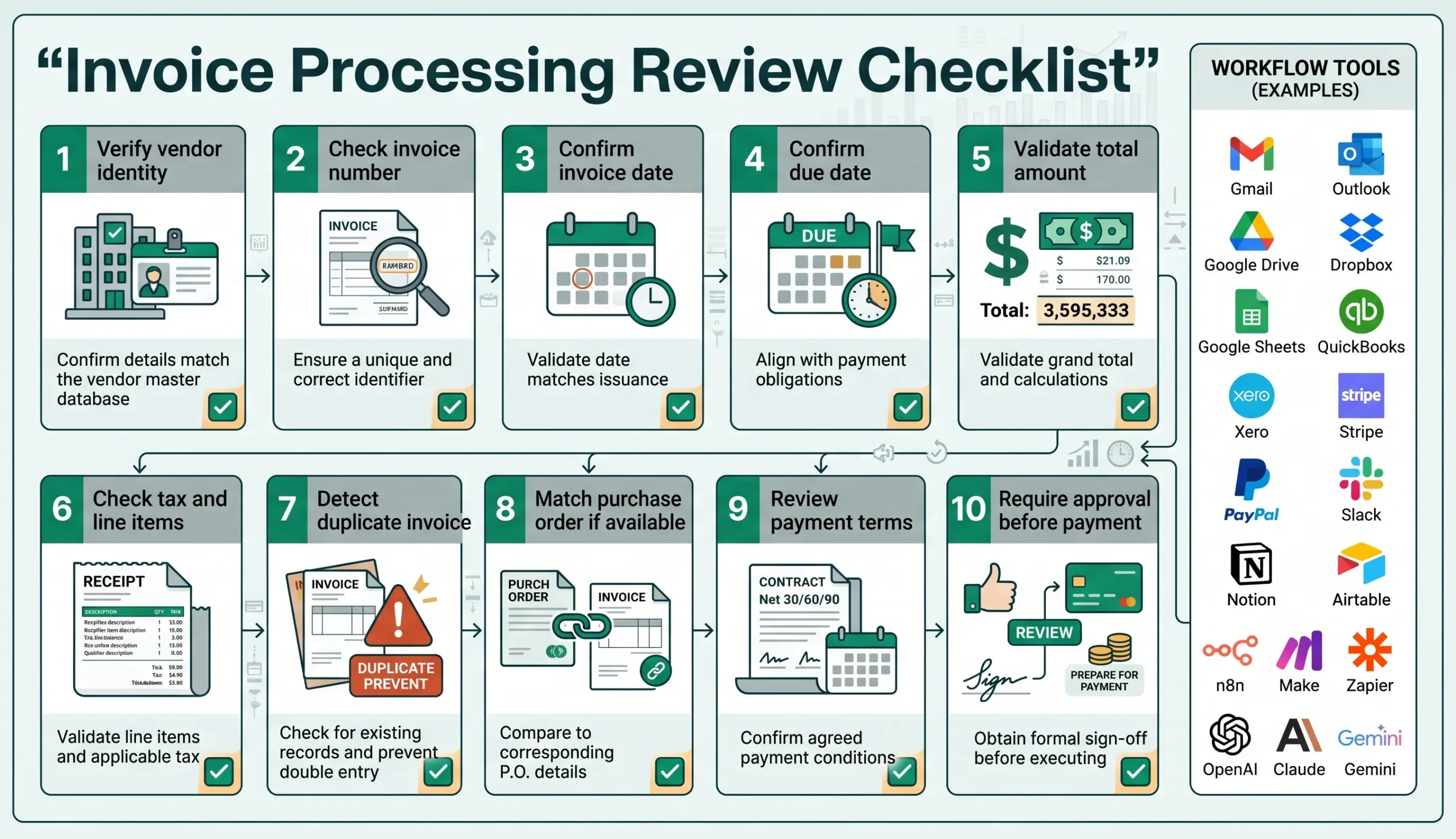
| Review area | What to check | Recommended rule |
|---|---|---|
| Vendor identity | The vendor is known, approved, and payment details are expected. | Review unknown vendors or changed payment instructions. |
| Invoice number | The invoice number is present and not already recorded. | Flag missing or duplicate invoice numbers. |
| Invoice date | The date is valid and not suspiciously old or future-dated. | Review unusual dates. |
| Due date | The due date is clear and matches expected payment terms. | Review urgent or unclear due dates. |
| Total amount | Total, tax, currency, and line items appear consistent. | Review mismatches and high amounts. |
| Duplicate risk | The invoice does not match previous invoice number, vendor, amount, or file. | Hold possible duplicates. |
| Approval status | The right person approved the invoice before payment review. | Require approval record before payment. |
| Payment review | The invoice is safe to prepare for payment. | Keep human review as the final step. |
Testing Checklist
Test this invoice processing automation template before using it with real payments. Use clean invoices, blurry scans, duplicate invoices, unknown vendors, changed payment details, high amounts, missing fields, and different currencies.
| Test case | What to verify |
|---|---|
| Clean invoice from known vendor | The workflow extracts fields, matches vendor, creates approval task, and updates tracker. |
| Missing invoice number | The workflow routes to review instead of creating a complete record. |
| Duplicate invoice | The workflow flags duplicate risk before approval. |
| Unknown vendor | The workflow requires vendor verification. |
| Changed payment details | The workflow escalates and does not approve payment automatically. |
| High-value invoice | The workflow routes to the correct approver. |
| Blurry or low-quality PDF | The workflow marks extraction uncertainty and routes to review. |
| Wrong currency or tax mismatch | The workflow flags validation issues. |
Tools You Can Use
This template is platform-neutral. You can build it with different tools depending on where invoices arrive, how invoice data is extracted, where approvals happen, and where records are stored.
| Tool type | Best use | Example options |
|---|---|---|
| Invoice intake | Receives invoice emails, uploads, and attachments. | Gmail, Outlook, Google Drive, Dropbox, shared folder, upload form. |
| Document extraction | Extracts invoice fields from PDFs, scans, and images. | Google Document AI, OCR tools, AI vision models, document parsers. |
| Finance tracker | Stores invoice number, vendor, amount, due date, approval status, and payment review. | Google Sheets, Airtable, Notion, internal database. |
| Accounting software | Creates draft bills or stores accounting records. | QuickBooks, Xero, or other accounting platforms. |
| Workflow builder | Connects intake, extraction, validation, approval, notifications, and record updates. | n8n, Make, Zapier, or similar automation platforms. |
| Approval channel | Requests approval before payment review. | Slack, email, task tool, approval queue, finance board. |
| AI model | Summarizes invoices, extracts fields, detects missing data, and prepares review notes. | OpenAI, Claude, Gemini, or another text and vision-capable model. |
If you are still choosing your automation platform, read Best AI Automation Tools for Small Business. For direct comparisons, review n8n vs Zapier, n8n vs Make for AI automation, and Make vs Zapier.
Common Mistakes
Invoice automation can create serious problems if it skips validation and approval. The safest approach is to automate capture, extraction, duplicate checks, approval routing, and logging first, then keep payment review under human control.
| Mistake | Why it hurts | Better approach |
|---|---|---|
| Trusting OCR without review | Extraction errors can create wrong amounts or dates. | Review low-confidence or high-value invoices. |
| No vendor verification | Unknown or fake vendors may enter the payment process. | Match vendors against approved records. |
| No duplicate check | The same invoice may be approved twice. | Check invoice number, vendor, amount, date, and file history. |
| Auto-approving payments | Payment errors can become expensive quickly. | Keep human payment review as a required step. |
| Overwriting accounting records | Important finance history can be lost. | Create draft records or timestamped notes first. |
| No audit log | Approvals become hard to prove later. | Log file, vendor, amount, approver, date, status, and decision. |
Simple Implementation Plan
- Choose one invoice source. Start with one finance inbox, upload folder, or invoice form.
- Save the original file. Store the invoice PDF or image before extraction.
- Extract core fields. Capture vendor, invoice number, date, due date, total, tax, currency, and line items.
- Match the vendor. Compare the invoice vendor with your approved vendor list.
- Add duplicate checks. Check invoice number, vendor, amount, date, and file history.
- Validate amount and due date. Flag high amounts, unclear totals, tax mismatches, and urgent due dates.
- Create approval rules. Route invoices by amount, vendor, department, project, or expense type.
- Update your tracker. Add invoice status, approver, due date, file link, and review result.
- Keep payment review manual. Automation prepares the review packet; a human approves payment.
- Test with real examples. Use clean, duplicate, unclear, high-value, and unknown-vendor invoices.
Final Recommendation
Start with an invoice processing automation template that captures invoices, extracts fields, checks vendors, detects duplicates, creates approval tasks, updates records, and prepares payment review. Do not begin with automatic payment approval.
Once the workflow is stable, connect it to document processing automation, email management automation, admin and back-office automation, and weekly AI reporting automation.
The best invoice automation system does not replace finance judgment. It removes repetitive data entry and routing work so humans can focus on approval, exception handling, payment safety, and cash-flow control.
FAQ
What is an invoice processing automation template?
An invoice processing automation template is a repeatable workflow that captures invoices, extracts invoice data, matches vendors, checks duplicates, validates amounts and due dates, creates approval requests, updates records, and keeps human payment review.
Can AI process invoices automatically?
AI can help extract invoice fields, summarize invoices, detect missing data, and prepare review notes. However, vendor verification, duplicate checks, high-value invoices, and payment approval should still involve human review.
What invoice fields should automation extract?
It should extract vendor name, invoice number, invoice date, due date, total amount, tax amount, currency, line items, payment terms, purchase order number, and file link when available.
Should invoices be paid automatically?
No. The safer approach is to automate invoice capture, extraction, validation, approval routing, and record updates, but keep payment review and payment release under human control.
How do I detect duplicate invoices?
Check invoice number, vendor name, total amount, invoice date, due date, purchase order reference, file name, attachment hash or similarity, and previous payment history.
Which tools can I use for invoice processing automation?
You can combine Gmail, Outlook, Google Drive, Dropbox, Google Sheets, Airtable, QuickBooks, Xero, n8n, Make, Zapier, Google Document AI, and AI models such as OpenAI, Claude, or Gemini depending on your workflow.