Email Management Automation Template for Small Businesses
An email management automation template helps small businesses classify incoming emails, detect priority, summarize messages, create tasks, draft replies, route sensitive conversations to humans, and keep inbox activity logged. Instead of manually reading every message, forwarding emails, copying details into task tools, and forgetting follow-ups, the workflow turns your inbox into a structured operating system.
This template is useful for founders, agencies, consultants, support teams, operations teams, and service businesses that receive too many emails across Gmail, Outlook, shared inboxes, forms, clients, vendors, and internal requests. The goal is not to let AI answer every email automatically. The goal is to reduce inbox chaos while keeping human review for important, sensitive, or client-facing messages.
In this guide, you will learn how to build a practical email management workflow, what inputs it needs, where AI can help, which emails should be escalated, and how to connect email with tasks, CRM records, support tickets, and project workflows. If you are new to automation, start with our AI automation for small business guide, then explore the full TakeYourAI workflow templates library.
Quick answer: Use this email management automation template when your inbox receives repeated client requests, support questions, sales replies, vendor emails, internal requests, attachments, and follow-ups. Automate classification, summaries, task creation, ticket creation, CRM notes, draft replies, and logging. Keep human review for urgent, sensitive, unclear, financial, legal, angry, or high-value conversations.
What This Email Management Automation Template Does
This template gives you the workflow logic for processing business emails in a structured way. It can receive an email, check the sender and thread context, classify the message, detect urgency, create a short summary, create a task or ticket, prepare a draft reply, update the right record, and log the result.
A simple version can label emails and create tasks. A more advanced version can use AI to summarize long threads, detect angry customers, identify missing information, extract attachments, route emails by category, and save draft replies for review.
| Automation job | Example | Why it helps |
|---|---|---|
| Classify emails | Support request, sales reply, invoice, vendor message, internal request, complaint, newsletter. | Routes messages to the right workflow. |
| Detect priority | Urgent client issue, angry customer, payment problem, deadline, executive message. | Prevents important messages from getting buried. |
| Summarize threads | Create a short summary of a long email conversation. | Saves time before replying or assigning work. |
| Create tasks or tickets | Turn an email into a support ticket, project task, CRM follow-up, or admin request. | Makes inbox work trackable. |
| Draft replies | Prepare a response based on the email category and business rules. | Speeds up communication while keeping review possible. |
| Log activity | Save category, owner, priority, summary, status, and next action. | Creates visibility and history. |
Who Should Use It?
This email management automation template is useful for small businesses that depend on email but do not have a clean process for handling messages.
- Founders who receive client, sales, vendor, and internal emails in one inbox.
- Agencies that manage client requests, approvals, documents, and support questions by email.
- Consultants who need to turn email requests into tasks and follow-ups.
- Support teams that need better triage before creating tickets or replies.
- Sales teams that receive replies, objections, meeting requests, and proposal follow-ups.
- Operations teams that handle invoices, files, approvals, vendor messages, and admin requests.
This workflow connects naturally with AI customer support triage, sales follow-up automation, document processing automation, CRM update automation, and admin and back-office automation.
Workflow Overview
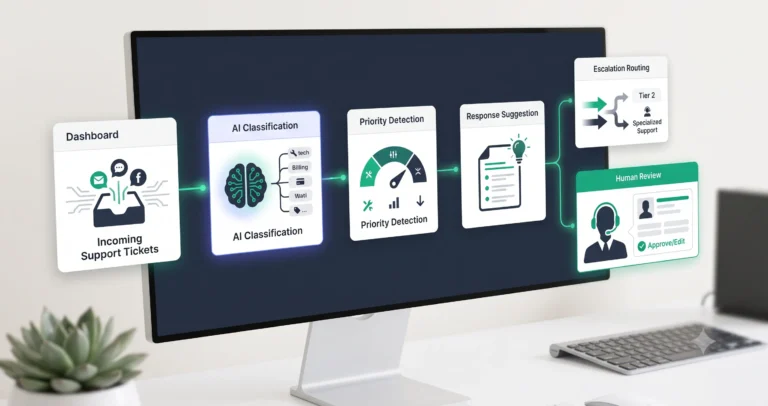
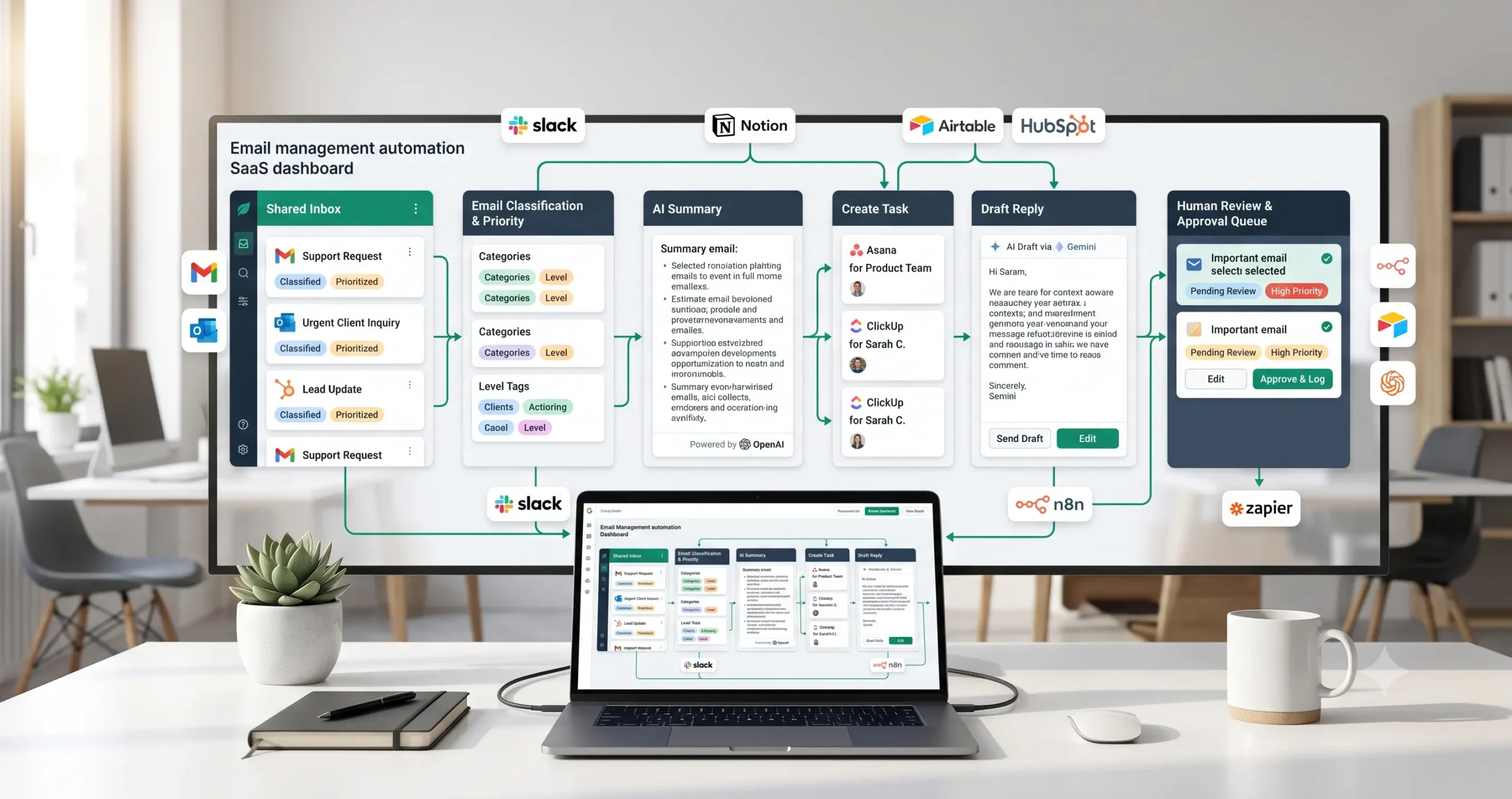
A reliable email management workflow has nine core parts: email received, sender and context checked, email classified, priority detected, AI summary generated, task or ticket created, draft reply prepared, human review if needed, and email logged or archived.
| Workflow step | What happens | Output |
|---|---|---|
| Email received | A new email arrives in Gmail, Outlook, or a shared inbox. | Email enters the workflow. |
| Sender and context checked | The workflow checks sender, subject, thread, attachments, and related records. | Context is prepared. |
| Email classified | The email is labeled by type, such as support, sales, admin, finance, or spam. | Correct route is selected. |
| Priority detected | The workflow checks urgency, sentiment, deadlines, and business impact. | Priority level is assigned. |
| AI summary generated | AI summarizes the email or thread and extracts key details. | Short summary is ready. |
| Task or ticket created | The workflow creates a task, support ticket, CRM note, or project item. | Email becomes trackable work. |
| Draft reply prepared | AI prepares a response draft based on approved rules. | Reply is ready for review. |
| Human review if needed | Sensitive, unclear, angry, or high-value messages are reviewed. | Approved, edited, escalated, or held. |
| Email logged and archived | The workflow records status, owner, category, and outcome. | Inbox stays cleaner and history is preserved. |
How the Email Management Automation Workflow Works
The workflow should start with one inbox or one email category. Do not begin by automating every email in the business. Start with a repeated pattern such as support requests, sales replies, vendor invoices, internal requests, or client approvals.
Once an email arrives, the workflow checks the sender, message, thread, and attachments. It classifies the email, detects priority, creates a summary, routes the item to the correct destination, prepares a reply if needed, and logs the action.
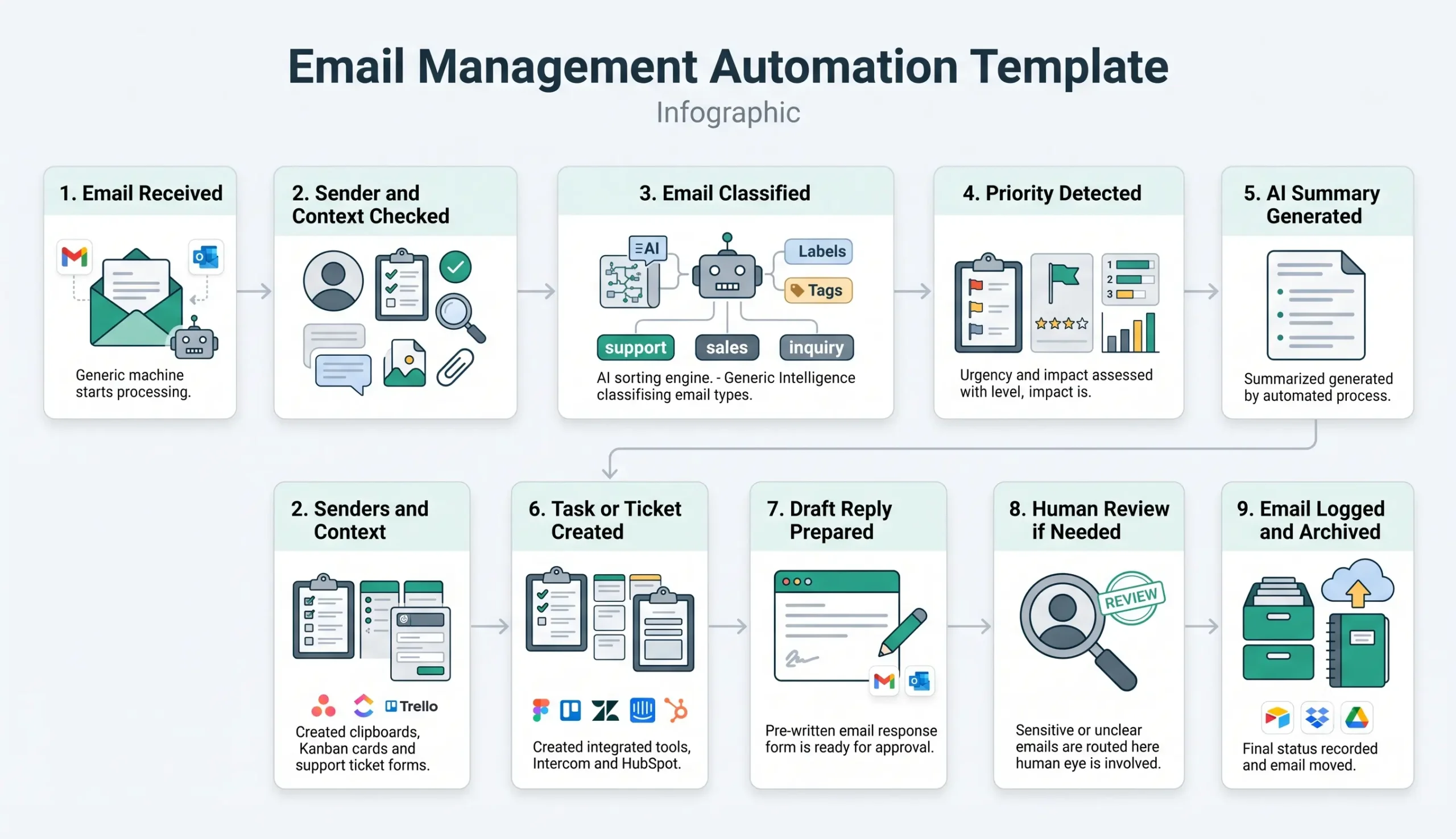
Step 1: Capture the incoming email
The trigger can be a new email in Gmail, Outlook, a shared inbox, or a mailbox used for forms, invoices, support, sales, or client requests.
Step 2: Check sender and conversation context
The workflow should check whether the sender is a client, prospect, vendor, team member, unknown contact, existing customer, or internal account. It should also check the subject, attachments, thread history, and any related CRM or project record.
Step 3: Classify the email
Classify the email into a useful category such as support, sales, billing, admin, document, meeting, complaint, vendor, internal request, or low-priority message. Gmail filters can already send incoming mail to labels, archive, delete, star, or forward messages based on rules, which makes them a useful starting point for simple inbox organization: Gmail filters documentation.
Step 4: Detect urgency and priority
The workflow should detect signals such as “urgent,” “deadline,” “payment failed,” “cancel,” “complaint,” “contract,” “invoice overdue,” “VIP client,” or “blocked project.” These signals decide whether the email becomes a normal task, urgent task, support escalation, or review item.
Step 5: Generate a summary
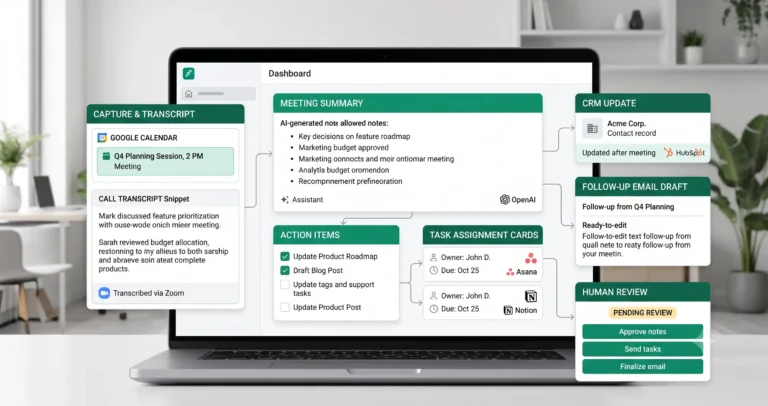
AI can summarize the message or full thread into a short explanation. The summary should include who wrote the email, what they want, why it matters, what is missing, and the recommended next action.
Step 6: Create a task, ticket, or record update
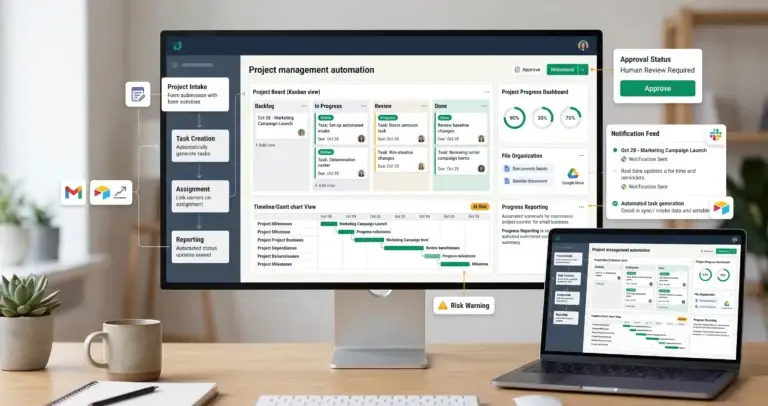
The workflow should turn the email into trackable work. That may be a support ticket, CRM note, project task, admin request, invoice review, document processing item, or sales follow-up.
Step 7: Draft a reply and request review
AI can prepare a response draft, but important emails should not be sent automatically at first. Save replies as drafts or send them to an approval queue until the workflow has been tested.
Required Inputs
Email automation becomes more reliable when the workflow receives enough context before classification, task creation, or reply drafting.
| Input | Example | Use in workflow |
|---|---|---|
| Email source | Gmail, Outlook, shared inbox, support inbox, sales inbox. | Starts the workflow. |
| Sender identity | Client, lead, vendor, team member, unknown sender, VIP account. | Helps route and prioritize the email. |
| Subject and body | Email subject, message text, thread content. | Used for classification and summary. |
| Attachments | Invoice, contract, screenshot, PDF, spreadsheet, form file. | Connects to document processing or review. |
| Thread history | Previous replies, earlier promises, old support messages, negotiation context. | Prevents inaccurate replies. |
| Related record | CRM contact, client project, support ticket, invoice record, sales opportunity. | Controls where the email is logged. |
| Business rules | Allowed replies, escalation rules, owner assignment, sensitive topics. | Controls what automation is allowed to do. |
Practical rule: if the workflow cannot identify the sender, request type, urgency, related record, or safe next action, it should create a review task instead of replying automatically.
Email Classification and Routing Logic
Classification is the control layer of this email workflow. It decides whether the message becomes a support ticket, sales task, admin request, document review, CRM update, or low-priority archive.
| Email type | Automation action | Review trigger |
|---|---|---|
| Customer support | Create ticket, summarize issue, assign priority, draft support response. | Angry customer, refund request, legal threat, account issue, unclear problem. |
| Sales reply | Update CRM, create follow-up task, draft reply, log next step. | Pricing, contract, discount, custom offer, high-value lead. |
| Invoice or receipt | Send to document processing or finance review. | High amount, duplicate invoice, unknown vendor, missing details. |
| Client request | Create project task, assign owner, summarize request. | Scope change, deadline change, budget issue, client complaint. |
| Meeting request | Create scheduling task, update calendar context, notify owner. | VIP contact, unclear time zone, external high-value meeting. |
| Internal admin request | Create admin task or route to back-office workflow. | Access, finance, sensitive files, approval needed. |
| Newsletter or low-priority email | Label, archive, or summarize in a digest. | Usually no review needed. |
Outlook also supports rules for managing messages, such as moving messages from a specific sender to a folder or changing the order in which rules apply: Microsoft Outlook rules documentation.
AI Email Management Prompt Template
AI can help classify and summarize emails, but the prompt should be controlled. It should not invent details, promises, refunds, discounts, or facts that are not present in the email or business rules.
Copy-paste prompt structure:
You are helping manage a business email for a small business. Use only the email content, thread context, attachments summary, and business rules provided. Do not invent facts, promises, pricing, deadlines, refunds, legal language, or previous conversations. If the email is unclear, sensitive, urgent, or missing required information, route it to human review.
Email context:
Sender: {{sender}}
Sender type: {{sender_type}}
Subject: {{subject}}
Email body: {{email_body}}
Thread history: {{thread_history}}
Attachments summary: {{attachments_summary}}
Related client, lead, project, or ticket: {{related_record}}
Business rules:
Email categories: {{email_categories}}
Priority rules: {{priority_rules}}
Owner routing rules: {{owner_rules}}
Approved response rules: {{approved_response_rules}}
Escalation required when: {{escalation_conditions}}
Return:
1. Email category
2. Priority level
3. Short summary
4. Key requested action
5. Missing information
6. Suggested owner
7. Suggested task or ticket title
8. Draft reply if safe
9. Whether human review is required
10. Reason for review decision
If your workflow builder supports structured output, ask the model to return JSON. That makes it easier to save category, priority, owner, task title, reply draft, and review status into separate workflow fields.
Priority and Escalation Rules
Priority rules keep email automation safe. Not every message deserves the same speed, owner, or level of review.
| Signal | Priority | Recommended action |
|---|---|---|
| VIP client, key account, or major prospect | High | Create urgent task and require review before reply. |
| Complaint, cancellation, refund, or angry tone | High | Escalate to human and draft a careful response. |
| Payment, invoice, contract, or legal terms | High | Route to finance, legal, founder, or admin review. |
| Support issue with clear category | Medium | Create ticket, summarize issue, draft support response. |
| Routine internal request | Medium | Create task and assign owner. |
| Newsletter or low-value automated email | Low | Label, archive, or include in digest. |
| Unknown sender with suspicious attachment | Review | Do not process automatically; route to human review. |
Draft Reply and Response Rules
Email replies are often external and relationship-sensitive, so the first version of this workflow should save replies as drafts instead of sending them automatically.
| Rule | Why it matters | Recommended approach |
|---|---|---|
| Use real context only | AI can invent details if the prompt is weak. | Reference only the email, thread, CRM record, or approved knowledge base. |
| Keep tone professional | Emails affect trust quickly. | Use clear, helpful, calm language. |
| Avoid unsupported promises | Wrong promises create business risk. | Do not invent refunds, timelines, discounts, or guarantees. |
| Review sensitive replies | Some messages need judgment. | Require approval for complaints, contracts, pricing, finance, access, and legal topics. |
| Confirm recipient | Wrong recipients can expose information. | Check recipient before sending external replies. |
| Log the response | Future work depends on history. | Save category, owner, draft status, final action, and date. |
If your team uses Google Workspace, Google Apps Script’s Gmail service can work with Gmail messages, threads, labels, drafts, and related actions, which makes it useful for more technical Gmail-based automation: Google Apps Script Gmail service.
Human Review and Email Quality Rules
Email management automation should reduce manual work, but it should not remove accountability. Inboxes often contain sensitive information, private attachments, client commitments, financial details, and emotional customer messages.
Human review is especially important when the email is unclear, urgent, angry, financial, legal, sales-sensitive, client-facing, or connected to a high-value relationship.
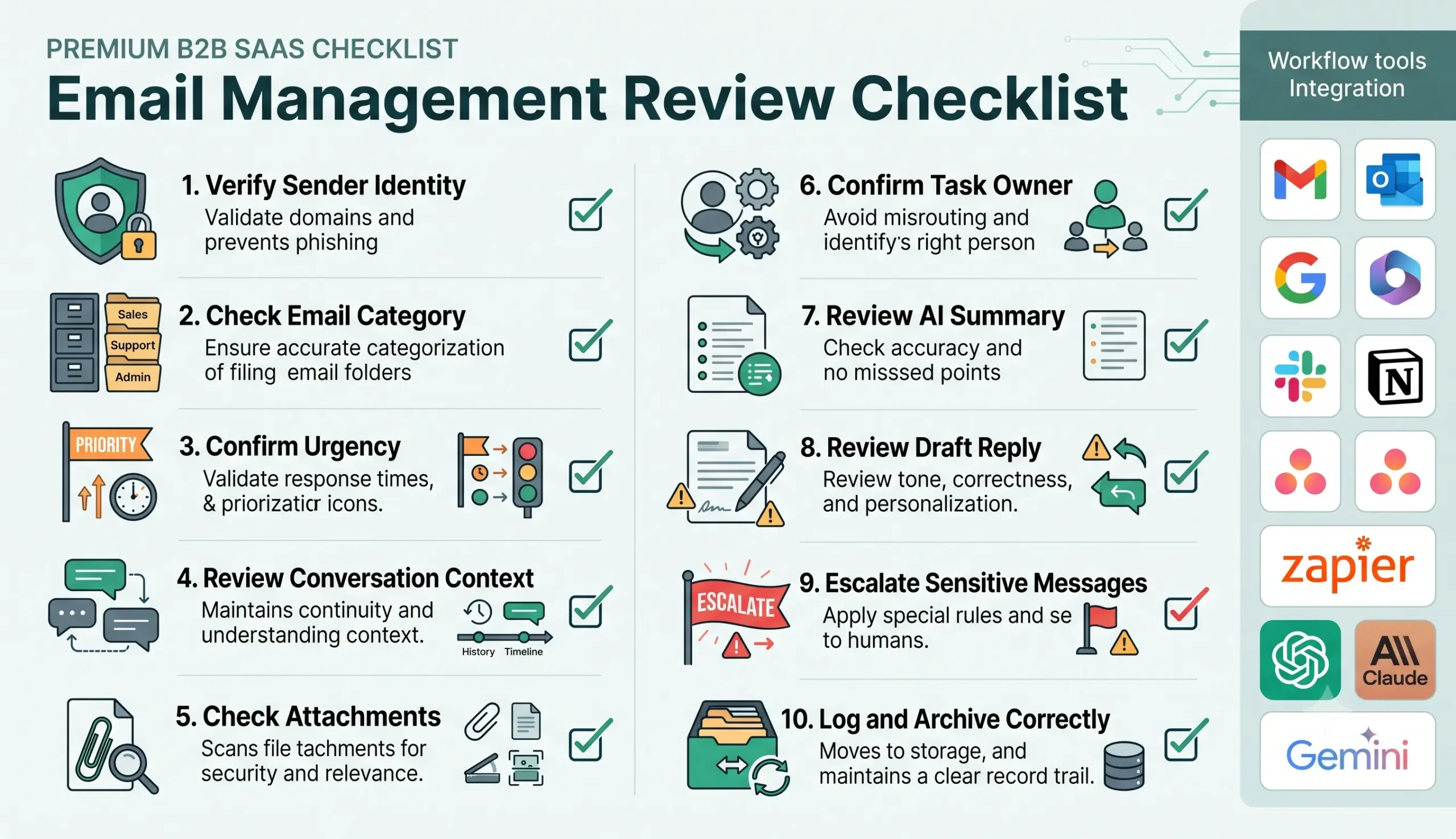
| Review area | What to check | Recommended rule |
|---|---|---|
| Sender identity | The workflow correctly identifies the sender and relationship. | Review unknown, suspicious, or high-value senders. |
| Email category | The message is classified correctly. | Review mixed or unclear emails. |
| Urgency | The priority level matches the business impact. | Escalate urgent or complaint-related messages. |
| Attachments | Files are safe, expected, and routed correctly. | Review suspicious or sensitive attachments. |
| AI summary | The summary accurately reflects the email and thread. | Review before creating external replies. |
| Draft reply | The response is accurate, professional, and safe. | Review before sending to clients, prospects, vendors, or customers. |
| Logging and archiving | The final status, owner, and next action are recorded. | Log every important email workflow result. |
Testing Checklist
Test this email management automation template before using it on your full inbox. Use support emails, sales replies, vendor messages, attachments, angry emails, unclear requests, and low-priority newsletters.
| Test case | What to verify |
|---|---|
| Simple support request | The workflow classifies the email, creates a ticket, and drafts a safe reply. |
| Sales reply | The workflow updates CRM context and creates a follow-up task. |
| Invoice attachment | The workflow routes the email to document processing or finance review. |
| Angry customer | The workflow escalates instead of sending an automatic reply. |
| Unknown sender | The workflow does not process suspicious attachments automatically. |
| Long thread | The workflow summarizes the thread without inventing facts. |
| Missing context | The workflow creates a review task instead of guessing. |
| Low-priority email | The workflow labels, archives, or sends it to a digest without creating unnecessary tasks. |
Tools You Can Use
This template is platform-neutral. You can build it with different tools depending on your inbox, task system, CRM, support desk, and automation platform.
| Tool type | Best use | Example options |
|---|---|---|
| Email inbox | Receives messages, threads, attachments, and replies. | Gmail, Outlook, shared inbox, Google Workspace, Microsoft 365. |
| Support desk | Creates tickets and manages customer conversations. | Zendesk, Intercom, Help Scout, Freshdesk, or similar tools. |
| CRM | Stores sales replies, customer notes, and contact history. | HubSpot, Salesforce, Pipedrive, Airtable, Notion, spreadsheet-based CRM. |
| Task management | Turns emails into work with owners and deadlines. | Asana, Trello, ClickUp, Notion, Airtable, Monday.com. |
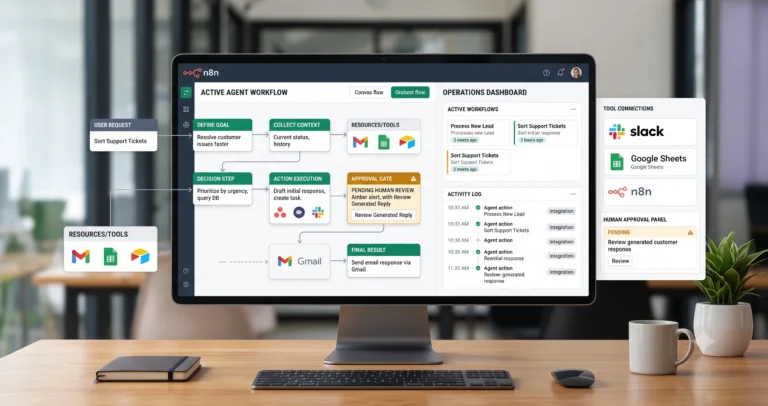
| Workflow builder | Connects inbox triggers, classification, AI summaries, tasks, drafts, and logging. | n8n, Make, Zapier, or similar automation platforms. |
| Email parser | Extracts structured details from repeated email formats. | Email Parser by Zapier, Mailparser, or custom parsing logic. |
| AI model | Classifies emails, summarizes threads, drafts replies, and detects missing context. | OpenAI, Claude, Gemini, or another text-capable model. |
For repeated email formats such as invoices, orders, form notifications, and vendor messages, Zapier’s Email Parser can extract data from emails sent to a custom parser address: Zapier Email Parser setup guide.
If you are still choosing your automation platform, read Best AI Automation Tools for Small Business. For direct comparisons, review n8n vs Zapier, n8n vs Make for AI automation, and Make vs Zapier.
Common Mistakes
Email automation can create problems when it is too aggressive. The safest approach is to automate classification, summaries, tasks, drafts, and logging first, then expand only after the workflow is tested.
| Mistake | Why it hurts | Better approach |
|---|---|---|
| Auto-replying too early | Wrong replies can damage trust. | Save draft replies and require review first. |
| No sender checks | Unknown or sensitive messages may be mishandled. | Check sender type before taking action. |
| No category system | All emails become one messy workflow. | Create clear categories and routing rules. |
| Ignoring attachments | Invoices, contracts, and files may need special handling. | Route attachments to document processing or review. |
| Overwriting CRM or ticket data | Important context can be lost. | Add timestamped notes instead of overwriting fields. |
| No escalation rules | Urgent or angry messages may be treated as routine. | Escalate complaints, deadlines, finance, legal, and high-value emails. |
Simple Implementation Plan
- Choose one inbox or email type. Start with support requests, sales replies, invoices, client requests, or internal admin emails.
- Define email categories. Use clear categories such as support, sales, billing, admin, document, meeting, complaint, and low priority.
- Create sender rules. Identify clients, leads, vendors, team members, VIP accounts, and unknown senders.
- Add AI classification. Ask AI to classify the email, summarize it, detect urgency, and identify missing context.
- Create task or ticket logic. Route each category to the correct task board, CRM, support tool, or review queue.
- Add draft reply logic. Save replies as drafts first instead of sending automatically.
- Add escalation rules. Require review for urgent, angry, sensitive, financial, legal, or high-value messages.
- Add logging. Save category, owner, priority, summary, status, and final action.
- Test with real examples. Use normal, unclear, sensitive, urgent, and low-priority emails.
- Expand slowly. Add more categories only after the first workflow is reliable.
Final Recommendation
Start with an email management automation template that classifies messages, summarizes context, creates tasks or tickets, saves reply drafts, and routes risky emails to human review. Do not begin with automatic replies across your whole inbox.
Once the workflow is stable, connect it to AI customer support triage, sales follow-up automation, meeting notes automation, document processing automation, and admin and back-office automation.
The best email automation system does not replace communication judgment. It removes repetitive inbox handling so humans can focus on important conversations, exceptions, and decisions.
FAQ
What is an email management automation template?
An email management automation template is a repeatable workflow that classifies incoming emails, detects priority, summarizes messages, creates tasks or tickets, drafts replies, routes emails for review, and logs the result.
Can AI manage business emails automatically?
AI can help classify emails, summarize threads, extract details, and draft replies. However, important, sensitive, urgent, angry, financial, legal, or client-facing emails should still be reviewed by a human.
Should AI send email replies automatically?
The safer first step is to save replies as drafts and require approval. Automatic sending should only be used for low-risk, standardized messages after careful testing.
What emails should be escalated to a human?
Escalate complaints, refund requests, legal topics, contract terms, payment issues, high-value prospects, VIP clients, sensitive attachments, unclear messages, and unknown senders with suspicious content.
Which tools can I use for email management automation?
You can combine Gmail, Outlook, shared inboxes, CRMs, support desks, task tools, workflow builders such as n8n, Make, or Zapier, and AI models such as OpenAI, Claude, or Gemini.
What should I automate first in email management?
Start with one repeated email type such as support requests, sales replies, invoice intake, client requests, or internal admin emails. Automate classification, summaries, task creation, and draft replies before expanding.