Project Management Automation Template for Small Businesses
A project management automation template helps small businesses turn project requests into tasks, owners, deadlines, reminders, file links, status updates, risk alerts, and progress reports without managing every project step manually.
This template is useful for agencies, consultants, service businesses, operations teams, founders, and small teams that manage client work, internal projects, marketing campaigns, onboarding tasks, deliverables, deadlines, and recurring project updates.
In this guide, you will learn how to build a practical project management automation template that receives project requests, checks required details, creates tasks, assigns owners, sets deadlines, links files, sends reminders, escalates blockers, and logs progress. If you are new to automation, start with our AI automation for small business guide, then explore the full TakeYourAI workflow templates library.
Quick answer: Use a project management automation template when your business needs to create tasks from project requests, assign owners, track deadlines, send reminders, organize files, update project status, detect blockers, and report progress. Automate repeatable project setup, notifications, task routing, and reporting. Keep human review for project scope, client-facing updates, deadline changes, unclear requirements, blockers, budget impact, and major delivery decisions.
What This Project Management Automation Template Does
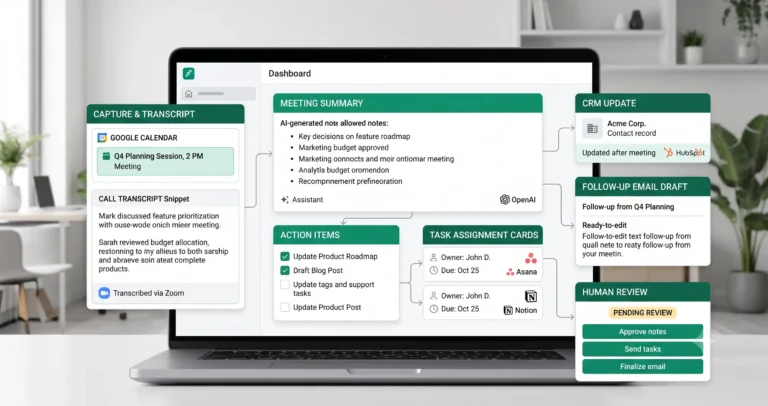
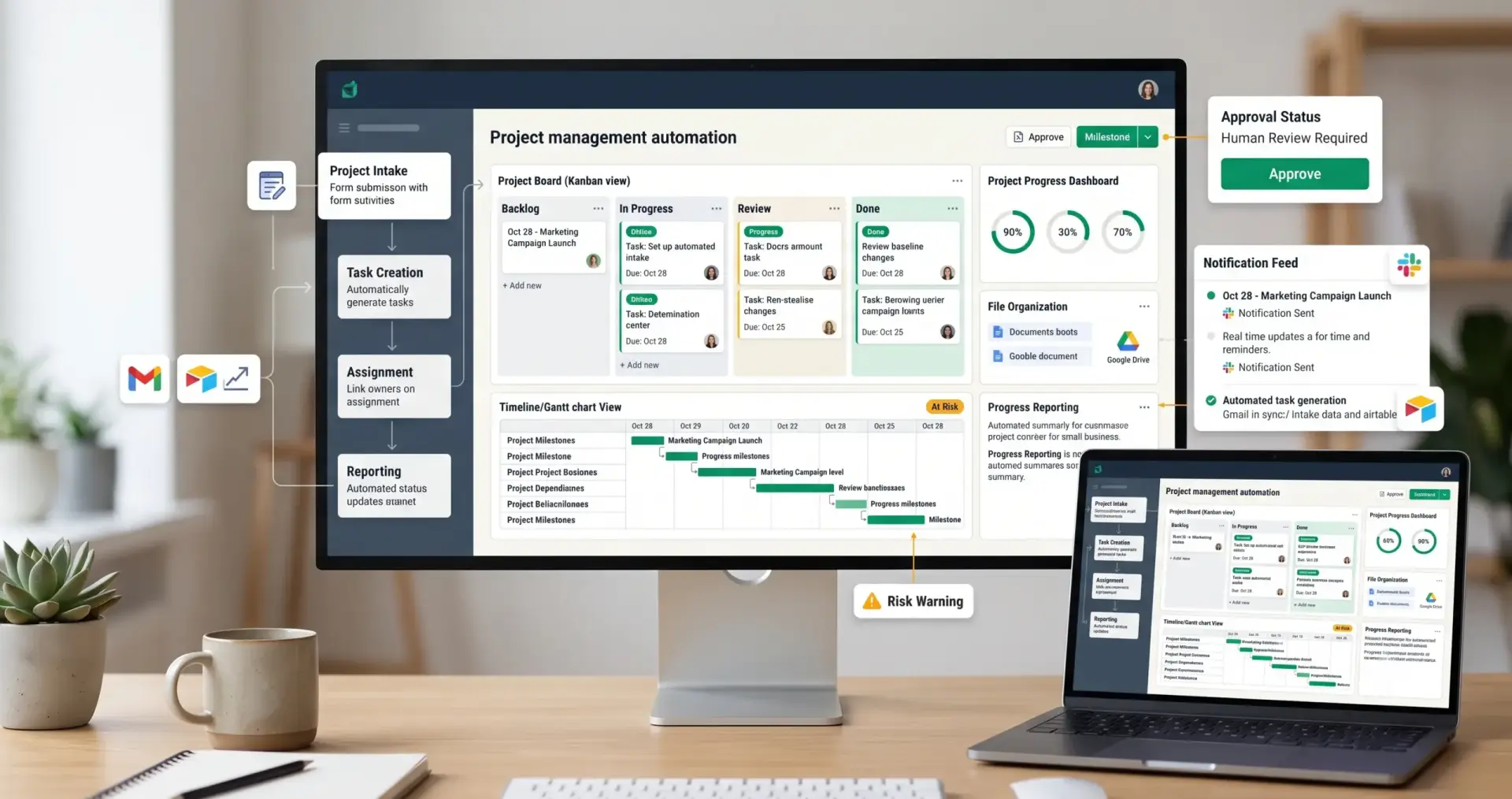
This project management automation template gives you the workflow logic for moving a project from request to execution. It can capture a project request, check required details, generate tasks, assign owners, create deadlines, link files, send reminders, escalate risks, update project status, and create progress reports.
A simple version can create tasks from a form submission and notify the project owner. A more advanced version can connect client onboarding, meeting notes, CRM records, project boards, AI summaries, file storage, Slack notifications, status updates, and weekly reporting.
| Automation job | Example | Why it helps |
|---|---|---|
| Capture project request | Request from form, email, CRM, meeting note, client onboarding workflow, or internal task. | Starts every project from a structured source. |
| Check required details | Scope, client, goal, deadline, owner, files, budget, priority, and success criteria. | Prevents incomplete projects from moving forward. |
| Create tasks | Turn project scope into tasks, subtasks, checklist items, and milestones. | Reduces manual project setup. |
| Assign owners | Assign tasks to project manager, designer, developer, writer, analyst, or operations owner. | Makes responsibility clear. |
| Track deadlines | Create due dates, milestone dates, review dates, and reminder dates. | Reduces missed deadlines. |
| Link files and context | Attach briefs, meeting notes, contracts, folders, assets, and reference links. | Keeps project context in one place. |
| Send status updates | Notify team or client when status changes, tasks are delayed, or milestones are complete. | Improves communication. |
| Escalate risks | Flag blockers, missing information, overdue tasks, scope changes, and client approval delays. | Helps the team act before projects fail. |
| Report progress | Create weekly project summary with completed tasks, open blockers, next steps, and risks. | Makes management easier. |
Who Should Use It?
A project management automation template is useful for any small business that repeats similar project steps but still manages project setup, reminders, task assignment, and updates manually.
- Agencies managing client campaigns, websites, content, ads, design, or implementation projects.
- Consultants turning client calls and proposals into project tasks.
- Service businesses coordinating internal work, customer requests, and delivery steps.
- Founders who need simple project tracking without hiring a full operations team.
- Marketing teams managing campaigns, content calendars, approvals, assets, and launches.
- Operations teams connecting tasks, files, meetings, deadlines, updates, and reports.
This workflow connects naturally with client onboarding automation, meeting notes automation, content operations automation, admin and back-office automation, and weekly AI reporting automation.
Workflow Overview
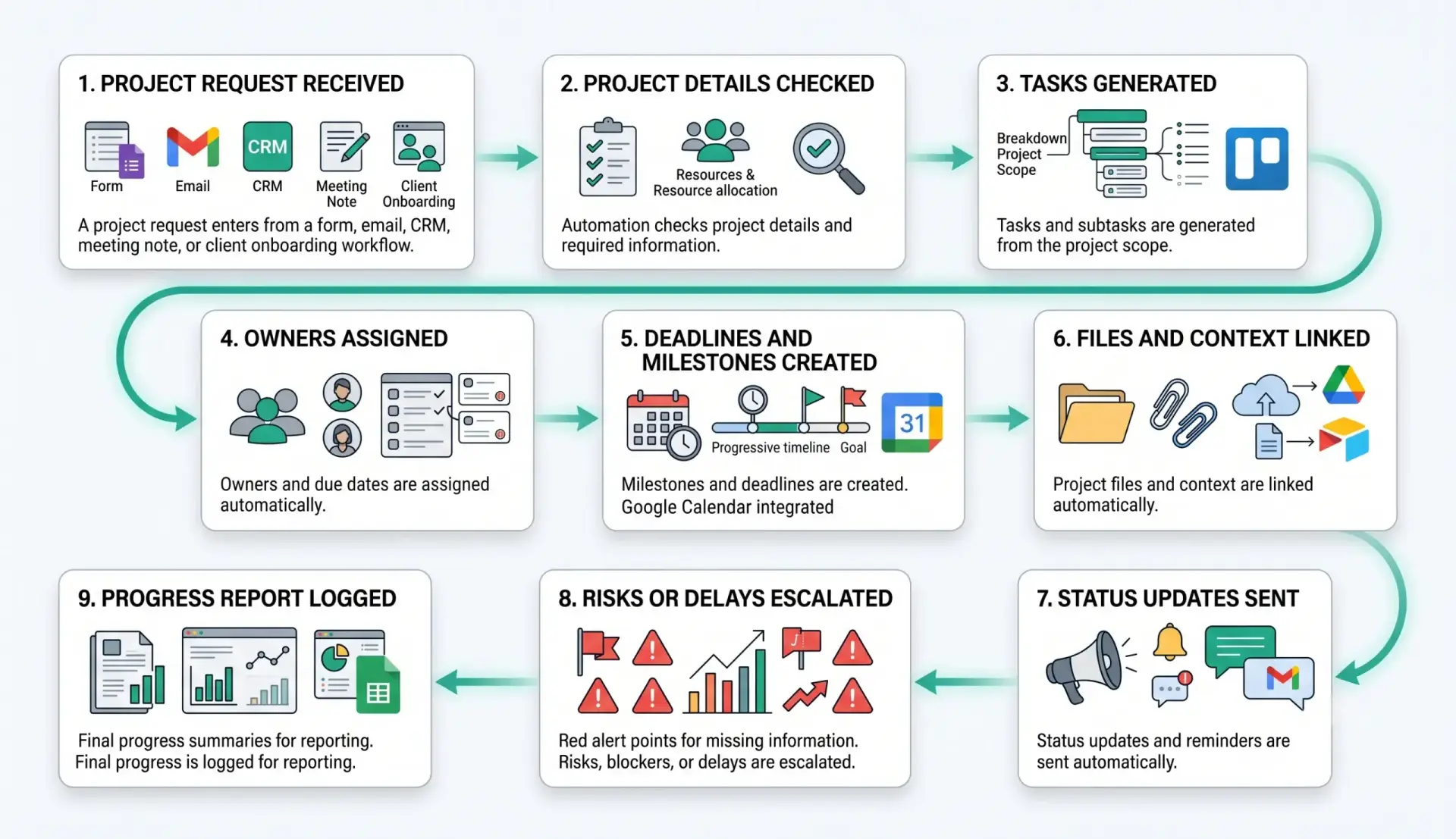
A reliable project management automation template has nine core parts: project request received, project details checked, tasks generated, owners assigned, deadlines and milestones created, files and context linked, status updates sent, risks or delays escalated, and progress report logged.
| Workflow step | What happens | Output |
|---|---|---|
| Project request received | A new project enters from a form, email, CRM, meeting note, client onboarding flow, or internal request. | Project intake starts. |
| Project details checked | The workflow checks scope, owner, deadline, priority, files, and missing information. | Project readiness status is created. |
| Tasks generated | The workflow creates tasks, subtasks, and checklists from the project type and scope. | Project board is prepared. |
| Owners assigned | Tasks are assigned based on role, department, project type, or workload rules. | Responsibilities become clear. |
| Deadlines and milestones created | Due dates, milestones, review dates, and approval deadlines are added. | Timeline is visible. |
| Files and context linked | Briefs, folders, notes, assets, contracts, and references are attached. | Project context is accessible. |
| Status updates sent | The workflow sends updates when tasks change, milestones complete, or action is needed. | Team and client stay informed. |
| Risks or delays escalated | Overdue tasks, blockers, missing inputs, and scope changes are flagged. | Review task or alert is created. |
| Progress report logged | Completed work, next steps, blockers, and risks are stored for reporting. | Project reporting becomes easier. |
How the Project Management Automation Workflow Works
The workflow should start with one project intake source. That source may be a client onboarding form, CRM deal stage, meeting note, email request, Airtable form, Notion database, Google Sheet, or project management form. Start with one repeatable project type before expanding to every project in the business.
Once a project request enters the workflow, the automation checks required details, creates tasks, assigns owners, adds deadlines, links files, sends reminders, escalates blockers, and logs progress for reporting.
Step 1: Start with a project management automation template intake
The first step is a structured intake. The request should include project name, requester, client, goal, scope, priority, deadline, owner, required files, dependencies, and notes. Without this information, automation may create tasks that look organized but are not useful.
Step 2: Check project details
The workflow should check whether the project has enough information to move forward. If scope, deadline, owner, or files are missing, the automation should create a clarification task instead of generating a full project board.
Step 3: Generate tasks and subtasks
AI or rule-based templates can turn project type into a task list. For example, a website project may create strategy, copywriting, design, development, testing, launch, and reporting tasks. A content campaign may create brief, draft, edit, design, publish, and performance review tasks.
Step 4: Assign owners and deadlines
Each task should have an owner and due date. Asana’s rules documentation explains how rules can automate actions such as moving tasks, adding collaborators, or creating approval subtasks when conditions are met: Asana rules documentation.
Step 5: Link files and context
The workflow should attach project briefs, Google Drive folders, contracts, meeting notes, client assets, creative files, research documents, and reference links so every owner has the context needed to work.
Step 6: Send reminders and status updates
Automations can notify owners when tasks are assigned, deadlines approach, or status changes. Trello’s automation overview describes the basic trigger-and-action structure: something happens on the board, then automation performs an action in response: Trello automation overview.
Step 7: Escalate blockers and delays
A project workflow should detect overdue tasks, missing approvals, blocked status, repeated delays, missing files, or scope changes. These situations should create a review task or internal alert.
Step 8: Log progress for reporting
The workflow should log what changed, what was completed, what is blocked, what needs attention, and what happens next. This connects directly with weekly AI reporting automation.
Required Inputs
A project management automation template becomes reliable when every project request has enough structured information before tasks are created.
| Input | Example | Use in workflow |
|---|---|---|
| Project name | Client website redesign, Q3 content campaign, onboarding setup, internal CRM cleanup. | Creates the project record. |
| Requester | Client, founder, team lead, sales rep, account manager, operations owner. | Identifies who requested the work. |
| Project type | Marketing, onboarding, website, operations, support, product, reporting, finance. | Selects the right task template. |
| Scope | Deliverables, constraints, expectations, success criteria, exclusions. | Prevents vague work. |
| Deadline | Final due date, milestone dates, approval dates, review dates. | Controls timeline and reminders. |
| Owner | Project manager, client owner, department owner, delivery owner. | Controls accountability. |
| Files and context | Brief, notes, assets, Drive folder, contract, proposal, CRM record, meeting transcript. | Gives task owners enough context. |
| Review rules | Review required for client-facing updates, deadline changes, scope changes, and blockers. | Keeps important decisions human-controlled. |
Practical rule: if the workflow does not know the project type, scope, owner, deadline, required files, or approval rules, it should request clarification before generating tasks.
Project Intake and Task Creation Logic
Project intake is the control layer of this workflow. It decides whether the project is ready, which task template should be used, who owns the work, and which risks should be reviewed before the project starts.
| Project condition | Automation action | Review trigger |
|---|---|---|
| Complete standard project | Create project, tasks, owners, deadlines, and file links. | Review only if client-facing approval is required. |
| Missing scope | Create clarification task and pause project setup. | Always review before task generation. |
| Missing deadline | Assign default review deadline or request timeline. | Review if delivery depends on deadline. |
| High-priority project | Notify project owner and create priority status. | Review workload and timeline. |
| Client-facing project | Create tasks and review points for updates, approvals, and delivery. | Review all client-facing messages. |
| Scope change | Create review task and notify owner. | Always review before changing deadlines or deliverables. |
| Blocked project | Escalate blocker, notify owner, and log reason. | Review if blocker affects delivery. |
AI Project Management Prompt Template
AI can help summarize project requests, generate task lists, identify missing information, and prepare status updates. However, the prompt should be strict. AI should not invent scope, promise deadlines, assign work unfairly, or send client-facing updates without review.
Copy-paste prompt structure:
You are helping prepare a project management workflow for a small business. Use only the project request, scope, files, notes, deadlines, and business rules provided. Do not invent deliverables, deadlines, approvals, client promises, budgets, owners, or project requirements. If the project is unclear, high-risk, client-facing, blocked, or missing required information, route it to human review.
Project context:
Project name: {{project_name}}
Project type: {{project_type}}
Requester: {{requester}}
Client or internal team: {{client_or_team}}
Scope: {{scope}}
Desired outcome: {{desired_outcome}}
Deadline: {{deadline}}
Files and context: {{files_and_context}}
Current status: {{current_status}}
Business rules:
Task template rules: {{task_template_rules}}
Owner assignment rules: {{owner_assignment_rules}}
Deadline rules: {{deadline_rules}}
Client update rules: {{client_update_rules}}
Escalation required when: {{escalation_conditions}}
Human review required when: {{review_required_conditions}}
Return:
1. Project readiness status
2. Missing information
3. Suggested task list
4. Suggested owners by role
5. Suggested milestones
6. Deadline risks
7. Required files or links
8. Suggested internal status update
9. Whether human review is required
10. Reason for review decision
If your workflow builder supports structured output, ask for JSON. That makes it easier to store tasks, owners, deadlines, missing fields, blocker status, review status, and reporting notes in separate fields.
Owner, Deadline, and Milestone Rules
Owner and deadline rules are where a project management automation template becomes useful. Without clear ownership and dates, automation only creates a larger task list.
| Rule area | What to check | Recommended rule |
|---|---|---|
| Project owner | Who is accountable for delivery? | Every project should have one primary owner. |
| Task owner | Who completes each task? | Every task should have one clear owner. |
| Due date | When should the task be completed? | Every important task should have a due date. |
| Milestone | What are the major delivery points? | Use milestones for review, approval, delivery, and launch. |
| Dependency | Which task must happen before another? | Flag dependent tasks that may block delivery. |
| Approval deadline | When does someone need to approve work? | Create approval tasks before final delivery dates. |
| Reminder timing | When should reminders be sent? | Send reminders before due dates and on overdue tasks. |
ClickUp’s official automation documentation describes automations that run based on conditions in a workspace, including automations connected to tasks and other workflow events: ClickUp automations documentation.
Status Update and Risk Escalation Rules
Status updates help the team understand what changed. Risk escalation helps the team act before a project fails. A strong project management automation template should include both.
| Signal | Automation action | Human review rule |
|---|---|---|
| Task completed | Update status, notify next owner, or unlock dependent task. | Review if output is client-facing. |
| Task overdue | Notify owner and project manager. | Review if milestone or delivery date is affected. |
| Project blocked | Create blocker alert with reason and owner. | Always review active blockers. |
| Missing file | Request file or assign collection task. | Review if work cannot continue. |
| Scope change | Create change review task. | Always review before changing tasks, deadline, or client promise. |
| Client approval needed | Create approval task and reminder. | Review client-facing approval messages. |
| Weekly update needed | Generate progress summary and list blockers. | Review before sending to clients. |
monday.com’s automation documentation explains that automations can help boards run repetitive tasks automatically, which is the same principle you should use for status changes, reminders, and project handoffs: monday.com automations documentation.
Human Review and Project Management Quality Rules
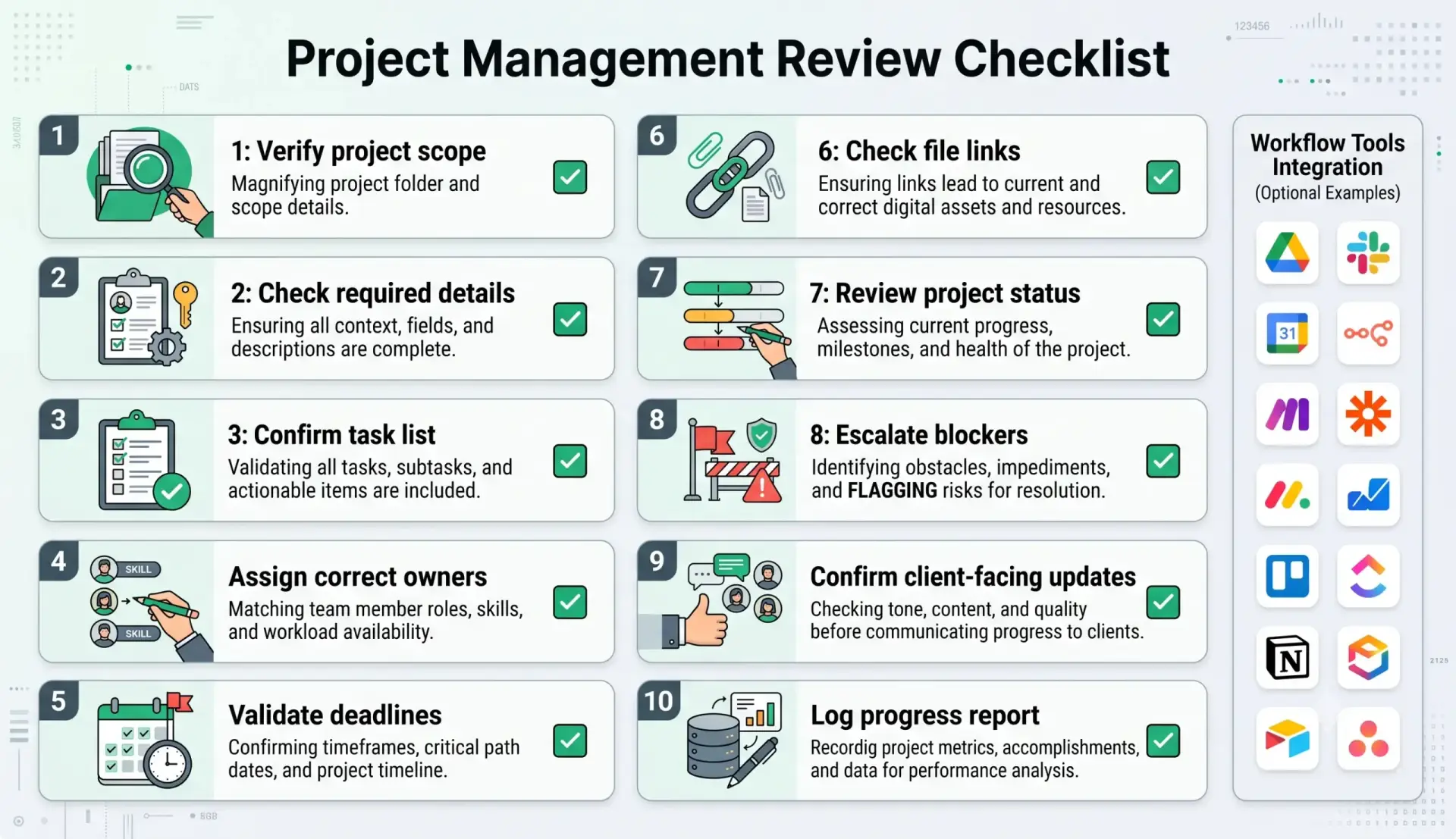
Project management automation should reduce repetitive coordination, but it should not remove judgment from important project decisions. A project management automation template should keep human review for scope, deadlines, blockers, client updates, approvals, and budget-sensitive changes.
Human review is especially important when a project has unclear scope, missing files, unrealistic deadlines, client-facing updates, overdue milestones, sensitive deliverables, budget impact, or changes that affect delivery promises.
| Review area | What to check | Recommended rule |
|---|---|---|
| Project scope | The project has clear deliverables, exclusions, and success criteria. | Review vague or changing scope. |
| Required details | The project has owner, deadline, priority, files, and context. | Hold incomplete projects. |
| Task list | Tasks match the real project scope. | Review AI-generated task lists before assigning work. |
| Owner assignment | Each important task has the right person responsible. | Review cross-functional or overloaded assignments. |
| Deadlines | Dates are realistic and match dependencies. | Review unrealistic timelines. |
| File links | Required documents, folders, assets, and notes are attached. | Review missing or restricted files. |
| Blockers | Blocked status has a reason, owner, and next action. | Escalate blockers quickly. |
| Client-facing update | The message is accurate, clear, and safe to send. | Review before sending to clients. |
| Progress report | The report reflects real work, risks, and next steps. | Review important reports before sharing externally. |
Testing Checklist
Test this project management automation template before using it across real client projects. Use simple requests, missing scope, overdue tasks, blocked tasks, file gaps, owner conflicts, scope changes, and client-facing update scenarios.
| Test case | What to verify |
|---|---|
| Complete project request | The workflow creates project, tasks, owners, deadlines, and file links correctly. |
| Missing scope | The workflow creates a clarification task instead of generating unreliable tasks. |
| Missing owner | The workflow routes the project to review before work begins. |
| Overdue task | The workflow sends reminder and escalates if delivery is affected. |
| Blocked task | The workflow logs blocker reason, owner, and next action. |
| Missing file | The workflow requests the missing file or pauses the dependent task. |
| Scope change | The workflow creates a review task before changing deadline or deliverables. |
| Client-facing update | The workflow drafts update but requires review before sending. |
Tools You Can Use
This project management automation template is platform-neutral. You can build it with different tools depending on where project requests enter, where tasks live, where files are stored, and where updates are sent.
| Tool type | Best use | Example options |
|---|---|---|
| Project management tool | Stores tasks, owners, due dates, dependencies, milestones, and status. | Asana, Trello, ClickUp, monday.com, Notion, Airtable. |
| Project intake | Collects project requests, briefs, requirements, files, and approvals. | Forms, CRM stages, email inbox, client onboarding workflow, meeting notes. |
| File storage | Stores briefs, assets, contracts, notes, project files, and references. | Google Drive, Dropbox, OneDrive, Notion, project folders. |
| Workflow builder | Connects intake, task creation, notifications, reminders, updates, and reporting. | n8n, Make, Zapier, or similar automation platforms. |
| Communication channel | Sends internal updates, reminders, review requests, and blocker alerts. | Slack, Microsoft Teams, Gmail, Outlook, project comments. |
| AI model | Summarizes project requests, generates task lists, identifies blockers, and drafts reports. | OpenAI, Gemini, or another text-capable model. |
| Reporting layer | Tracks completed tasks, blockers, project status, owner workload, and progress trends. | Google Sheets, Airtable, Looker Studio, Notion, weekly AI reports. |
If you are still choosing your automation platform, read Best AI Automation Tools for Small Business. For direct comparisons, review n8n vs Zapier, n8n vs Make for AI automation, and Make vs Zapier.
Common Mistakes
Project management automation can create confusion if it generates too many tasks, assigns work without context, or sends updates before review. The safest approach is to automate repeatable coordination while keeping humans responsible for project decisions.
| Mistake | Why it hurts | Better approach |
|---|---|---|
| Generating tasks from vague scope | The project board looks full but does not match real work. | Require clear scope before task generation. |
| Assigning tasks without owners | No one knows who is responsible. | Every important task should have one owner. |
| No deadline logic | Tasks exist but project timing is unclear. | Add due dates, milestones, and reminders. |
| No blocker escalation | Projects get delayed silently. | Escalate blockers, overdue tasks, and missing inputs. |
| No file context | Task owners waste time searching for information. | Attach briefs, files, folders, and notes automatically. |
| Auto-sending client updates | Incorrect or incomplete updates may damage trust. | Draft client updates, then require human review. |
Simple Implementation Plan
- Choose one project type. Start with client onboarding, website delivery, content production, service delivery, or internal operations.
- Create a project intake form. Collect project name, requester, scope, deadline, files, owner, and priority.
- Define readiness rules. Decide which missing details should pause project setup.
- Create task templates. Build standard tasks and subtasks for each project type.
- Add owner assignment rules. Assign work by role, department, client, project type, or workload.
- Add deadline logic. Create milestones, due dates, reminders, and review deadlines.
- Link files and context. Attach folders, briefs, contracts, notes, and source documents.
- Add status update rules. Notify owners when tasks change, become overdue, or need review.
- Add blocker escalation. Escalate missing inputs, blocked tasks, scope changes, and deadline risks.
- Test before expansion. Use complete, incomplete, blocked, overdue, and client-facing project examples.
Final Recommendation
Start with a project management automation template that handles one repeatable project type well: intake, scope check, task creation, owner assignment, deadlines, file links, reminders, blockers, and progress reporting. Do not try to automate every project type at once.
Once the workflow is stable, connect it to client onboarding automation, meeting notes automation, content operations automation, admin and back-office automation, and weekly AI reporting automation.
The best project management automation template does not replace project leadership. It removes repetitive coordination so humans can focus on scope, priorities, delivery quality, blockers, and client trust.
FAQ
What is a project management automation template?
A project management automation template is a repeatable workflow that receives project requests, checks required details, creates tasks, assigns owners, sets deadlines, links files, sends reminders, escalates blockers, and logs progress reports.
Can project management be automated for small businesses?
Yes. Small businesses can automate project intake, task creation, owner assignment, reminders, status updates, blocker alerts, file linking, and progress reporting while keeping human review for project decisions.
What should a project management automation template include?
It should include project intake, scope check, task template, owner assignment, milestone creation, deadline reminders, file links, status updates, risk escalation, reporting, and human review rules.
Should AI create project tasks automatically?
AI can help generate draft task lists from a clear project scope, but those tasks should be reviewed before assignment when the project is client-facing, high-value, unclear, or deadline-sensitive.
Which tools can I use for project management automation?
You can use tools such as Asana, Trello, ClickUp, monday.com, Notion, Airtable, Google Drive, Google Sheets, Slack, n8n, Make, Zapier, and AI models such as OpenAI or Gemini depending on your workflow.
How do I prevent project automation from creating messy task boards?
Require clear scope, project type, owner, deadline, file links, and review rules before task generation. Start with one repeatable project type and test the workflow before expanding.